All Images
Introduction to Data Processing
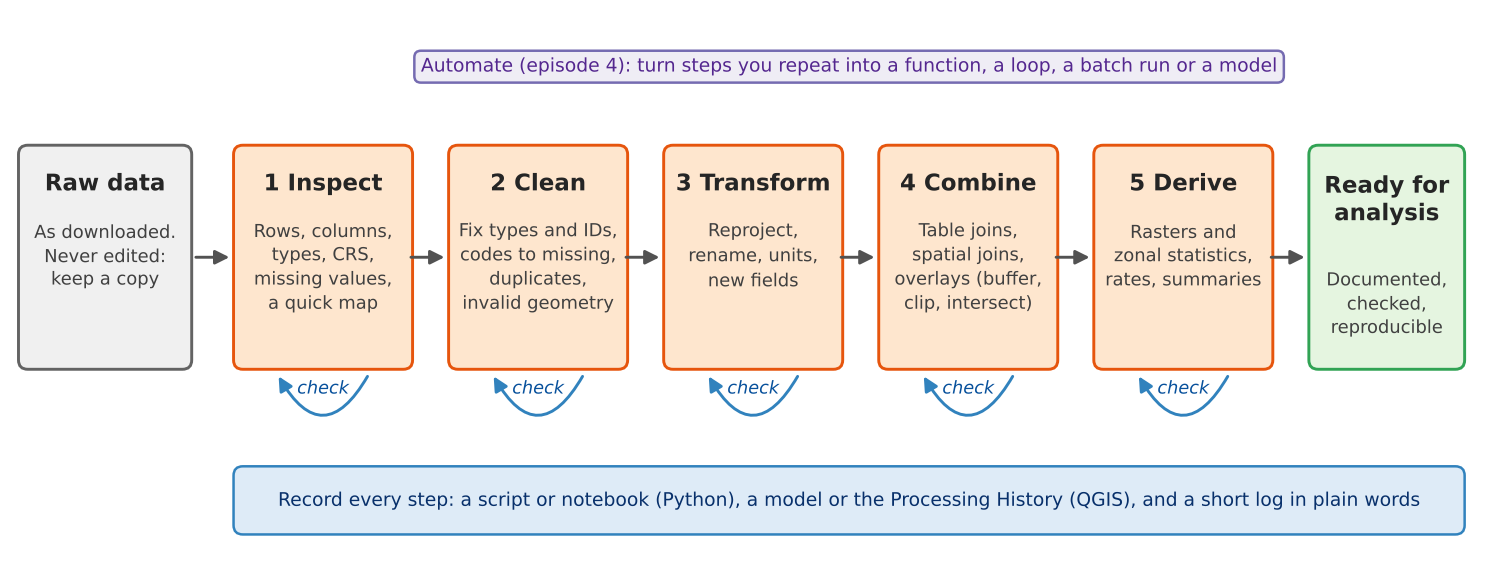
Figure 1
Image 1 of 1: ‘Flow diagram. A gray box, raw data, as downloaded, never edited, keep a copy, leads to five orange boxes in a row: 1 Inspect (rows, columns, types, CRS, missing values, a quick map), 2 Clean (fix types and IDs, codes to missing, duplicates, invalid geometry), 3 Transform (reproject, rename, units, new fields), 4 Combine (table joins, spatial joins, overlays such as buffer, clip and intersect) and 5 Derive (rasters and zonal statistics, rates, summaries). Each orange box has a small blue looping arrow labeled check. The last arrow leads to a green box, ready for analysis: documented, checked, reproducible. Above the row, a purple note says: Automate (episode 4), turn steps you repeat into a function, a loop, a batch run or a model. Below the row, a blue bar says: record every step, a script or notebook (Python), a model or the Processing History (QGIS), and a short log in plain words.’
Cleaning and Preparing Data in Python
Cleaning and Preparing Data in QGIS
Figure 1
Image 1 of 1: ‘Screenshot of the QGIS attribute table of acs_2024_tippecanoe_tracts_raw with columns NAME, B01003_001E, B01003_001M, B19013_001E, B19013_001M, B25064_001E, B25064_001M, B08201_001E, B08201_001M, B08201_002E, B08201_002M and state. The table is sorted by B19013_001E, and the order is that of text, not numbers: 103229, 104491, 109531, 110743, 121357, 12644, 14490, 14890, 21262, 35938, 39853, 42781 and so on. In the first row, B25064_001E reads -666666666 and B25064_001M reads -222222222.’
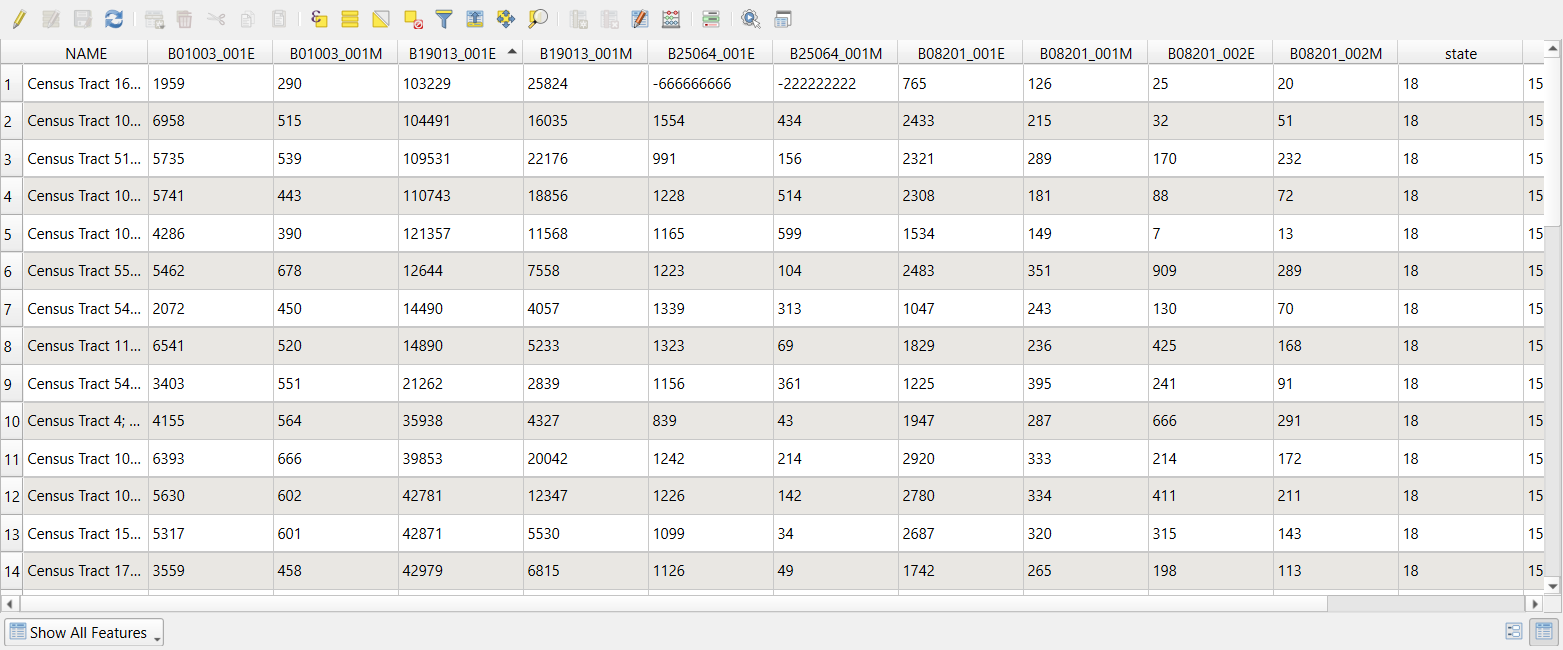
Figure 2
Image 1 of 1: ‘Screenshot of the QGIS Refactor fields tool. Input layer is acs_2024_tippecanoe_tracts_raw. The Fields mapping table has eight rows with columns Source Expression, Name, Type, Length and Precision: concat of state, county and tract as GEOID, Text (string), length 11; left of NAME up to the semicolon as name, Text (string), length 40; to_int of B01003_001E as pop, Integer (32 bit); an if expression on B19013_001E as median_income and on B19013_001M as median_income_moe, both Integer (32 bit); and to_int of B08201_001E, B08201_002E and B08201_002M as households, hh_no_vehicle and hh_no_vehicle_moe, all Integer (32 bit). The output, Refactored, is a temporary layer.’
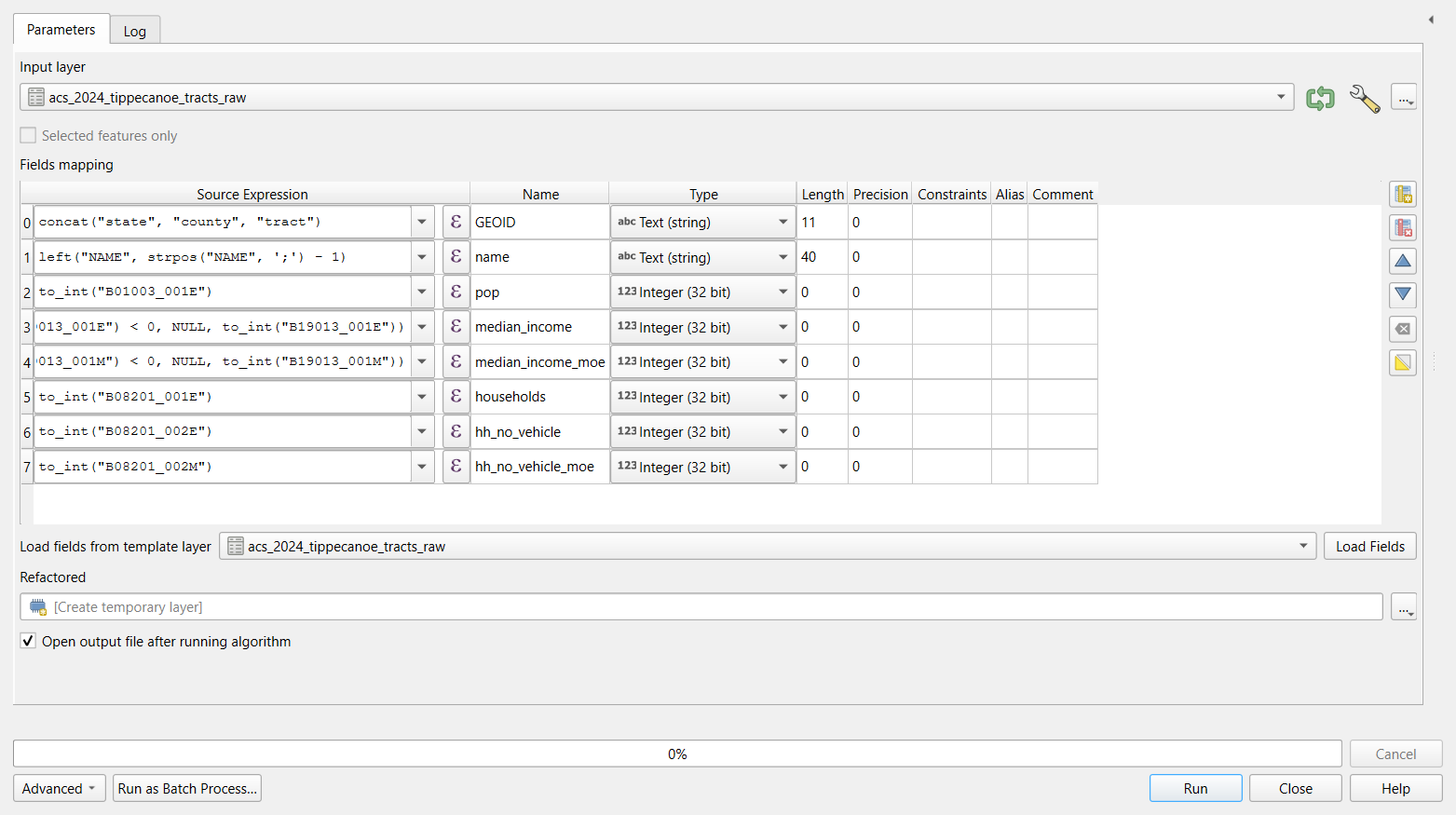
Figure 3
Image 1 of 1: ‘Screenshot of the QGIS Create points layer from table tool. Input layer is ipeds_hd2023_indiana_raw, X field is LONGITUD and Y field is LATITUDE (both text fields), Z and M fields are empty, Target CRS is EPSG:4326 - WGS 84, and the output is a temporary layer. The help panel says the coordinates in the table are assumed to be expressed in the units of the CRS.’
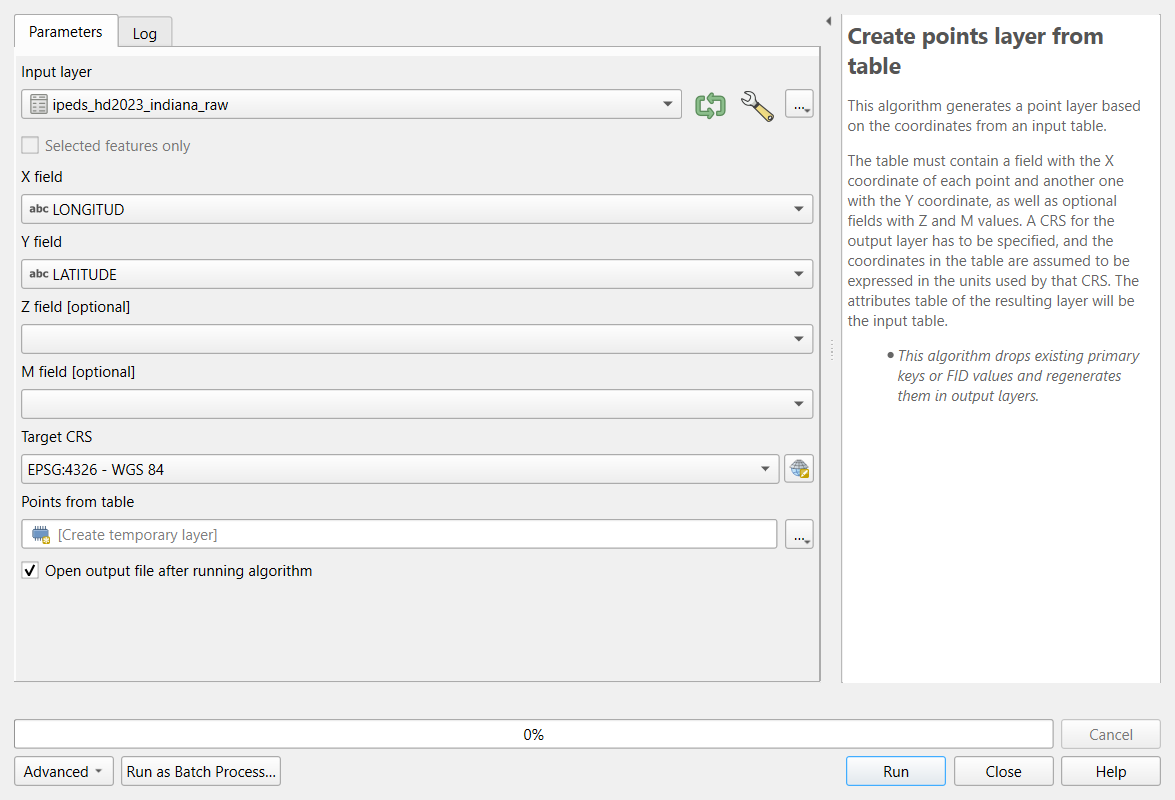
Figure 4
Image 1 of 1: ‘Screenshot of the QGIS Check validity tool in dark mode. Input layer is osm_parks_tippecanoe_raw in EPSG:4326, Method is GEOS, Ignore ring self intersections is unchecked, and Valid output, Invalid output and Error output are temporary layers. The help panel explains that geometries are classified as valid, invalid or error, and that the GEOS method returns only the first error in a geometry while the QGIS method reports all of them.’
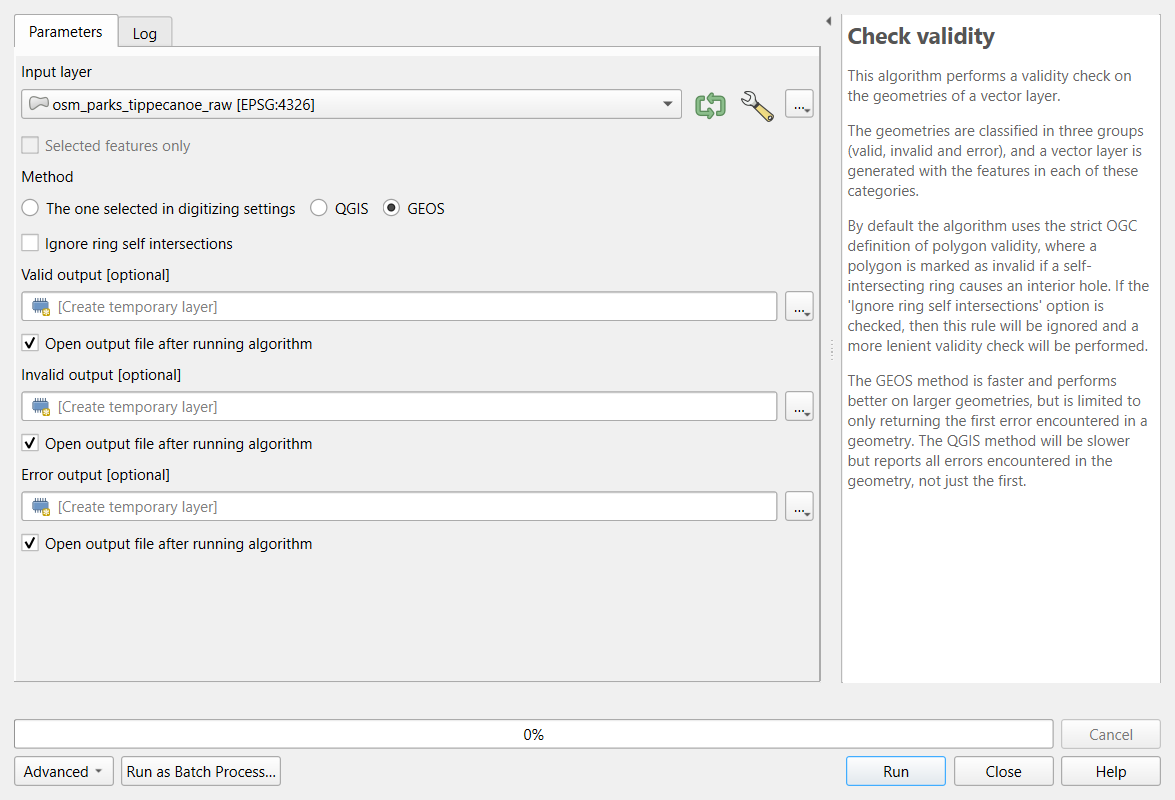
Geoprocessing in Python
Figure 1
Image 1 of 1: ‘Six small diagrams. Inputs: three store points, four square tracts drawn with gray lines and a city boundary outline. 1. Buffer: an orange circle around each point; the circles overlap. 2. Dissolve: the circles merged into one orange shape with no inner lines. 3. Clip: the four tracts cut to the city outline, shaded blue. 4. Intersect: only the parts of the clipped tracts that fall inside the merged circles, shaded orange, still split along tract lines. 5. Difference: the parts of the clipped tracts outside the circles, shaded blue.’
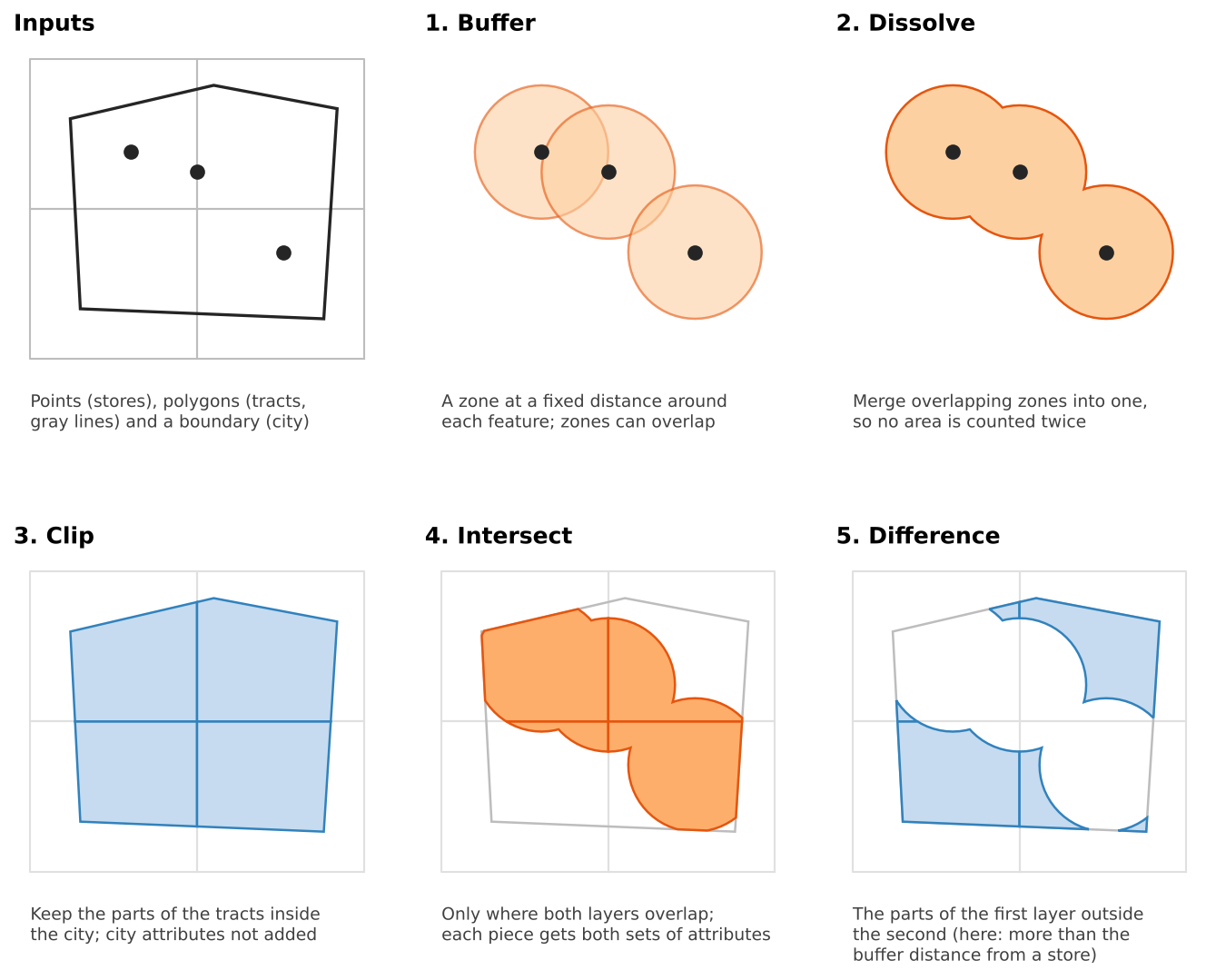
Geoprocessing in QGIS
Figure 1
Image 1 of 1: ‘Six small diagrams. Inputs: three store points, four square tracts drawn with gray lines and a city boundary outline. 1. Buffer: an orange circle around each point; the circles overlap. 2. Dissolve: the circles merged into one orange shape with no inner lines. 3. Clip: the four tracts cut to the city outline, shaded blue. 4. Intersect: only the parts of the clipped tracts that fall inside the merged circles, shaded orange, still split along tract lines. 5. Difference: the parts of the clipped tracts outside the circles, shaded blue.’
Figure 2
Image 1 of 1: ‘Screenshot of the QGIS Buffer tool with the grocery_stores layer in EPSG:4326 as input. The distance box reads 1609 and the unit next to it says degrees, followed by a yellow triangle warning icon. Its tooltip reads: Distance is in geographic degrees. Consider reprojecting to a projected local coordinate system for accurate results.’
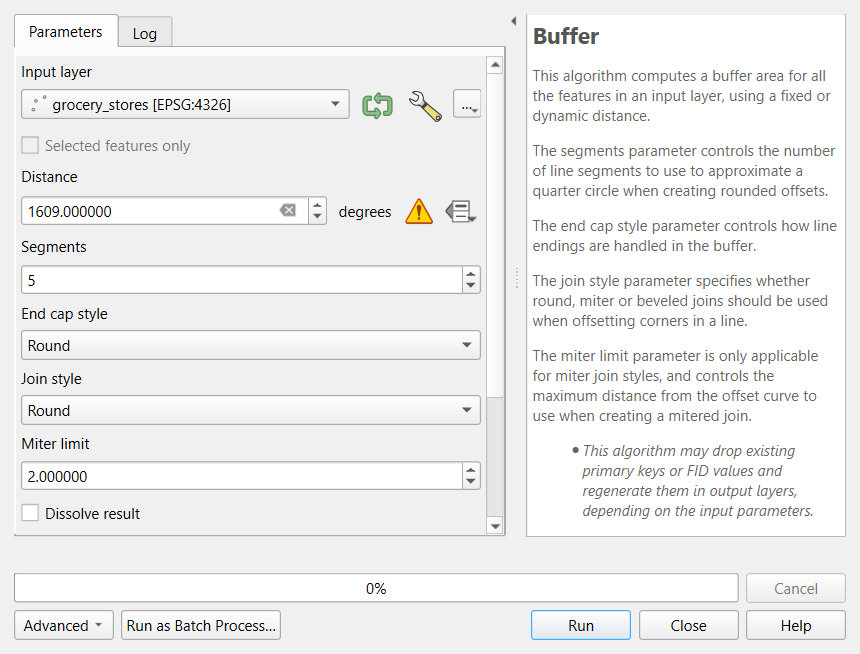
Figure 3
Image 1 of 1: ‘Screenshot of the QGIS Buffer tool. Input layer is supermarkets in EPSG:26916, Distance is 1609 meters, Segments is 16, End cap style and Join style are Round, Miter limit is 2, and Dissolve result is unchecked. The help panel on the right explains the segments, end cap and join style parameters.’
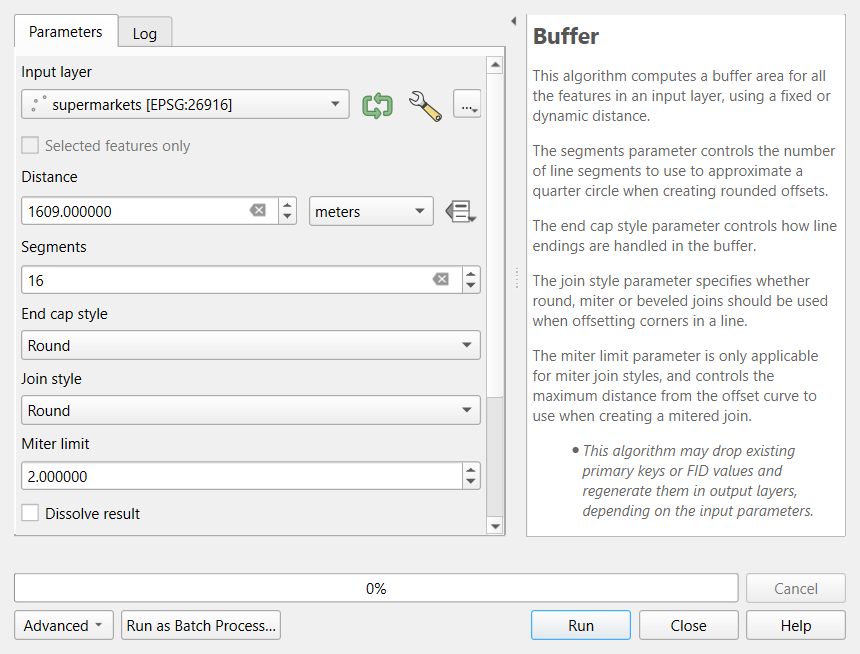
Figure 4
Image 1 of 1: ‘Screenshot of the QGIS Select by Location tool. Select features from is tracts_utm, the geometric predicate intersect is ticked and the others (contain, disjoint, equal, touch, overlap, are within, cross) are not, By comparing to the features from is zone, and Modify current selection by is creating new selection.’
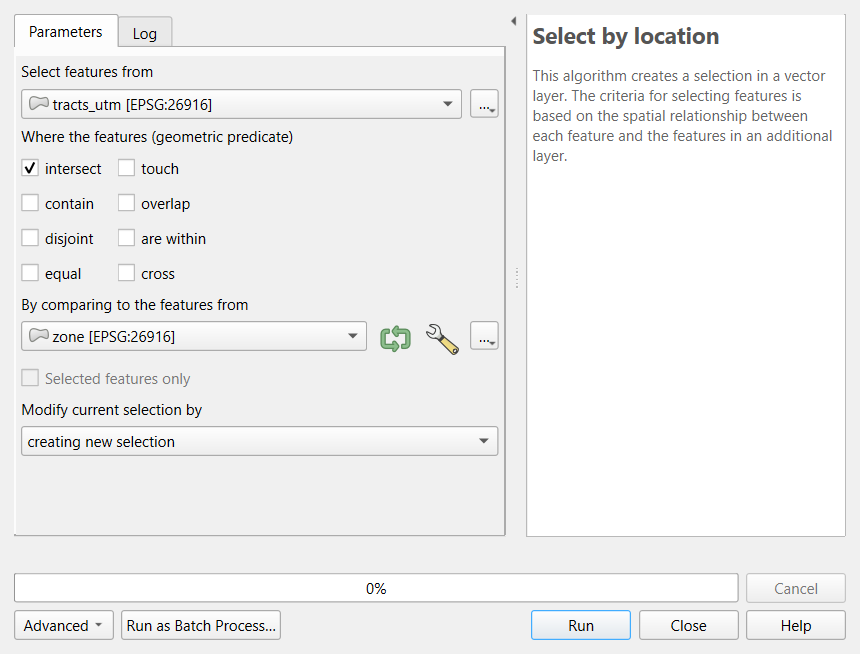
Figure 5
Image 1 of 1: ‘Screenshot of the QGIS Field Calculator for the tracts_city layer. Create a new field is checked, Output field name is pop_in_city, Output field type is Decimal Number (real) with length 10 and precision 3. The expression box contains area($geometry) divided by tract_m2 times total_pop, and the preview for Census Tract 1 reads 2593.56. A note at the bottom says edit mode will be turned on automatically when OK is clicked.’
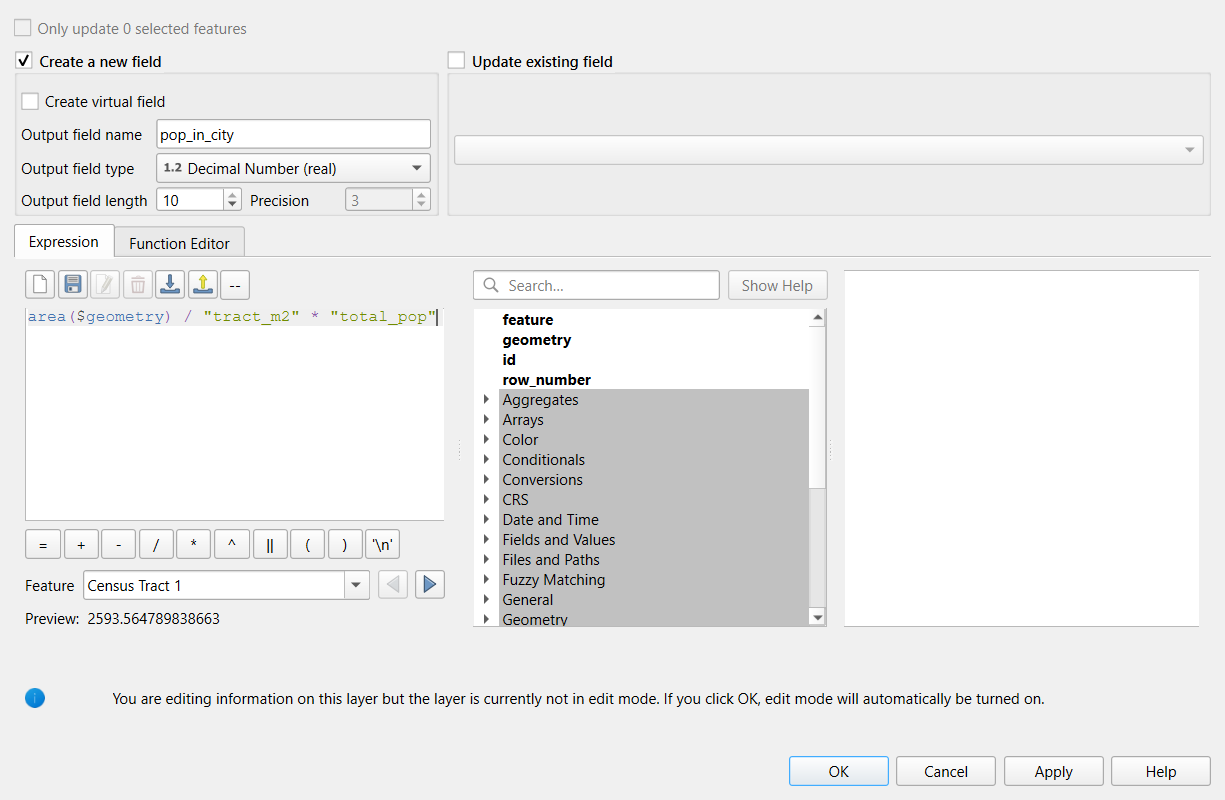
Figure 6
Image 1 of 1: ‘Map of Lafayette and West Lafayette titled within 1 mile of a supermarket. The city area is split along census tract lines into orange pieces within 1 mile of one of 17 supermarkets (black dots) and light blue pieces farther away. Most of the central and eastern city is orange; the light blue areas are along the northern, western and southeastern edges of the city and in a band along the river.’
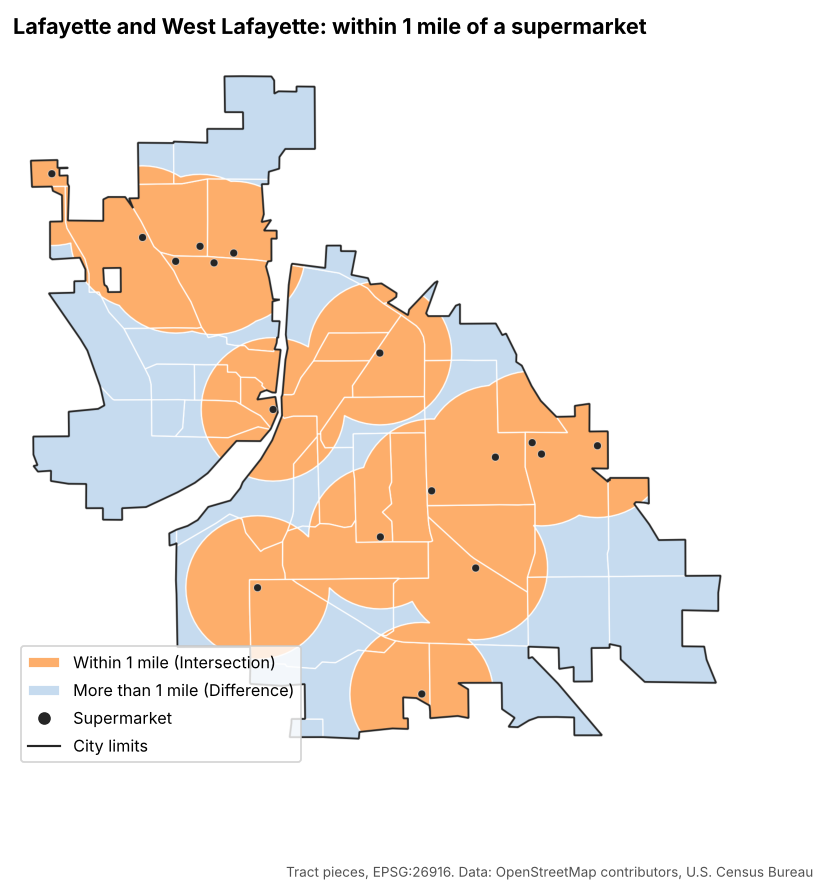
Figure 7
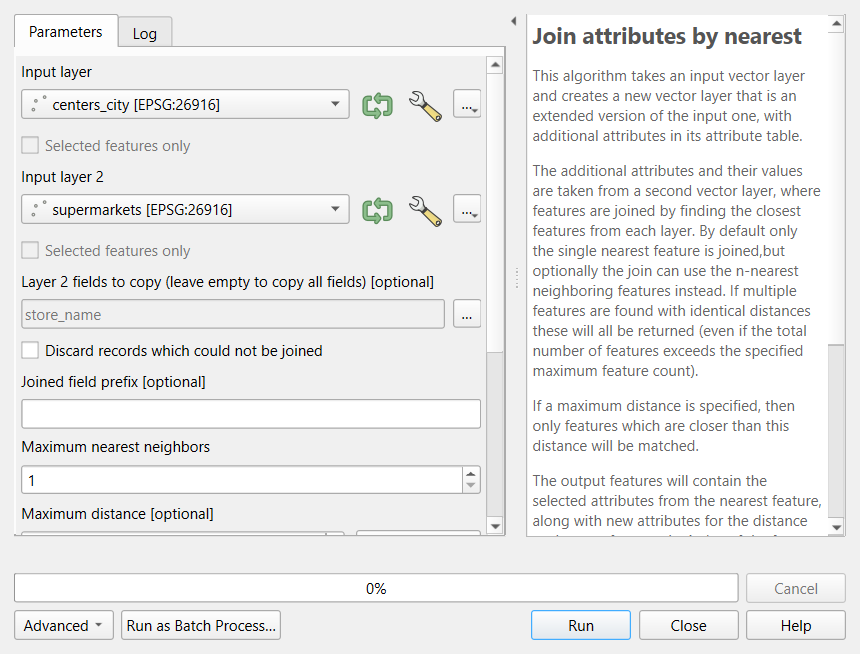
Image 1 of 1: ‘Screenshot of the QGIS Join attributes by nearest tool. Input layer is centers_city, Input layer 2 is supermarkets, Layer 2 fields to copy is store_name, Discard records which could not be joined is unchecked, Joined field prefix is empty and Maximum nearest neighbors is 1. The help panel explains that attributes are taken from the closest feature in the second layer.’
Raster Processing in Python
Figure 1
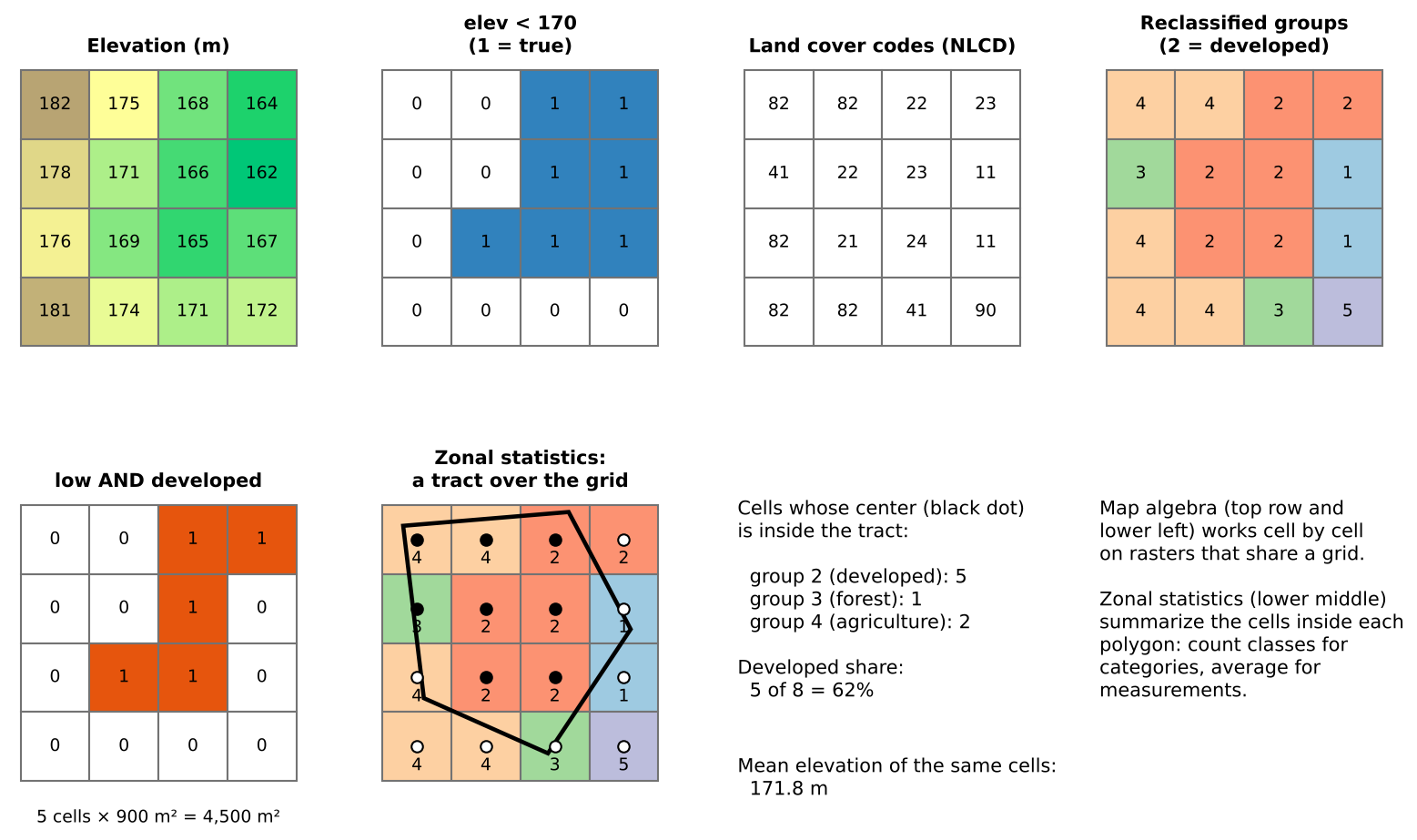
Image 1 of 1: ‘Diagram of eight panels. Top row: a 4 by 4 grid of elevations from 162 to 182 meters; the same grid after the comparison elevation less than 170, showing 1 in seven cells on the lower, right side and 0 elsewhere; a grid of NLCD land cover codes such as 82, 22, 23, 11, 41 and 90; and the same grid reclassified into groups 1 to 5, with group 2 (developed) in red. Bottom row: the cells that are both low and developed, five cells marked 1, with the note 5 cells times 900 square meters equals 4,500 square meters; the reclassified grid with a tract polygon drawn over it and a dot at the center of each cell, black where the center falls inside the polygon; a summary saying that of 8 cells whose centers are inside, 5 are developed, 1 forest and 2 agriculture, a developed share of 62 percent, and that the mean elevation of the same cells is 171.8 meters; and a short note that map algebra works cell by cell on rasters that share a grid while zonal statistics summarize the cells inside each polygon.’
Raster Processing in QGIS
Figure 1
Image 1 of 1: ‘Diagram of eight panels. Top row: a 4 by 4 grid of elevations from 162 to 182 meters; the same grid after the comparison elevation less than 170, showing 1 in seven cells on the lower, right side and 0 elsewhere; a grid of NLCD land cover codes such as 82, 22, 23, 11, 41 and 90; and the same grid reclassified into groups 1 to 5, with group 2 (developed) in red. Bottom row: the cells that are both low and developed, five cells marked 1, with the note 5 cells times 900 square meters equals 4,500 square meters; the reclassified grid with a tract polygon drawn over it and a dot at the center of each cell, black where the center falls inside the polygon; a summary saying that of 8 cells whose centers are inside, 5 are developed, 1 forest and 2 agriculture, a developed share of 62 percent, and that the mean elevation of the same cells is 171.8 meters; and a short note that map algebra works cell by cell on rasters that share a grid while zonal statistics summarize the cells inside each polygon.’
Figure 2
Image 1 of 1: ‘Screenshot of the QGIS Raster Calculator. The Raster Bands list shows tippecanoe_dem@1 and tippecanoe_landcover_2021@1 (and a landcover_groups@1 layer from a later step). The Result Layer section has an empty Output layer box with a browse button, Output format GeoTIFF, and the extent of the layer. Operator buttons include plus, minus, less than, AND, OR, IF, min, max and math functions. The expression box reads tippecanoe_dem@1 in double quotes, less than 170, and the message below says Expression valid.’
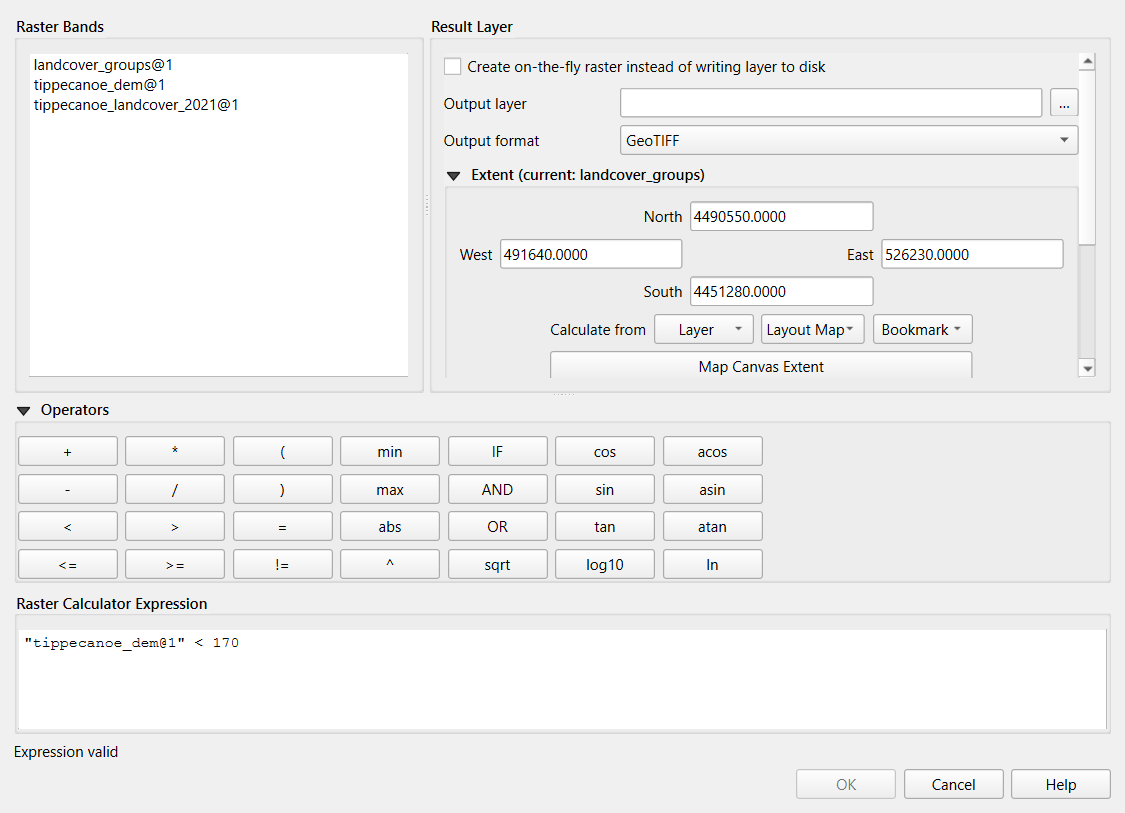
Figure 3
Image 1 of 1: ‘Screenshot of the QGIS Reclassify by table tool showing the Reclassification table panel. Eight rows list Minimum, Maximum and Value: 11, 12, 1; 21, 24, 2; 31, 31, 3; 41, 43, 3; 52, 52, 3; 71, 71, 3; 81, 82, 4; 90, 95, 5. Buttons on the right are Add Row, Remove Row(s), Remove All, OK and Cancel.’
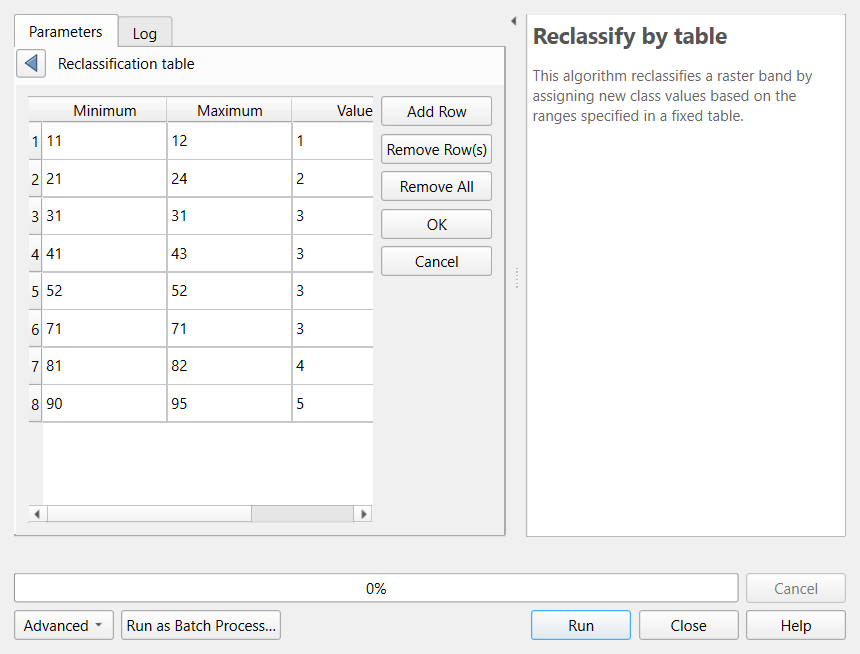
Figure 4
Image 1 of 1: ‘Screenshot of the QGIS Zonal histogram tool. Raster layer is landcover_groups in EPSG:26916, Band number is Band 1, Vector layer containing zones is tracts_utm in EPSG:26916, Output column prefix is HISTO_, and the output is a temporary layer. The help panel says the algorithm appends fields with counts of each unique value from a raster layer within zones defined as polygons.’
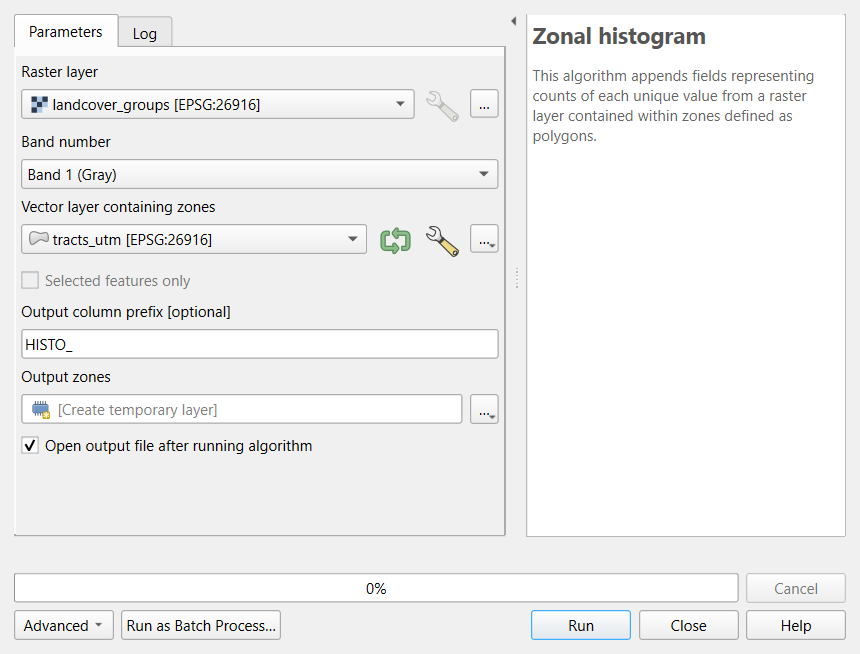
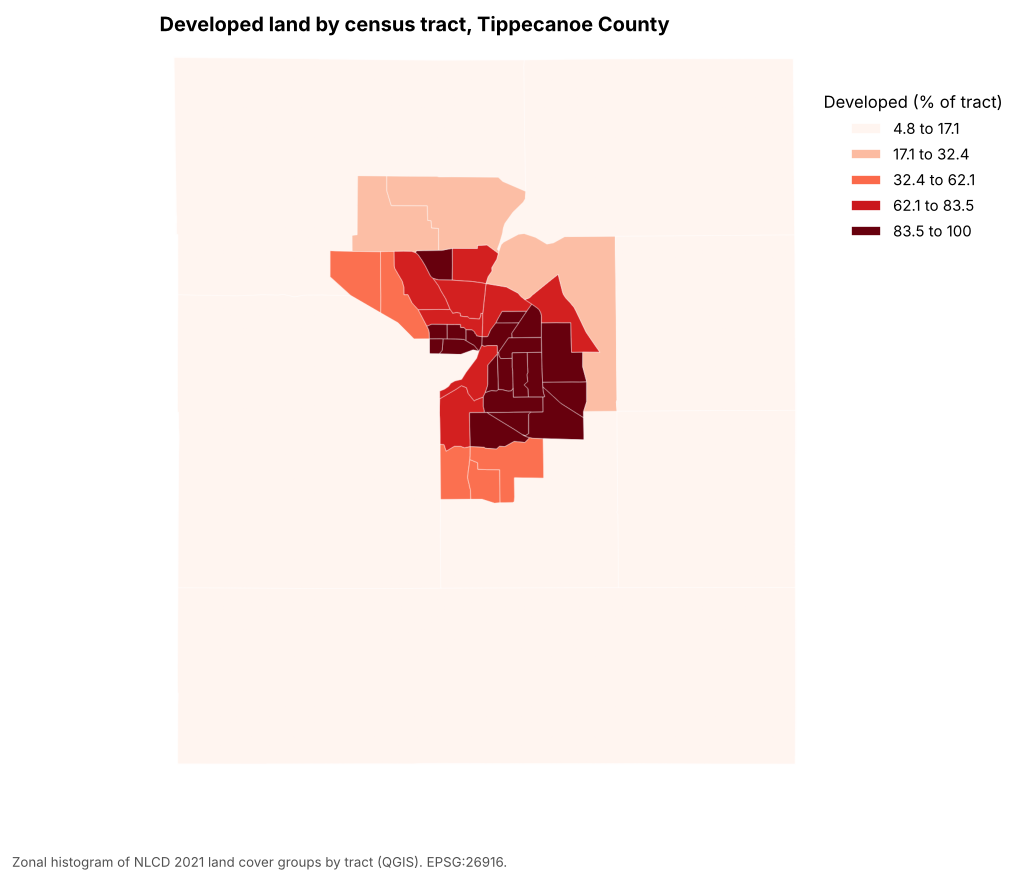
Figure 5
Image 1 of 1: ‘Choropleth map of Tippecanoe County census tracts titled Developed land by census tract. Five classes in shades of red from 4.8 to 17.1 percent (palest) to 83.5 to 100 percent (darkest). The large rural tracts that fill most of the county are palest; the tracts of Lafayette and West Lafayette in the center are darkest, and a ring of tracts around them is in the middle classes.’
Automating Repeated Steps in Python
Automating Repeated Steps in QGIS
Figure 1
Image 1 of 1: ‘Screenshot of the QGIS Model Designer with the Population within distance model, group SpatialTurn. Five yellow input boxes across the top: Facilities (points or polygons), Distance (meters), Tracts with a population field, Population field (linked to the tracts by a dashed line) and Boundary. Below them, white algorithm boxes connected by curved lines: Reproject facilities leads, together with Distance, to Buffer and dissolve; Reproject tracts leads to Store tract area; Store tract area and Reproject boundary lead to Clip tracts to boundary, then Population in boundary; Population in boundary and Buffer and dissolve lead to Intersect with buffer, then Population near facilities. Two green output boxes are attached: Population in boundary and Population near facilities.’
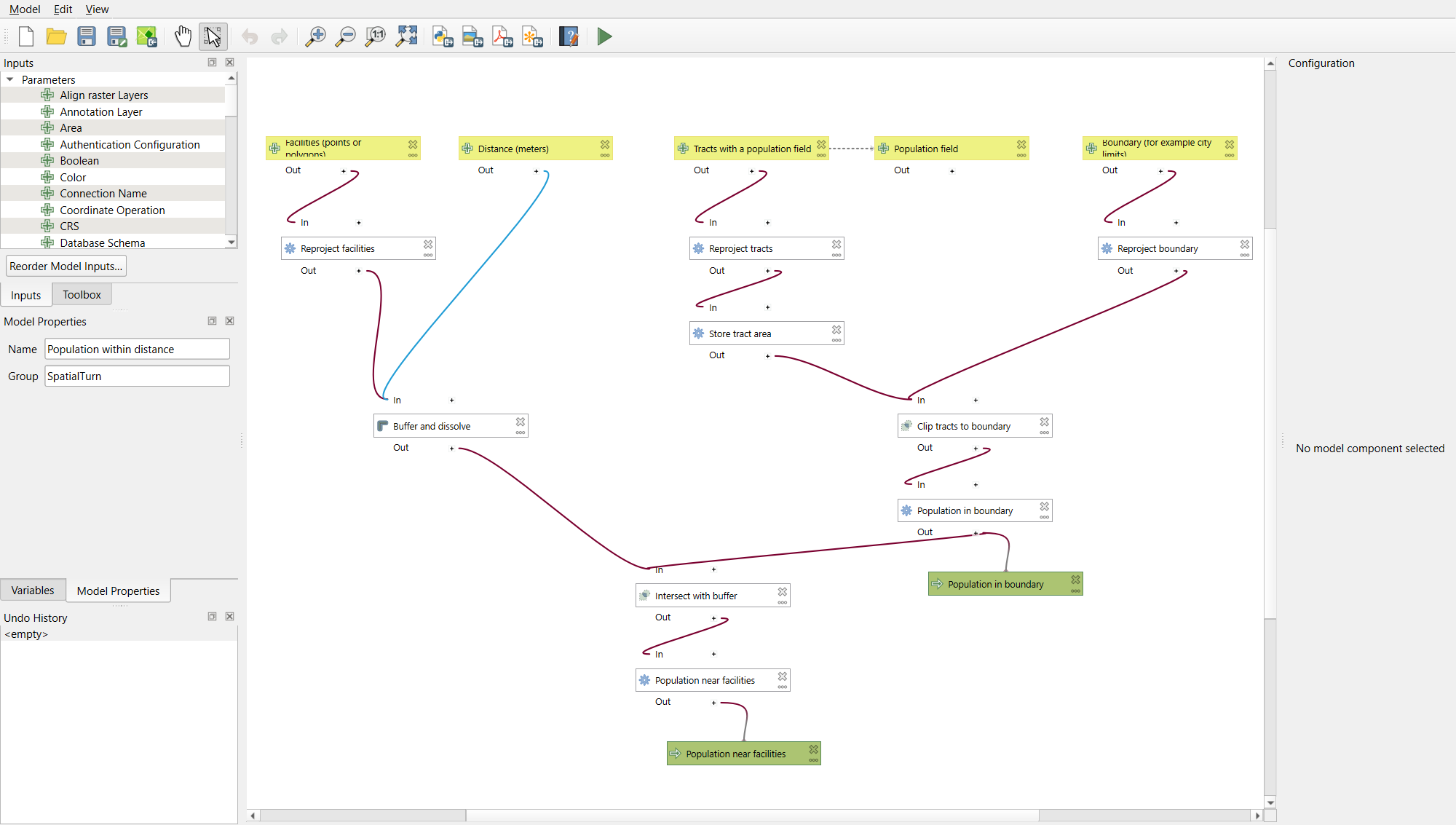
Figure 2
Image 1 of 1: ‘Screenshot of the dialog for the Population within distance model. Facilities (points or polygons) is supermarkets, Distance (meters) is 1609, Tracts with a population field is tippecanoe_tracts_acs, Population field is total_pop, Boundary is study_area, and the outputs Population in boundary and Population near facilities are temporary layers. The help panel on the right describes the model's steps and names SpatialTurn, Purdue University, as its author.’
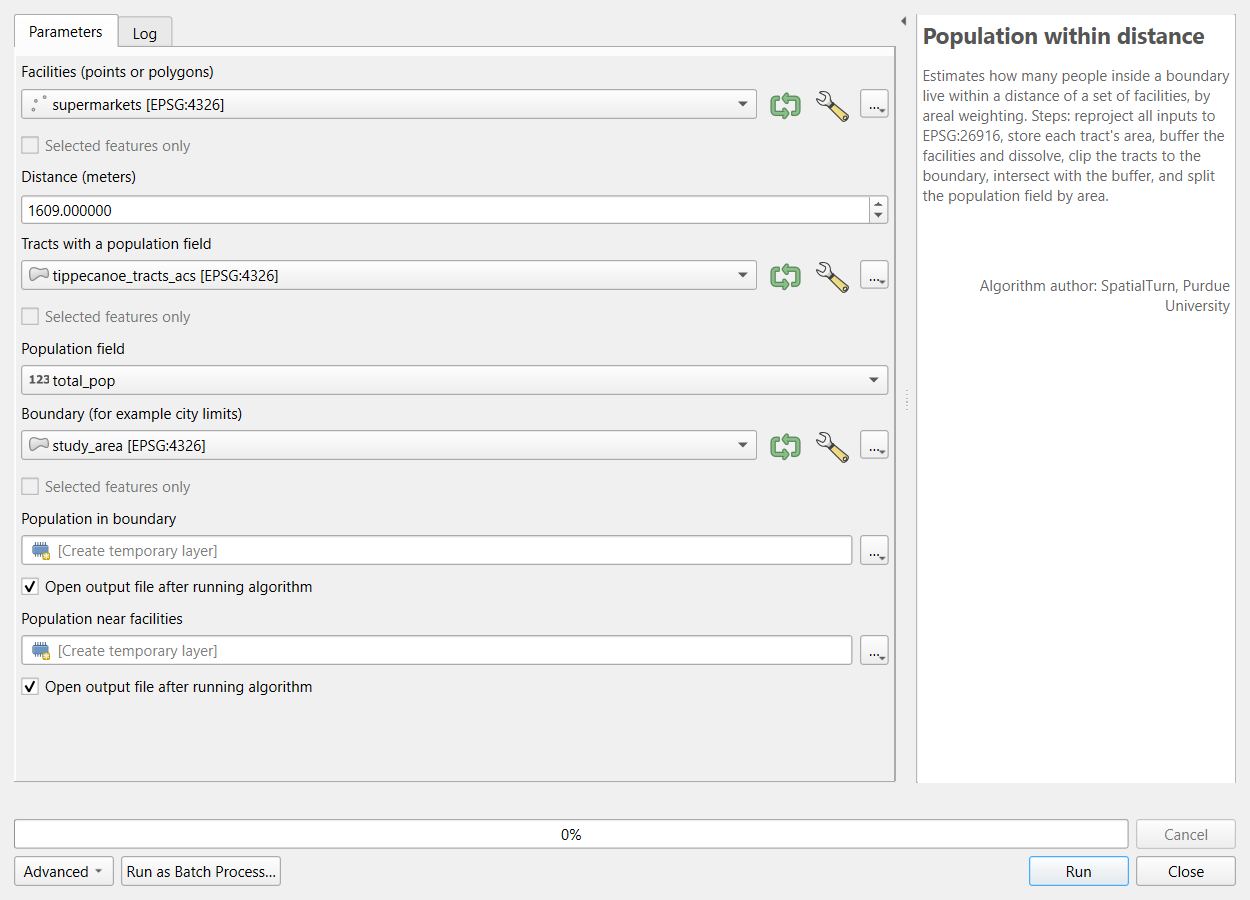
Figure 3
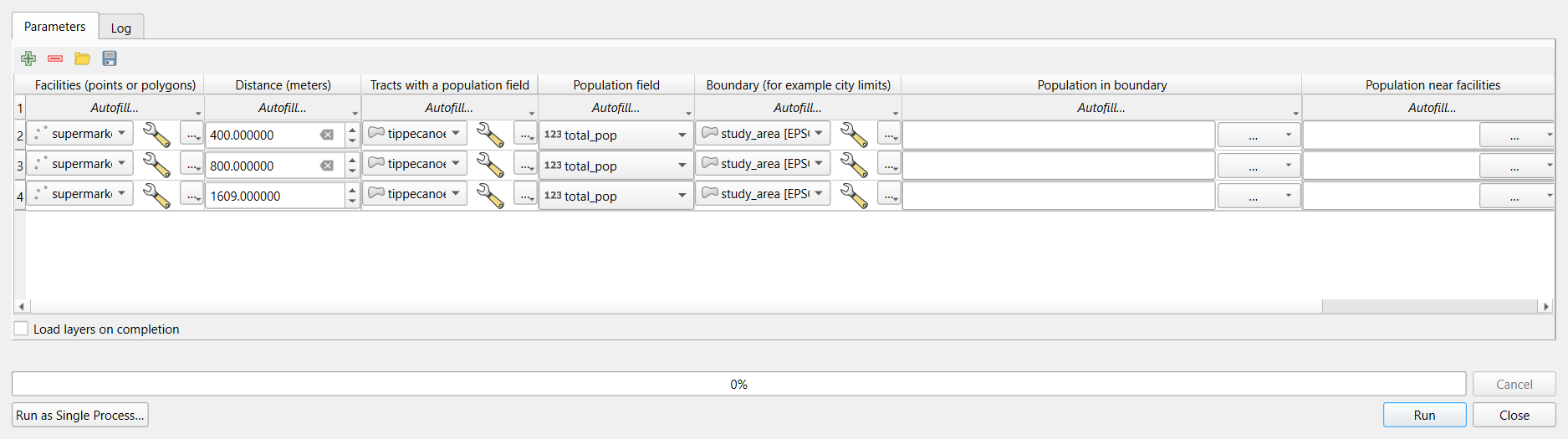
Image 1 of 1: ‘Screenshot of the QGIS batch processing dialog for the model. Three rows, one per run, with columns Facilities (supermarkets), Distance (400, 800 and 1609), Tracts with a population field (tippecanoe_tracts_acs), Population field (total_pop), Boundary (study_area), and two output columns, Population in boundary and Population near facilities, still empty. Each column header has an Autofill menu. A checkbox at the bottom reads Load layers on completion.’