
All in One View
Content from Python Notebook Introduction
Last updated on 2026-05-12 | Edit this page
1. What Is a Python Notebook?
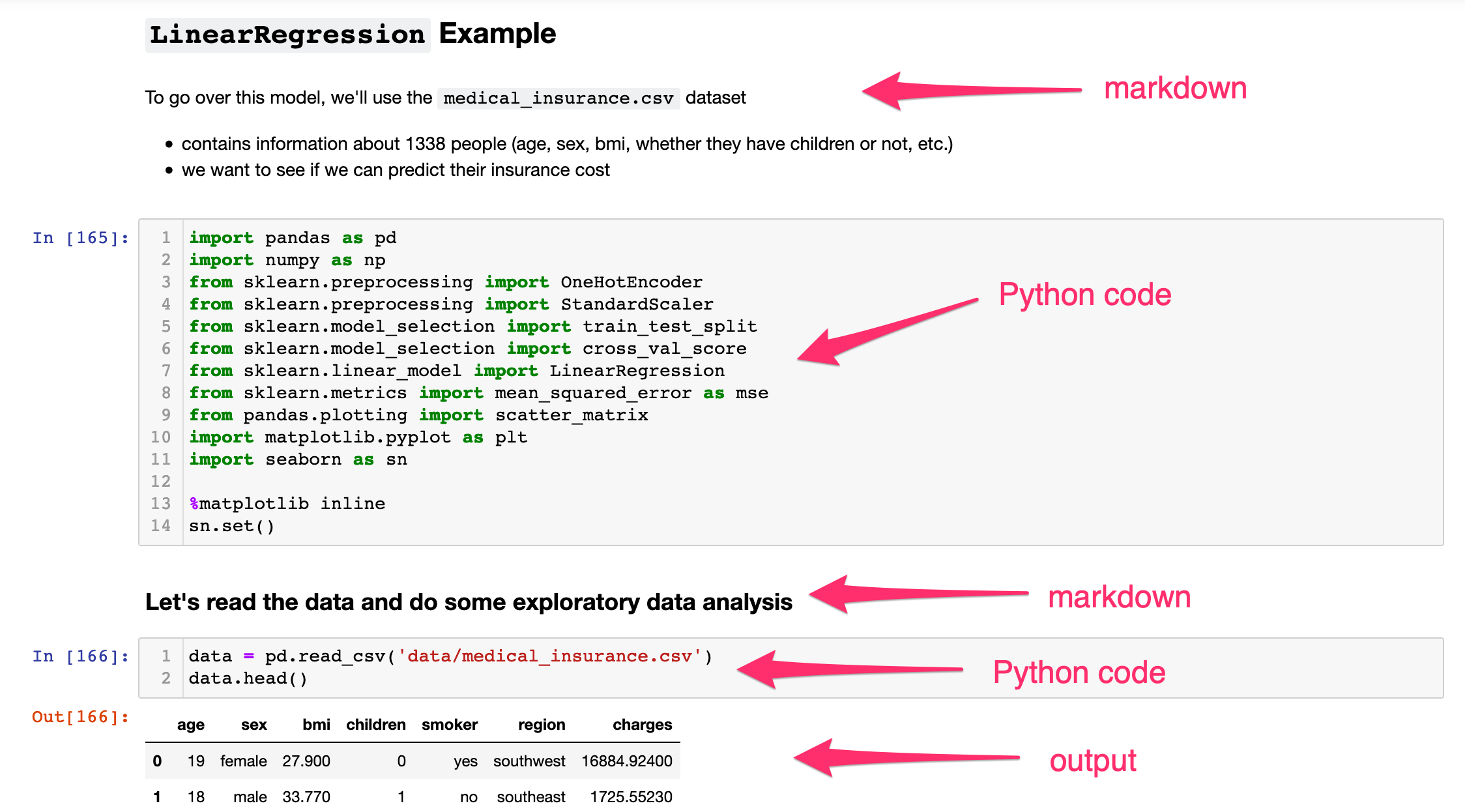
A Notebook is an interactive computing environment that allows you to combine:
- Code (Python)
- Text explanations
- Mathematical equations
- Tables and visualizations
- Results and outputs
All in a single document!
Jupyter Notebooks are especially useful for:
- Data exploration, cleaning, & analysis
- Teaching and learning Python
- Prototyping models
- Sharing reproducible research
Instead of writing a script and running it all at once, you work in small, executable blocks called cells. An example of this would be using the Notebook feature in ArcGIS Pro Desktop.
2. Why Data Scientists Use Python Notebooks ?
Python Notebooks support an iterative workflow:
- Write a few lines of code
- Run them immediately
- Inspect the output
- Modify and rerun as needed
- Move on to next step and repeat!
Key Advantages
- Immediate visualization of data
- Easy experimentation
- Built-in documentation using Markdown
- Reproducible analysis
- Simple sharing with collaborators
An Example: A Plot I made a while Back.
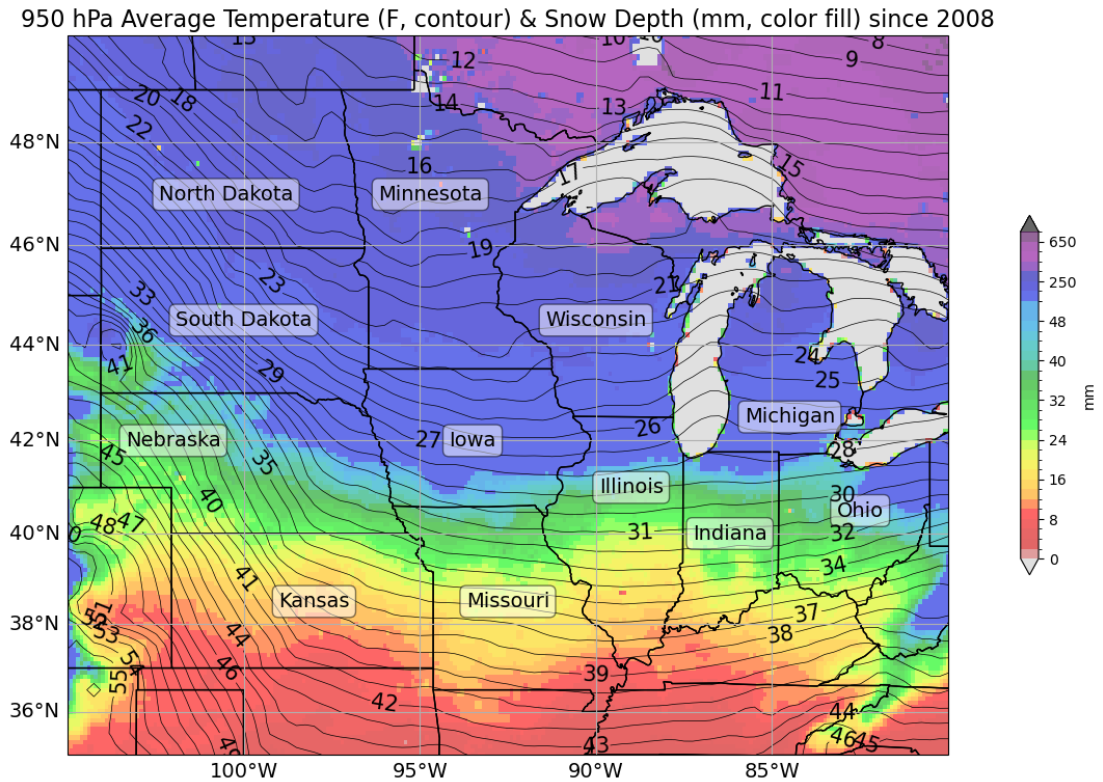
The code I used.
PYTHON
cLon, cLat, lonW, lonE, latS, latN = -92.5, 42.5, -105.0, -80.0, 35.0, 50.0 # coordinate extension
proj_data = ccrs.PlateCarree() # setting projection
proj_map = ccrs.Mercator()

res = '10m' # resolution

fig = plt.figure(figsize=(18,9)) # figure parameters
ax = plt.subplot(1,1,1,projection=proj_map)

totalsum = sum(snow[:51]) # finding snow average
average = totalsum/51 * 1000

totalsum1 = sum([totaltemp[y][0] for y in range(51)]) # total temperature
average1 = (totalsum1/51 - 273.15) * 1.8 + 32 # temperature conversion

bounds = np.concatenate((np.arange(0,52,2), np.arange(50,850,100))) # joining arrays
cmap = mpl.cm.nipy_spectral_r
norm = mpl.colors.BoundaryNorm(bounds, cmap.N, extend='both')

Mesh = ax.pcolormesh(lonstotal, latstotal, average, cmap=cmap, norm=norm, transform=proj_data, alpha=0.6) # choosing color norm
plt.colorbar(Mesh, shrink=.5, extend='both', label='mm')

CL = ax.contour(lontotal,lattotal,average1,levels=np.arange(7,56,1),colors='black', linewidths=0.5, transform=proj_data) # contour temps
plt.clabel(CL,inline=True,fontsize=15)

ax.set_extent([lonW, lonE, latS, latN], crs=proj_data)
ax.add_feature(cfeature.COASTLINE.with_scale(res), edgecolor='black', alpha=0.3)
ax.add_feature(cfeature.STATES.with_scale(res), edgecolor='black', alpha=1)

state_names = ['Illinois', 'Indiana', 'Iowa', 'Kansas', 'Michigan', 'Minnesota', 'Missouri', 'Nebraska', 'North Dakota', 'Ohio', 'South Dakota', 'Wisconsin'] # state names
state_coords = {

......... # a lot more lines of code! 3. Getting Started: Opening a Notebook
You can use Jupyter Notebooks in several ways, one such way is:
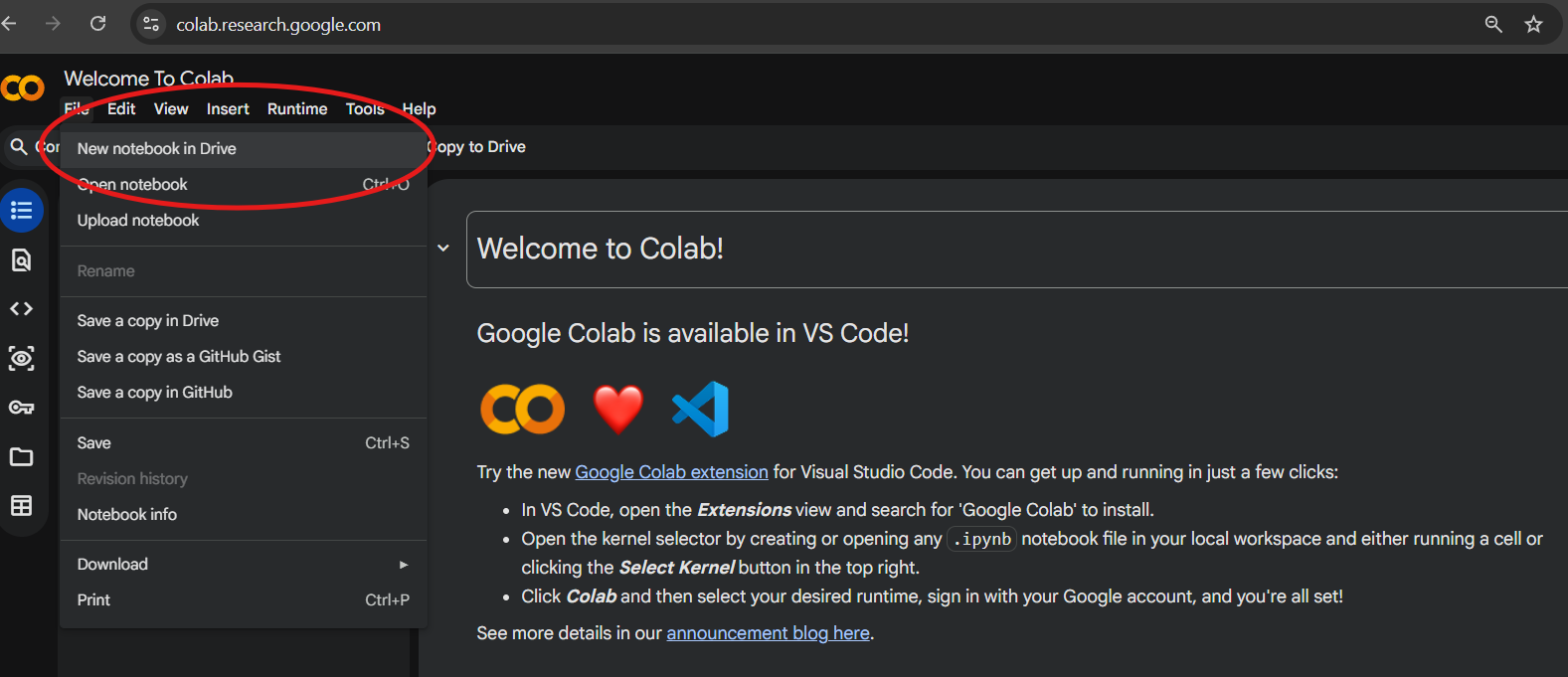
- Google Collab. You would need a google account for this. Then create a new notebook in Drive.
Quick Start in Google Colab (easiest for beginners)
- Go to https://colab.research.google.com
- Click File → New notebook
- You’re ready! No installation needed.
Why Run this online ?
- Ease of Usage and Free
- Colab runs in the cloud → you only need a Google account and internet
- Most Python packages/libraries are pre-installed!
Tip: Display the code line numbers in the notebook.
Tools → Settings→ Editor →
Check Show Line Numbers → Save
Get Started with the Notebook
Work through the interactive Python notebook linked below, which covers everything on this page hands-on inside Google Colab.
New to Python? Start at cell 1. and
work through cell 12. to build up the fundamentals such as
variables, lists, loops, and functions.
Scroll down to find additional reading on python libraries and most commonly used libraries in Data Science.
Already comfortable with the basics? Jump straight
to cell 13 to explore NumPy, pandas, Matplotlib, and
GeoPandas in action.
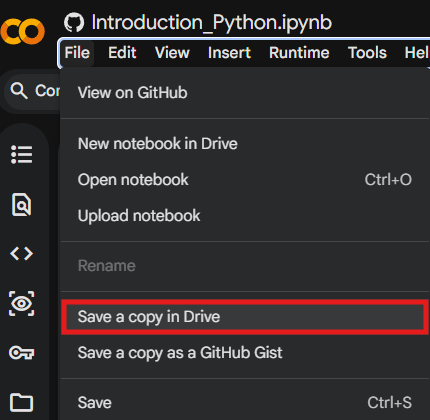
Note: To SAVE your changes made, make sure to Save a copy of the above notebook in your Drive!
Challenge
You are provided with information on 10 U.S. cities, including their geographic coordinates, population, and region. Design and implement an appropriate python data structure to represent the data and visualize it using a map where the population is represented by symbol size.
| City | Latitude | Longitude | Population |
|---|---|---|---|
| New York | 40.7128 | -74.0060 | 8,419,600 |
| Los Angeles | 34.0522 | -118.2437 | 3,980,400 |
| Chicago | 41.8781 | -87.6298 | 2,716,000 |
| Houston | 29.7604 | -95.3698 | 2,328,000 |
| Phoenix | 33.4484 | -112.0740 | 1,690,000 |
| Philadelphia | 39.9526 | -75.1652 | 1,584,200 |
| San Antonio | 29.4241 | -98.4936 | 1,547,200 |
| San Diego | 32.7157 | -117.1611 | 1,423,800 |
| Dallas | 32.7767 | -96.7970 | 1,341,000 |
| San Jose | 37.3382 | -121.8863 | 1,035,500 |
See the Solution to this Problem Here.
4. What is a Python Library?
A Python library is a collection of pre-written code that you can bring into your own project to save time. Instead of writing everything from scratch, you import a library and immediately gain access to powerful tools that others have already built and tested.
You import a library using the import keyword:
The as keyword gives the library a shorter nickname —
these aliases (pd, np, plt) are
standard conventions you will see everywhere in data science code.
Why Libraries Matter ?
Python on its own is a general-purpose language. Its real strength in data science comes from its ecosystem of libraries. A task that might take hundreds of lines of custom code — such as reading a CSV, computing statistics, and drawing a chart — can be done in fewer than ten lines when you use the right libraries.
5. Core Data Science Libraries
NumPy — Numerical Python
NumPy is the foundation of almost every data science library in Python. It introduces the array, a fast and memory-efficient container for numerical data.
PYTHON
import numpy as np

arr = np.array([1, 2, 3, 4, 5])
print(arr.mean())   # 3.0
print(arr.sum())    # 15
print(arr * 2)      # [2, 4, 6, 8, 10]
Best for: fast math on arrays and matrices, random number generation, linear algebra.
pandas — Data Manipulation
pandas is the go-to library for working with tabular data — think spreadsheets or CSV files, but inside Python. Its central object is the DataFrame.
PYTHON
import pandas as pd

df = pd.read_csv("students.csv")
df.head()           # preview the first 5 rows
df.describe()       # summary statistics
df["GPA"].mean()    # average of one column
Best for: loading, cleaning, filtering, grouping, and summarizing data.
Matplotlib — Visualization
Matplotlib is Python’s core plotting library. The pyplot
module gives you a simple interface to create charts with just a few
lines.
PYTHON
import matplotlib.pyplot as plt

plt.bar(["Jane", "Jack", "Alice"], [3.8, 3.25, 3.6])
plt.title("Student GPAs")
plt.ylabel("GPA")
plt.show()
Best for: bar charts, line plots, scatter plots, histograms, and fine-grained control over figure appearance.
GeoPandas — Geographic Data
GeoPandas extends pandas to support spatial (geographic) data. It lets you load, filter, and map geographic datasets using the exact same workflow you already know from pandas.
PYTHON
import geopandas as gpd
import matplotlib.pyplot as plt

world = gpd.read_file(".../naturalearth_lowres.zip")
world.plot(figsize=(12, 6))
plt.title("World Map")
plt.show()
The key difference from a regular DataFrame is a
geometry column that stores shapes: points, lines, or
polygons.
Best for: mapping, spatial joins, working with shapefiles and GeoJSON, choropleth maps.
A Quick Reference Guide
| Library | Alias | Primary Use |
|---|---|---|
| NumPy | np |
Arrays, math, linear algebra |
| pandas | pd |
Tables, CSVs, data cleaning |
| Matplotlib | plt |
Charts and plots |
| GeoPandas | gpd |
Maps and geographic data |
- A Python library is a collection of pre-written code you import to extend Python’s capabilities.
-
numpyhandles fast numerical computation;pandashandles tabular data. -
matplotlibis the standard plotting library;geopandasadds geographic support. - The standard aliases (
np,pd,plt,gpd) are conventions, use them so your code matches examples you find online.
Content from Acquiring and Exploration of Census Data
Last updated on 2026-05-12 | Edit this page
Overview
Questions
- What kinds of datasets are available from the U.S. Census Bureau?
- How can you visualize and analyze these datasets for your region of interest?
- How do you combine spatial and tabular Census data?
- What variables are available in the ACS dataset?
Objectives
- Provide an overview of the data available from the U.S. Census Bureau
- Explain how to download and visualize spatial data from the Census Bureau
- Demonstrate how to query and analyze the spatial data
- Demonstrate how to perform complex spatial joins
Introduction to Census Data
The U.S. Census Bureau provides three broad categories of datasets:
- Census TIGER/Line Shapefiles
- Decennial Census of Population and Housing
- American Community Survey (ACS)
Census TIGER/Line Shapefiles
TIGER (Topologically Integrated Geographic Encoding and Referencing) is the Census Bureau’s primary geospatial data product. TIGER/Line shapefiles are available from 2007 to the present; earlier data is available in ASCII format.
These shapefiles include all legal boundaries and names for geographic units across the United States — states, counties, places, ZIP codes, urban areas, census blocks, block groups, and census tracts.
Each record includes a standard GEOID that links
directly to Census demographic data.
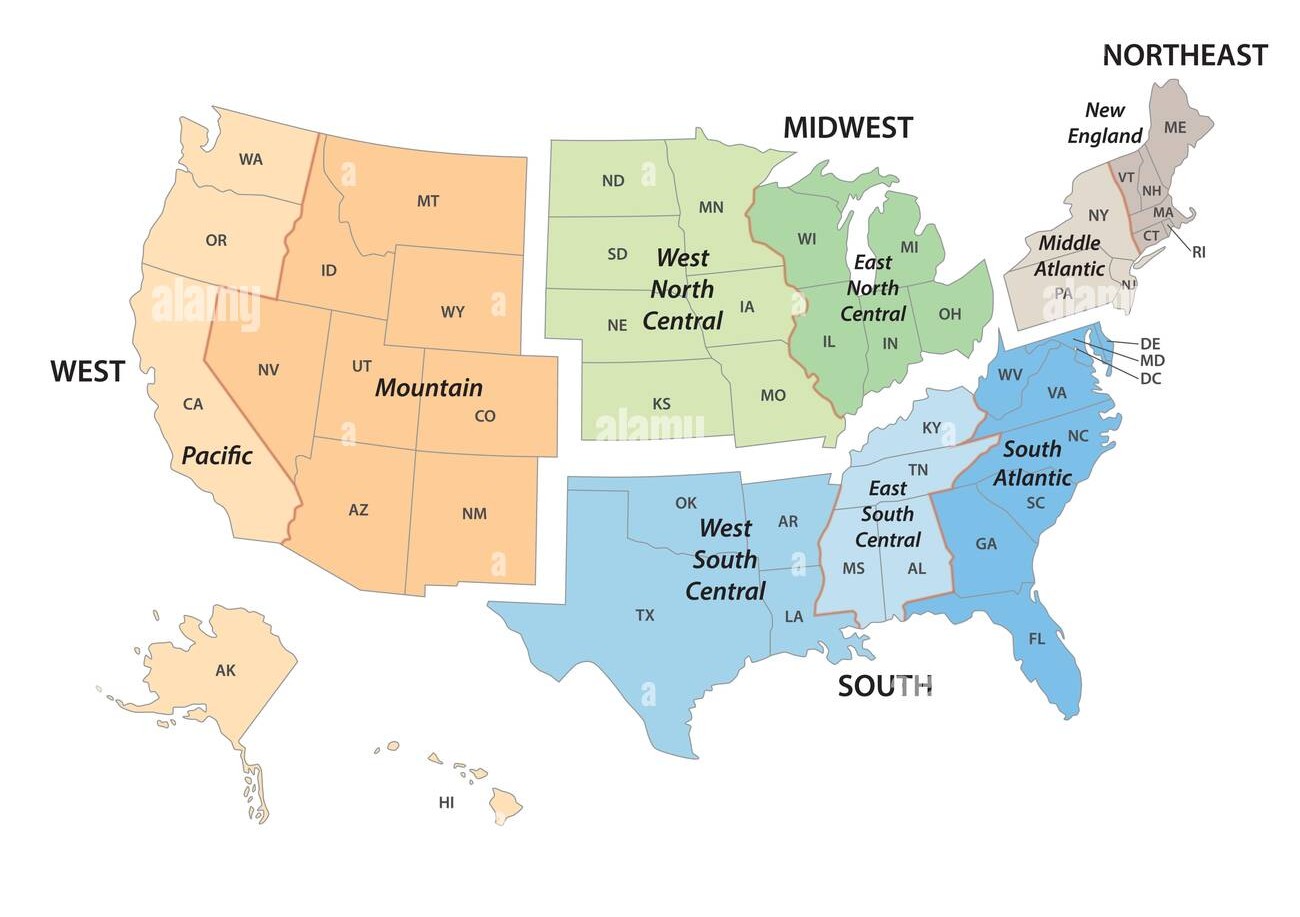
TIGER/Line Shapefiles use American National Standards Institute
(ANSI) codes to identify geographic entities, including both FIPS
(Federal Information Processing Series) and GNIS (U.S. Geological Survey
Geographic Names Information System) codes. For example, the field
STATEFP contains the state FIPS code, and
STATENS contains the state GNIS code. County-level FIPS
codes are five digits: the first two identify the state, and the last
three identify the county.
Decennial Census of Population and Housing
Conducted every ten years, the Decennial Census counts every person living in the U.S. at a single point in time, providing the most complete population data with the smallest margin of error.
American Community Survey (ACS)
The ACS is an annual survey that collects information from a sample of the population. It covers many topics not included in the Decennial Census, such as education, employment, internet access, and transportation. Because it is sample-based, ACS estimates carry a higher margin of error than Decennial Census counts.
The ACS is published in two forms:
- 1-year estimates — based on 12 months of data; available for areas with populations of 65,000+
- 5-year estimates — based on 60 months of data; available for all geographies, including small areas
Variables include (in addition to standard demographic and housing data):
Social characteristics:
- School enrollment and educational attainment
- Marital status and fertility
- Grandparents as caregivers
- Veteran and disability status
- Language spoken at home
Economic characteristics:
- SNAP/Food Stamps participation
- Health insurance coverage
- Income and benefits
- Employment location and commute mode
Other:
- Ancestry, citizenship status, place of birth, and year of entry
- Census data supports planning services for specific population groups
- It can be used for business and facility site selection
- It supports public policy analysis
- It enables spatial analysis of hazard impacts, epidemiological models, and more
Accessing the Census Data
Before mapping or analyzing Census data, you need to obtain it. The Census Bureau provides several access methods:
- Manual downloads from data.census.gov.
- Bulk file downloads
- Programmatic access via the Census API
This lesson focuses on API-based access, which lets you retrieve demographic and socioeconomic data directly into Python workflows — without clicking through a web interface.
What Is a Census API Call?
An API (Application Programming Interface) lets computers request data directly from a server using a structured URL. Census APIs return machine-readable data (JSON or CSV) that can be processed automatically in Python or other tools.
Using the Census API, you can:
- Specify exactly which variables you want
- Choose the geographic scale (state, county, tract, block group)
- Automate downloads for reproducibility
- Integrate data directly into scripts and analyses
This approach is especially useful for research, teaching, and large-scale analysis.
Typical Census API Workflow
- Construct a request URL specifying variables and geography
- Send the request to the Census API endpoint
- Receive structured data (JSON or CSV)
- Convert results into a DataFrame
- Optionally join data with geographic boundary files for spatial analysis
Note on Privacy
Census APIs return aggregate data only. Individual-level records are never provided, ensuring respondent privacy.
Getting Started with the Census Notebook
Work through the interactive Python notebook linked below, which covers everything on this page hands-on inside Google Colab. More Reading on Census API below!
This part of the session covers:
Part 1: Retrieving the Dataset - You can refer to the theory just below.
Part 2: Exploring the Dataset - Structures, variables, columns, geographical units.
Tutorial: Accessing ACS Data via the Census API
Step 1 — Explore the Census API
- Go to the Census Developers Page.
- Click Available APIs (left of the search bar).
- Scroll down and select American Community Survey (ACS).
- The ACS offers 1-year and 5-year estimates. We will use the 2023 ACS 5-Year, which covers data from 2019–2023.
- Scroll to Data Profiles and review the “Example Call” links — these are the base API URLs you’ll use in Python or a browser.
- Under Data Profiles, click the
htmllink next to 2023 ACS Comparison Profiles Variables to browse all available variable codes.
Step 2 — Understand API Links for Geographic Levels
The ACS API uses different URL patterns depending on the geographic level you want:
- Country
- State
- Tract (within a state and county) For tract-level data, use the
state > county > tractpattern. Here is an example for Indiana (state code18):
https://api.census.gov/data/2023/acs/acs5/profile?get=NAME&for=tract:*&in=state:18&in=county:*&key=YOUR_KEY_GOES_HERE-
tract:*returns all tracts in the specified state -
county:*returns all counties in the specified state - Replace
state:18with your state’s FIPS code (State Codes List) -
state:*is not allowed for tract-level queries due to dataset size limits — you must specify a state
Step 3 — Add Variables to Your Request
On the variables page from Step 1, press Ctrl+F and search for your variable of interest.
Example: searching “no vehicles available” returns variableDP04_0058E(the estimate version).-
Add the variable after
NAME, separated by a comma: Before:https://api.census.gov/data/2023/acs/acs5/profile?get=NAME&for=tract:*&in=state:18&in=county:*After:
https://api.census.gov/data/2023/acs/acs5/profile?get=NAME,DP04_0058E&for=tract:*&in=state:18&in=county:* -
Add additional variables by separating them with commas:
get=NAME,DP04_0058E,DP02_0001E,DP03_0062E Make sure to add the
GEO_IDcolumn as well.
Step 4 — Optional Enhancements
-
View variable descriptions: Add
&descriptive=trueto your URL -
Download as CSV: Add
&outputFormat=csvfor a spreadsheet -friendly file
Heads up: API variable names are case-sensitive — they must match exactly as listed in the variables page.
📺 Video Tutorial: How to Access ACS Data from the Census API
Example: Final API Call
Note: Make sure to add the API key within the link.
https://api.census.gov/data/2023/acs/acs5/profile?get=NAME,GEO_ID,DP04_0058E&for=tract:*&in=state:18&in=county:*&descriptive=true&outputFormat=csv&key=""This returns the number of occupied households without a vehicle for every census tract in Indiana.
- The Census API gives you flexible, precise access to ACS data
- You can combine multiple variables in a single API call
-
&descriptive=trueadds plain-language descriptions for each variable -
&outputFormat=csvmakes the data easy to open in Excel or import into Python
Content from Census Data Analysis with Python Notebook
Last updated on 2026-06-23 | Edit this page
Overview
Questions
- How do you clean and prepare raw Census data for analysis?
- How do you rename columns, sort data, and compute summary statistics?
- What is data visualization and why does it matter for Census analysis?
- What makes a visualization effective versus misleading?
- Which Python tools are best for creating publication-ready plots?
Objectives
- Clean a Census DataFrame: handle placeholder values, cast data types, and rename columns
- Sort and filter data to identify top geographic units
- Compute grouped summary statistics at the county and state level
- Define data visualization and explain its role in Census data analysis
- Recognize the principles of effective visualization design
- Identify common pitfalls (misleading charts, chartjunk, accessibility barriers)
- Use Python (Matplotlib, GeoPandas) to create choropleth maps, bar charts, and histograms
Importance of Data Cleaning
Real-world data is messy. Before any analysis or visualization can happen, the data needs to be trustworthy — and that requires cleaning.
For Census data specifically, three problems show up almost every time:
-
Hidden missing values -
NaNmeans “no data” or null value. Left uncaught, it silently disrupts visualization - Wrong data types - the Census API returns everything as strings. Math on strings fails in Python
-
Unreadable column names -
DP04_0058Etells you nothing when looking at it first time, making it easy to mix up variables and hard for collaborators to follow your work
Data scientists typically spend 60–80% of project time on data preparation — not analysis. The good news: for Census data, the cleaning steps are predictable and learnable.
Cleaning the Census Dataset
After downloading ACS data via the Census API (see the previous lesson), the raw DataFrame needs several cleaning steps before it is ready for analysis or visualization. This section walks through each step using the file you saved in Part 1.
What We Are Working With ?
Jump to Part 3 of the notebook. The data was downloaded as a CSV from the Census API and loaded into a pandas DataFrame. At this stage it has some rough edges:
- Every column is stored as a string — even numeric estimates like population counts
- Missing or suppressed values such as
NaN - Column names are raw variable codes like
DP04_0058E, which are hard to read (optional) - The dataset may have rows that should be excluded from analysis
Prerequisites- Completion of Part 1 and 2 of the Notebook.
Work through the interactive Python notebook Part 3 and
4 linked below, which covers everything on this page
hands-on inside Google Colab. More explanation on the process of data
cleaning explained below!
The hands-on work for this section:
- Part 3: Data Cleaning - null value removal, shapefile join, county ranking, summary statistics
- Part 4: Visual Maps - Bar charts, histogram, choropleth maps, and result interpretation
Step 1 — Cast Estimate Columns to Numbers
The Census API returns all values as strings. Before doing any math,
convert estimate columns (those ending in E) to
numeric:
PYTHON
estimate_cols = [c for c in df.columns if c.endswith("E") and c not in ("NAME", "GEO_ID", "GEOID")] # excluding these columns

for col in estimate_cols:
    df[col] = pd.to_numeric(df[col], errors="coerce")
errors="coerce" turns anything that cannot be parsed
(e.g., "N" for not applicable) into NaN
automatically.
Step 2 — Rename Columns to Human-Readable Labels
Raw ACS codes are hard to work with. Create a rename dictionary for the variables you downloaded:
PYTHON
rename_map = {
    "DP04_0058E": "no_vehicle_households",
    "DP03_0062E": "median_household_income",
    "DP02_0001E": "total_households",
    # add more as needed
}

df.rename(columns=rename_map, inplace=True)Tip: Keep a separate reference dictionary that maps the new names back to the original ACS codes and their full descriptions. This makes your work reproducible and easier to document.
Step 3 — Drop or Flag Rows with Missing Data
Decide how to handle rows where your key variable is
NaN:
PYTHON
variable = "no_vehicle_households"

# Option A — drop rows missing the key variable entirely
df_clean = df.dropna(subset=[variable]).copy()

# Option B — flag them for inspection instead of dropping
df["data_missing"] = df[variable].isna()
print(df["data_missing"].value_counts())
Use Option A when you are ready to proceed to analysis. Use Option B while still exploring, so you can understand why values are missing (small population suppression, boundary changes, etc.).
Step 4 — Sort the Data
Sorting makes it easy to find the highest and lowest values at a glance:
Step 5 — Summary Statistics
Single-variable summary
This gives you count, mean, standard deviation, min, quartiles, and max — a fast sanity check before plotting.
Grouped by county
The first 5 characters of a tract-level GEOID are the
state+county FIPS code. Use this to roll up tracts to the county
level:
PYTHON
df_clean["county_fips"] = df_clean["GEOID"].str[:5]

county_summary = (
    df_clean.groupby("county_fips")[variable]
    .agg(total="sum", average="mean", median="median", tract_count="count")
    .round(1)
    .sort_values("total", ascending=False)
)

print("Top 10 counties:")
display(county_summary.head(10))
Grouped by state
If your dataset spans multiple states, compare them side by side:
PYTHON
df_clean["state_fips"] = df_clean["GEOID"].str[:2]

state_summary = (
    df_clean.groupby("state_fips")[variable]
    .agg(total="sum", average="mean", median="median", tracts="count")
    .round(1)
    .sort_values("total", ascending=False)
)

display(state_summary)- Always cast Census columns to numeric before analysis — the API returns everything as strings
- Always check for missing data (
NaN) to avoid visualization problems later on - Rename cryptic variable codes to descriptive column names early in your workflow
- Use
groupbywith.agg()to compute multiple statistics at once across geographic units
Introduction to Data Visualization
What Is Data Visualization?
Data visualization is the graphical representation of information. Instead of rows of numbers, it uses charts, maps, and diagrams to make patterns, trends, and outliers immediately understandable. For Census analysis specifically, visualization is what transforms a cleaned DataFrame into insight — showing where car-free households cluster, which counties are outliers, or how income varies across tracts.
There are two modes you will use throughout this workshop:
- Exploratory visualization — quick plots for your own understanding while cleaning and analyzing
- Explanatory visualization — polished charts and maps you share with others to communicate findings
Why Visualization Matters for Census Data ?
Census datasets can have thousands of rows and dozens of columns. A 1,000-tract DataFrame is impossible to read directly. Visualization addresses this in a few key ways:
- A choropleth map shows the spatial distribution of an entire state’s worth of tract-level data at once
- A histogram reveals whether values are evenly spread or heavily skewed toward a few areas
- A bar chart of top counties immediately answers “where is the problem concentrated?”
- Scatter plots uncover correlations between two variables (e.g., income vs. vehicle access) that summary statistics alone can miss
Advantages and Risks
Visualization is powerful, but it can mislead as easily as it informs. Keep both sides in mind:
Advantages:
- Spot trends in seconds
- Reduce cognitive load
- Reveal outliers and clusters
- Communicate across technical skill levels
- Support storytelling with data
Stuff to Avoid:
- Truncated axes — starting a bar chart’s y-axis at 500 instead of 0 can make a small difference look enormous
- Chartjunk — decorative elements like 3D effects, excessive gridlines, and gradient fills that add visual noise without adding information
- Misleading color scales — a diverging color palette centered at the wrong value distorts spatial patterns
- Over-aggregation — rolling tract-level data all the way up to state averages hides local variation
Always ask: Does this visualization show the whole picture, or only the part that supports a predetermined conclusion? Transparency about scale choices, data suppression, and margins of error is essential when sharing Census visualizations.
Principles of Effective Visualization
Foundational Rules:
- Choose the right chart type — choropleth for spatial distribution, histogram for distribution shape, bar chart for ranking, scatter plot for relationships. Avoid pie charts for more than 4–5 categories.
- Label everything — title, axis labels, units, and a legend. A chart with no axis labels cannot be interpreted.
- Be honest about scale — never truncate axes without clearly disclosing it; clip outliers only after explaining why.
-
Use colorblind-friendly palettes —
viridis,YlOrRd, and ColorBrewer palettes are designed to be perceptually uniform and accessible. Avoid raw red/green combinations. - Remove what is not data — maximize the ratio of information to ink. Every element should earn its place.
- Add accessibility — include alt text for published figures; use patterns in addition to color where possible.
Challenge
Analyze U.S. Census population data for your assigned state and create a choropleth map to visualize population patterns across census tracts. Then, determine the average tract population and produce a second map that highlights which tracts fall above and below this average
See the Solution to this Problem Here.
Challenge
In Part 4 of the Notebook. Complete the following:
- Run the basic choropleth (Section 4.2) using the default
viridiscolormap - Switch the colormap in Section 4.3 to
Bluesand observe how the interpretation changes - In the bar chart (Section 4.4), change
head(15)tohead(10)and add county names instead of FIPS codes by joining with a county name lookup - In the histogram (Section 4.5), describe in one sentence what the shape of the distribution tells you about how your variable is distributed across tracts
- Exploratory plots help you understand your data; explanatory plots help others understand your findings
- Choropleth maps, histograms, and bar charts each answer a different question about Census data
- Color scale choices, axis ranges, and aggregation level all affect how a visualization is interpreted
- Use colorblind-friendly palettes and always label axes, titles, and legends
- Transparency about data suppression and margins of error is an ethical requirement when publishing Census visualizations