
Exercises: NDVI Analysis with Sentinel-2 Imagery
Last updated on 2026-10-20 | Edit this page
Overview
Questions
- What is NDVI and what does it measure?
- How do I calculate NDVI from Sentinel-2 bands in QGIS?
- How do I interpret and visualize NDVI results?
Objectives
- Understand what NDVI measures and why it is useful
- Load individual Sentinel-2 spectral bands into QGIS
- Use the Raster Calculator to compute NDVI from red and near-infrared bands
- Apply pseudocolor symbology to interpret vegetation health
- Compare NDVI results against satellite basemap imagery
Introduction
A Normalized Difference Vegetation Index (NDVI) is a widely used landscape metric that quantifies the health and density of vegetation using satellite sensor data. It works by comparing the reflectance of red light (which vegetation absorbs) and near-infrared light (which healthy vegetation strongly reflects). The formula is:
NDVI = (NIR − Red) / (NIR + Red)
NDVI values range from −1 to +1. Values near +1 indicate dense, healthy vegetation; values near 0 indicate bare soil or sparse cover; and negative values typically indicate water, clouds, or snow.
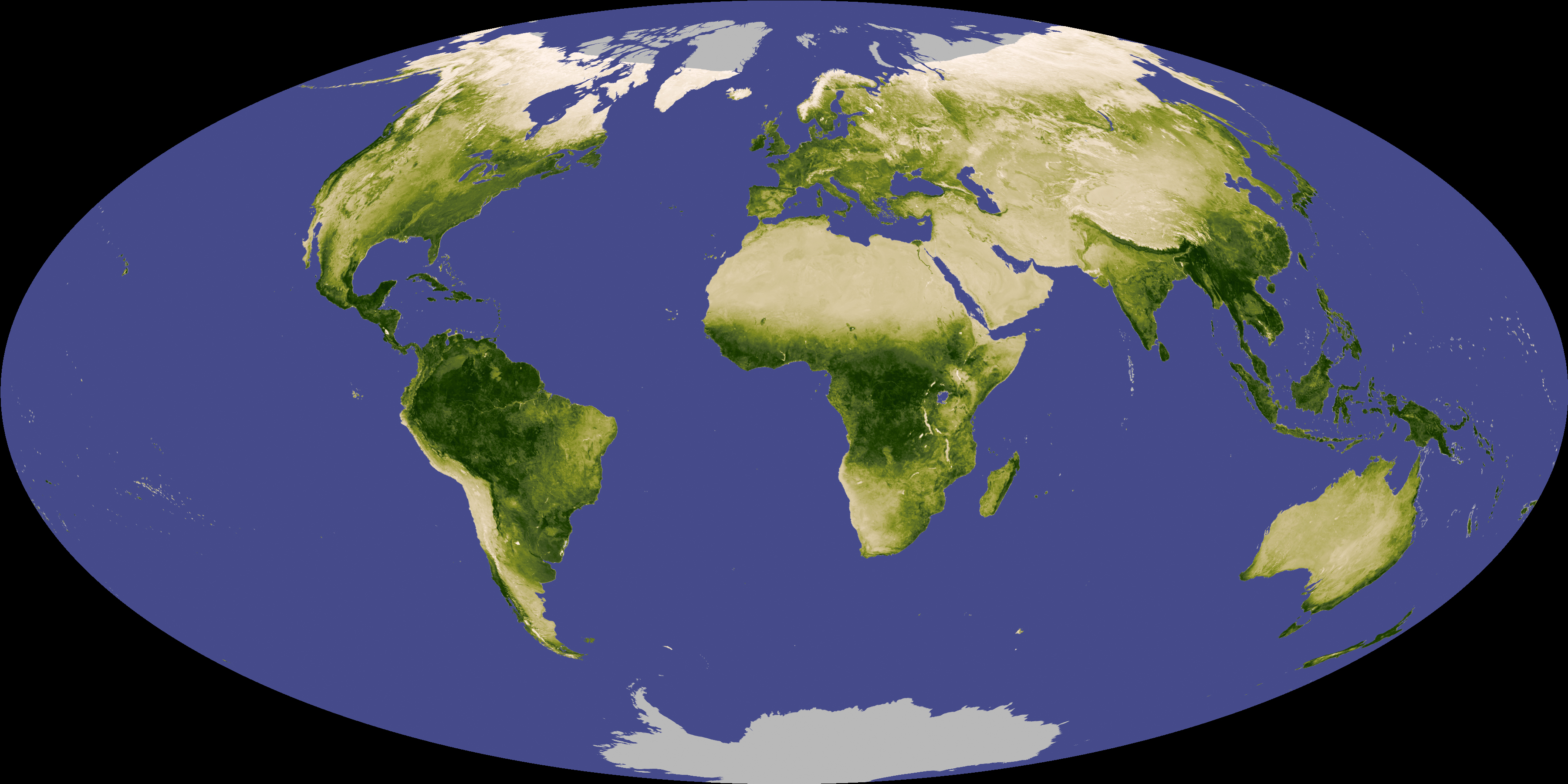
In this exercise we will use a Sentinel-2 multispectral image to calculate NDVI for a region in south-central Kansas.
ESRI Sentinel 2 Atlas
Take a moment to explore Sentinel-2 Land Cover Living Atlas. Take a note of its features!
Esri’s Sentinel-2 platform in the ArcGIS Living Atlas is a free, web-based tool that provides dynamic access to global, multi-spectral satellite imagery. It features a rolling 14-month archive of the best, most cloud-free scenes, which update daily at a 10-meter spatial resolution.
Step 1: Set Up Your Project
- Create a folder on your desktop called NDVI_Analysis (if you have not already done so from the setup page).
- Open QGIS, close any pop-ups, and go to Project → Save
As. Save the project as
NDVI_Projectinside your NDVI_Analysis folder.
Step 2: Download and Extract the Sentinel-2 Image
Navigate to the workshop’s shared resources Google Drive. Under Day 1_Session 3a: Basic raster functions, download the ZIP file:
S2B_MSIL1C_20260617T170849_N0512_R112_T14SPG_20260617T203803.SAFE.zip-
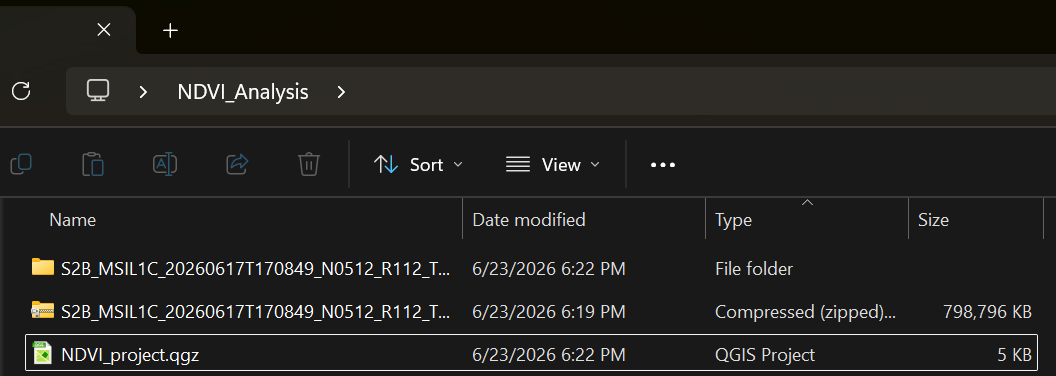
Save the ZIP file to your NDVI_Analysis folder and extract it:
- Windows: Right-click → Extract All
- Mac: Double-click the ZIP file
Step 3: Load the Red and NIR Bands
Sentinel-2 images contain 13 spectral bands stored as individual files. For NDVI we only need two:
-
Band 4 (Red):
T14SPG_20260617T170849_B04.jp2 -
Band 8 (Near-Infrared):
T14SPG_20260617T170849_B08.jp2
To find them:
- In the Browser Panel on the left side of QGIS, navigate to: Project Home → S2B_MSIL1C_…SAFE → GRANULE → L1C_T14SPG_… → IMG_DATA
- Drag B04 and B08 into the Layers Panel.
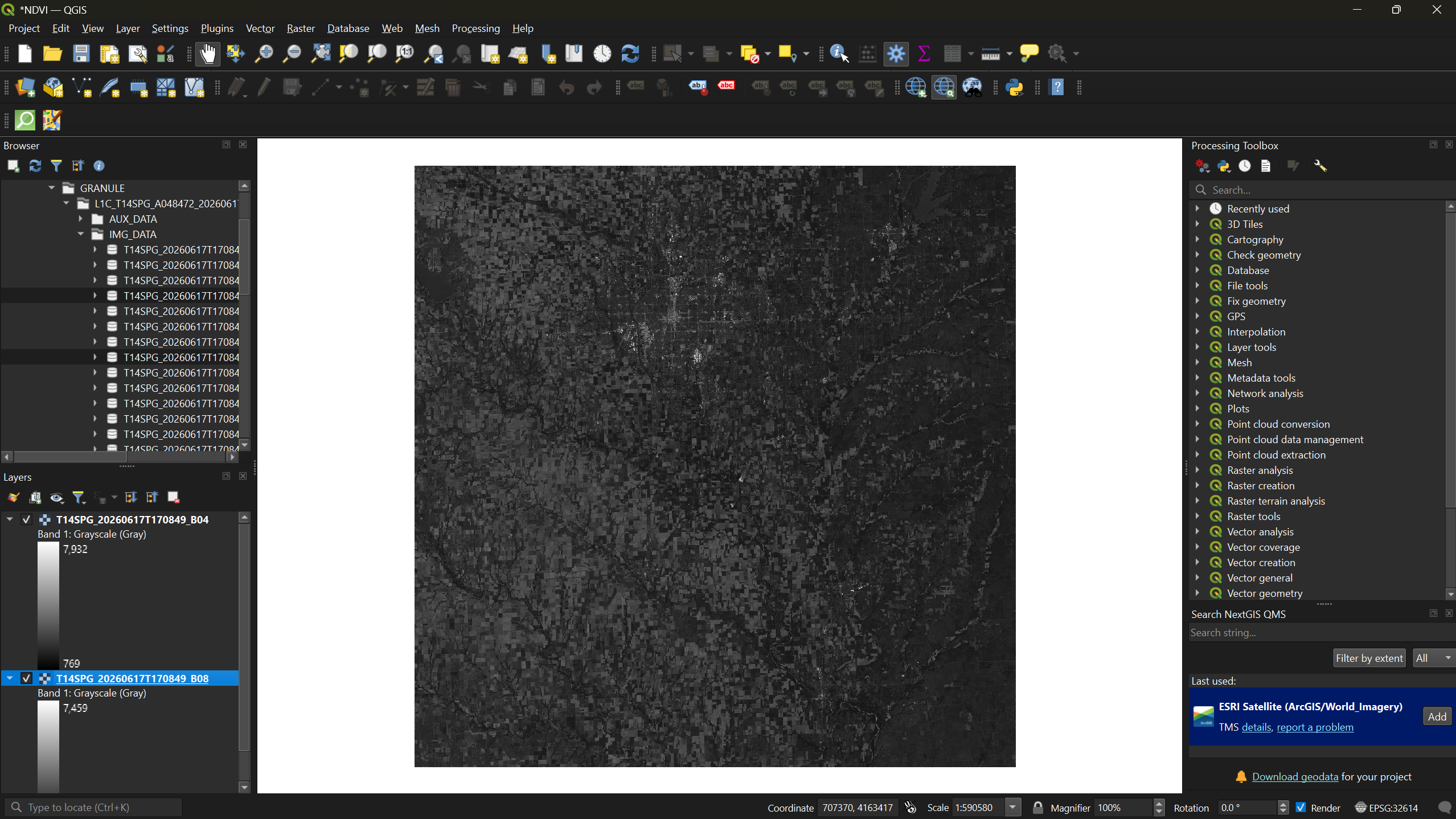
Toggle each layer’s visibility using the checkbox next to its name to see how the two bands differ: Band 4 captures visible red light, while Band 8 captures near-infrared reflectance that is invisible to the human eye but strongly reflected by healthy vegetation.
Step 4: Calculate NDVI with the Raster Calculator
- From the menu bar, select Raster → Raster Calculator.
- In the expression box, enter the NDVI formula. You can double-click the band names in the Raster Bands list to insert them:
( "T14SPG_20260617T170849_B08@1" - "T14SPG_20260617T170849_B04@1" ) / ( "T14SPG_20260617T170849_B08@1" + "T14SPG_20260617T170849_B04@1" )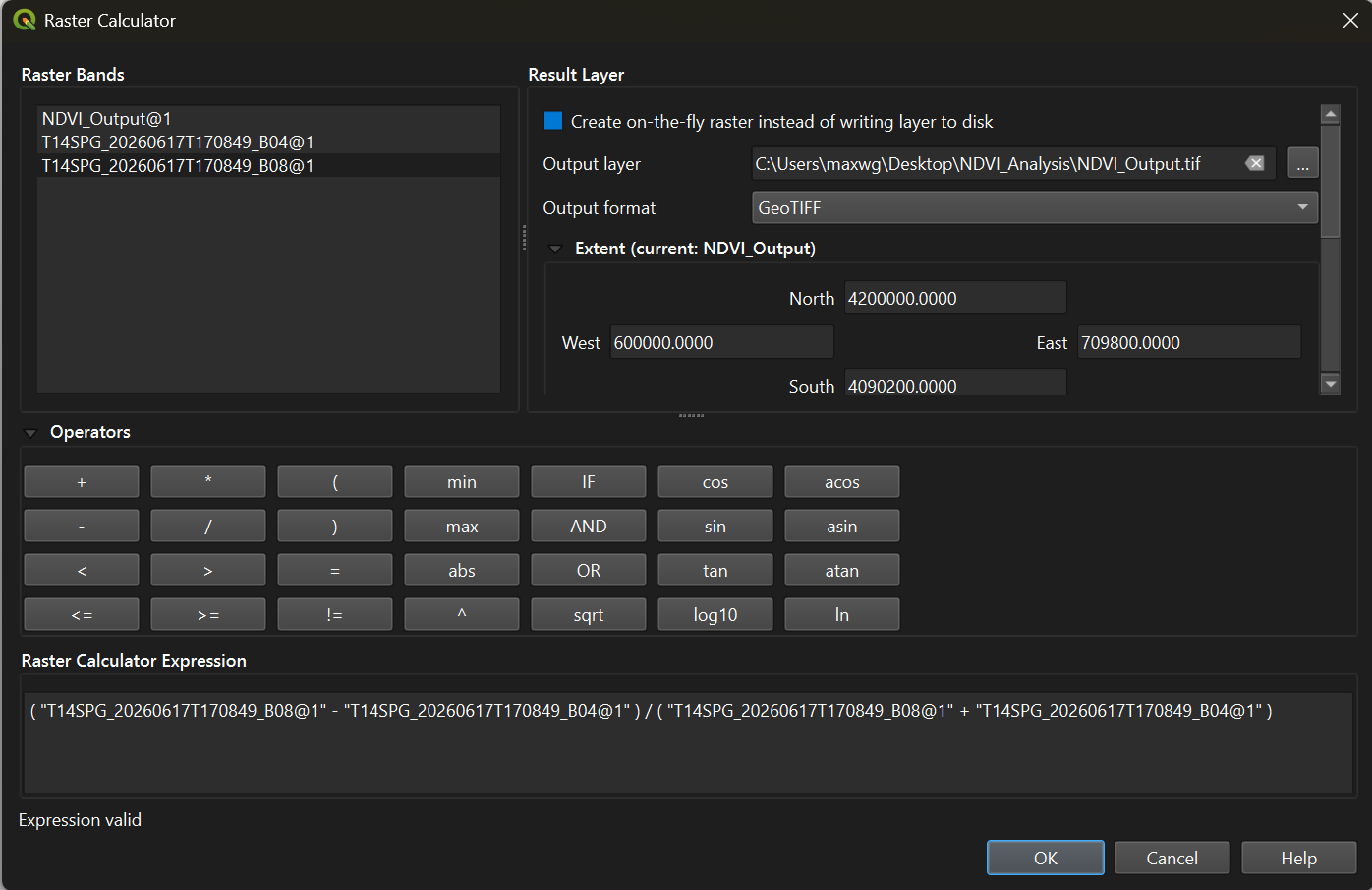
- Click the three-dot button next to Output layer and
save it as
NDVI_Outputin your NDVI_Analysis folder. - Click OK to run the calculation.
Once the output loads, you can right-click Bands 4 and 8 in the Layers Panel and select Remove Layer: they are no longer needed.
Step 5: Apply Color Symbology
The raw NDVI output appears in grayscale. To make vegetation patterns visible, we need to apply a color ramp.
- Right-click the
NDVI_Outputlayer → Properties → Symbology tab. - Change the Render type to Singleband pseudocolor.
- Set Interpolation to Discrete.
- Set the Color ramp to Greens.
- Under the table, set the Mode to Equal Interval, reduce the Classes to 3 and click Classify.
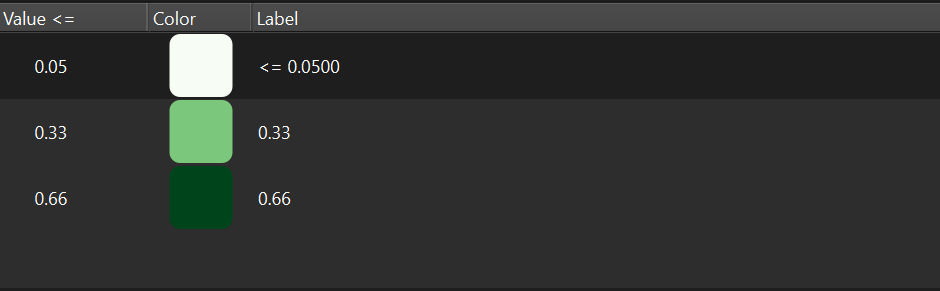
- Double-click each number in the Value column and
change the three values to
0.05,0.33and0.66(QGIS keeps them in order, lowest at the top). - Click Apply.
The column header reads Value <=: each value is
the upper limit of its class. So the three classes are
NDVI up to 0.05, from 0.05 to 0.33, and from 0.33 to 0.66. Pixels above
the last value are left transparent; this image has almost none, but for
other images change the last value to 1 so nothing
disappears.
Step 6: Refine the Color Scheme
The green-only ramp shows the classification, but we can make interpretation more intuitive by matching colors to vegetation health levels.
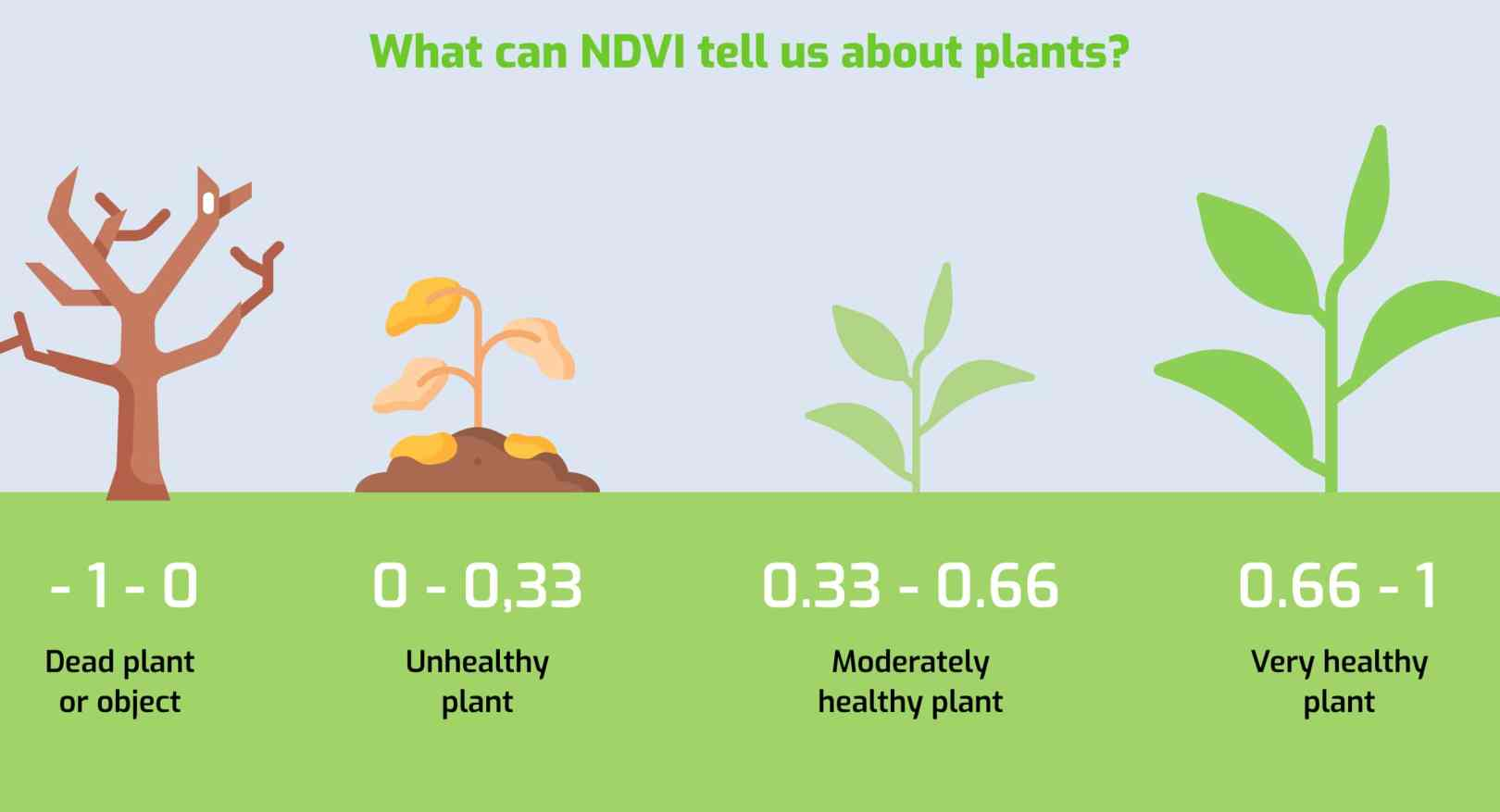
Using the reference scale above as a guide:
- Reopen the Symbology tab.
- Double-click each color swatch to change it:
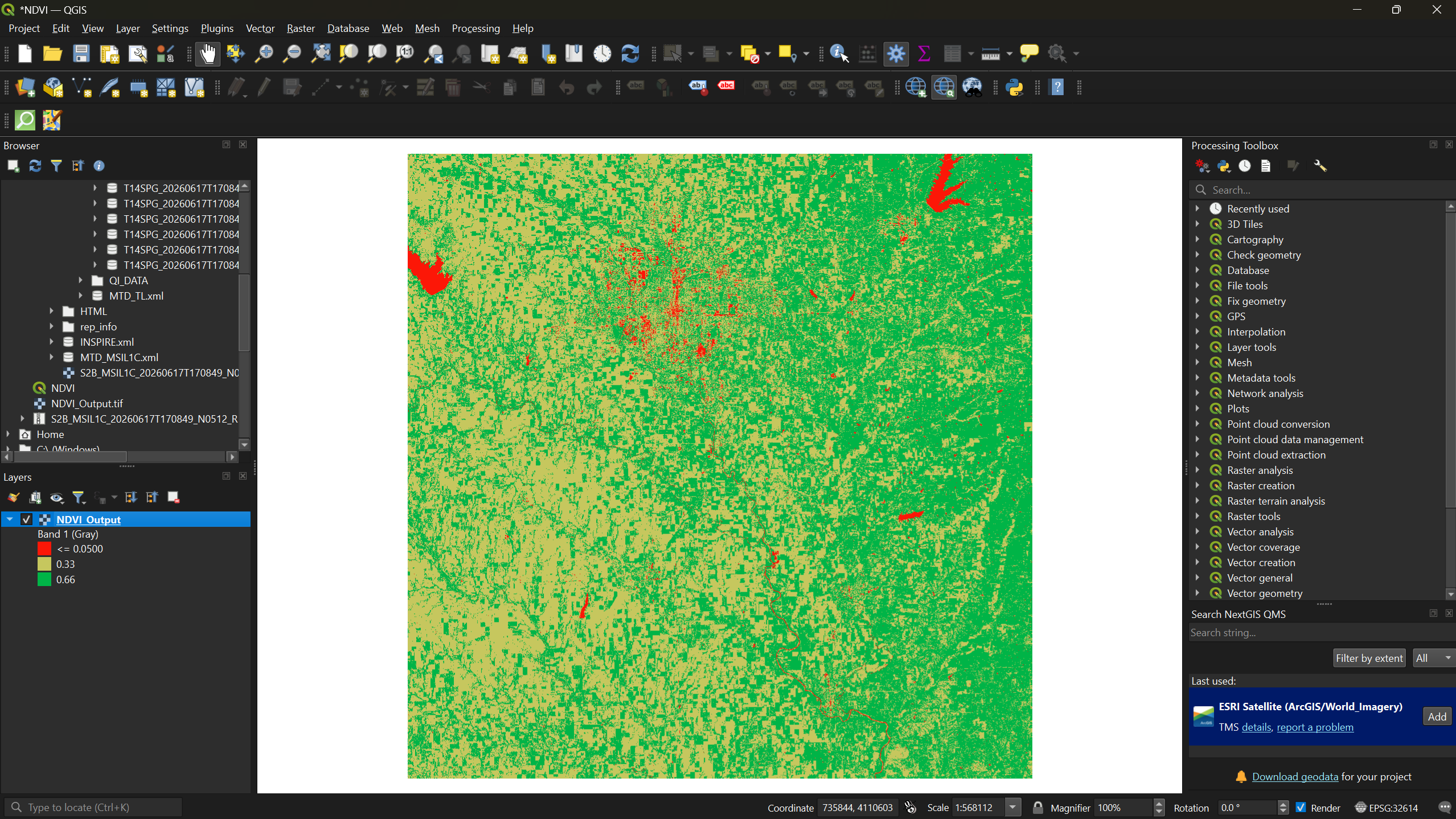
- First class (up to 0.05) → Red: water, clouds and shadows, which have very low or negative NDVI
- Second class (0.05 to 0.33) → Yellow: bare soil, buildings and roads, or sparse and dry vegetation
- Third class (0.33 to 0.66) → Green: growing vegetation such as crops, grass and trees
- Click Apply, then OK.
Why are the values lower than on the reference scale?
This image is a Level-1C product: top-of-atmosphere values, stored with a fixed offset of 1,000 added to every pixel (Sentinel-2 products processed since January 2022). Computing NDVI straight from these numbers, as we did, gives somewhat lower values than the surface-reflectance NDVI that reference scales describe, which is why the classes here stop at 0.66. The pattern (water, built-up land, vegetation) is still clear. For measurements you would publish, use the Level-2A (surface reflectance) product and subtract the offset first.
Exercise 1: Interpret the NDVI Map
Look at your NDVI output and try to answer the following:
- Can you identify Wichita (the largest city in the region)? What NDVI values dominate urban areas?
- Can you locate any lakes or rivers? What values do they show?
- Where is the densest vegetation: is it farmland, forest, or something else?
Write down your initial observations. We will check them against satellite imagery in the next step.
Step 7: Add a Basemap for Comparison
To verify your interpretations, add a satellite basemap underneath the NDVI layer.
- From the menu bar, select Plugins → Manage and Install Plugins.
- Search for QuickMapServices and click Install Plugin (if not already installed from Session 1A).
- After installation, a QMS panel should appear on
the right side of your screen. Search for
imageryand add Esri Satellite (ArcGIS/World_Imagery) to your map.
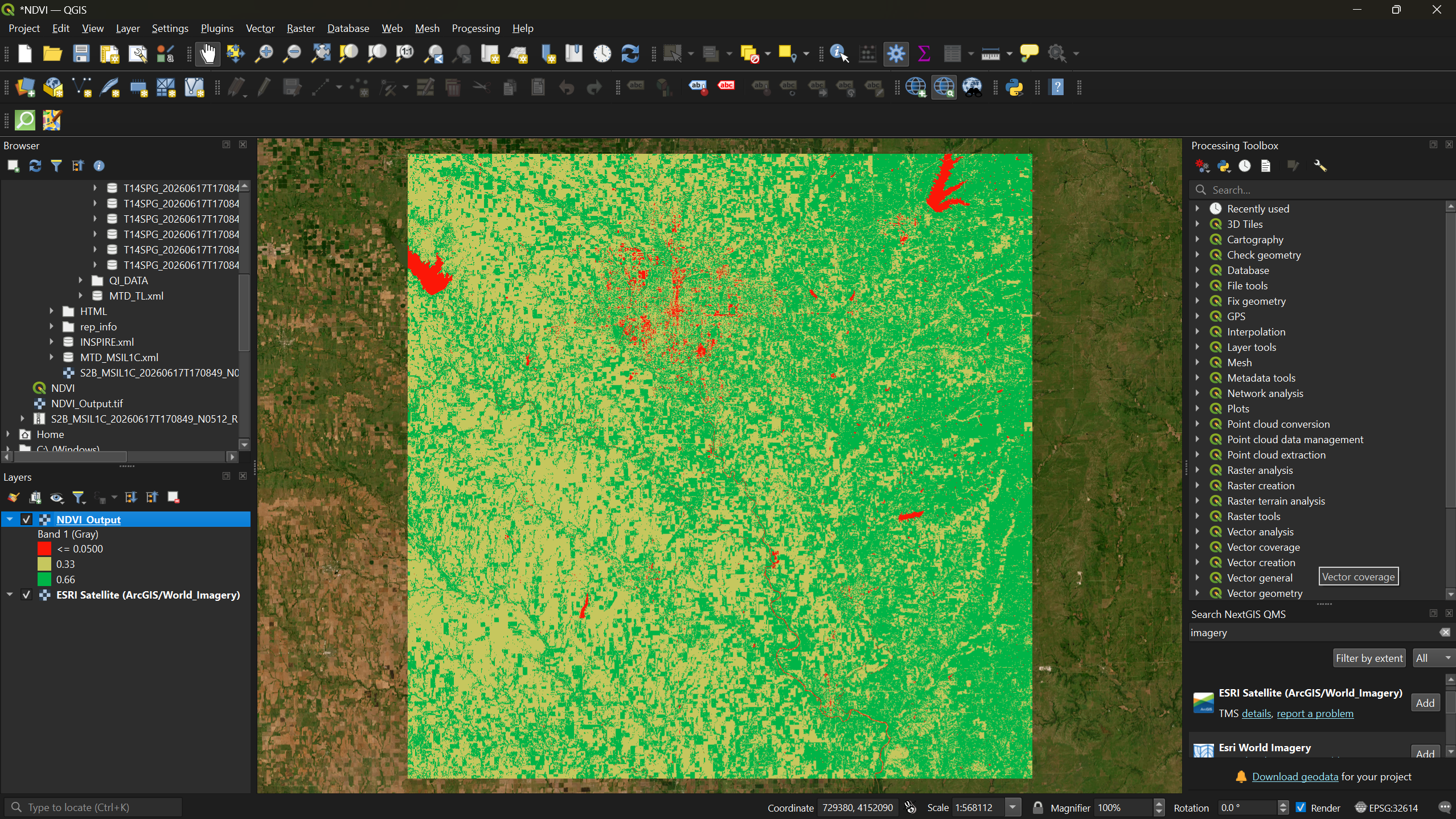
Now toggle the NDVI layer on and off in the Layers Panel to compare your NDVI classification against the actual satellite imagery.
Exercise 2: Verify Your Observations
Compare your NDVI results against the satellite basemap.
- Were your initial observations from Exercise 1 correct?
- Did anything surprise you: areas you expected to be vegetated that were not, or vice versa?
- Can you identify any agricultural fields? How do their NDVI values differ from surrounding natural vegetation?
- NDVI uses the ratio of near-infrared and red reflectance to quantify vegetation health and density.
- Sentinel-2 Bands 4 (Red) and 8 (NIR) are the inputs for NDVI calculation in QGIS.
- Refer to this Multispectral Band Combinations website here to learn what the function of each combination is!
- The Raster Calculator applies the NDVI formula on a per-pixel basis across the entire image.
- Thoughtful color symbology (red → yellow → green) makes NDVI results immediately interpretable.
- Comparing NDVI output against a satellite basemap helps validate your interpretation of the results.