
Raster Processing in QGIS
Last updated on 2026-10-20 | Edit this page
Overview
Questions
- How do I combine and reclassify rasters cell by cell?
- How do I summarize a raster inside polygons such as census tracts?
- How can land cover improve population estimates?
Objectives
- Explain when rasters line up, and choose a resampling method for measurements and categories
- Make Boolean rasters with comparisons, reclassify categories with a lookup table, and combine rasters
- Compute zonal statistics for measurements and class shares for categories
- Use the Raster Calculator, Reclassify by table, Zonal statistics and Zonal histogram in QGIS
What raster analysis adds
Vector operations ask where features are. Raster analysis asks what is everywhere: the elevation of every 30 m cell, the land cover of every cell, the temperature or vegetation index across a whole city. Two families of operations cover most everyday work:
- Map algebra combines rasters cell by cell to make new rasters: arithmetic (elevation in feet), comparisons (land below 170 m), logic (low and developed) and reclassification (16 land cover codes into 5 groups).
- Zonal statistics summarize the cells inside polygons and write the result into the polygons’ table: the mean elevation of each tract, or how many of its cells are developed. This is how raster data meets Census data.
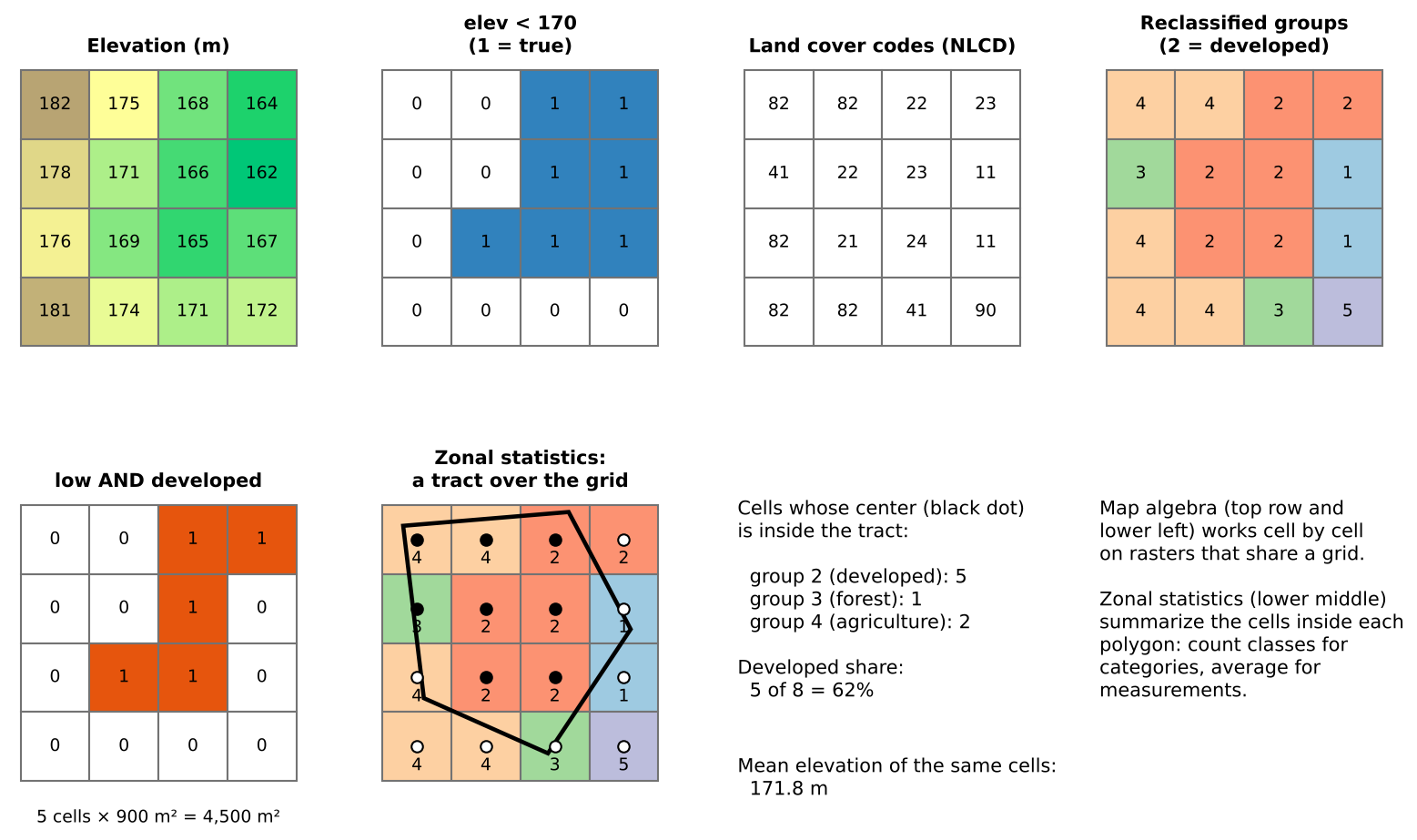
This episode asks two questions about Tippecanoe County, Indiana:
- How much developed land lies close to river level, below 170 m? (A rough stand-in for land near the Wabash River. It is not a flood map; FEMA flood zones are the real source for that.)
- How developed is each census tract, and how does that relate to where people live?
Rasters must line up
Map algebra compares cell (row 10, column 20) of one raster with cell (row 10, column 20) of another, so both must describe the same piece of ground: the same CRS, the same cell size and the same extent and alignment. The two rasters in this episode were prepared that way (EPSG:26916, 30 m cells, one grid). Real data rarely is, and aligning it means resampling:
| Data | Resampling method | Why |
|---|---|---|
| Measurements (elevation, temperature) | Bilinear or cubic | Averages neighboring values smoothly |
| Categories (land cover, zoning codes) | Nearest neighbor | Averaging codes would invent classes that do not exist (the mean of 21 and 41 is 31, “barren”) |
Resample as few times as possible, and to the coarser of the two resolutions: resampling to finer cells adds no information.
Map algebra in four kinds
Map algebra operations are often grouped by how many cells feed each output cell:
| Kind | Each output cell uses | Example |
|---|---|---|
| Local | The same cell in one or more rasters |
elev < 170, low AND developed,
reclassification |
| Focal | A neighborhood around the cell | Slope, hillshade, a 3 by 3 average (Workshop Session 2A’s DEM analysis) |
| Zonal | All cells in the same zone | Mean elevation per tract |
| Global | The whole raster | Distance to the nearest river cell |
This episode uses local and zonal operations.
Reclassification
Reclassification maps old values to new ones with a table. For categories it groups detailed classes; for measurements it cuts a continuous range into classes (0 to 2% slope = flat, and so on). Two checks prevent silent errors:
- Every value must be covered. A code missing from the table becomes no data (or keeps its old value, depending on the software), and the totals no longer add up.
- Range boundaries matter. “11 to 12” can mean 11 < value ≤ 12 or 11 ≤ value ≤ 12. For whole-number codes include both ends.
The groups used here:
| Group | NLCD codes | Meaning |
|---|---|---|
| 1 Water | 11, 12 | Open water, ice |
| 2 Developed | 21 to 24 | Open space (lawns, parks) to high intensity (downtown, industry) |
| 3 Forest and natural | 31, 41 to 43, 52, 71 | Barren, forest, shrub, grassland |
| 4 Agriculture | 81, 82 | Pasture and crops |
| 5 Wetlands | 90, 95 | Woody and herbaceous wetlands |
Zonal statistics
Zonal statistics need the polygons and the raster in the same CRS (software may reproject on the fly, but doing it yourself avoids surprises). Choose the statistic by the kind of raster:
- Measurements: mean, minimum, maximum, range, standard deviation.
- Categories: count of each class (a zonal histogram), then shares. Never average land cover codes.
Most tools count a cell if its center falls inside the polygon. For large polygons this hardly matters; for polygons only a few cells wide (a small park, a narrow tract) the result can be off by a lot. Use finer data, an “all touched” option, or report the limitation.
From land cover to people: dasymetric estimation
In the Geoprocessing episode, areal weighting spread each tract’s population evenly over its area. Land cover lets us do better: people live on developed land, so a piece of a tract that is all farmland should get few of its residents. Dasymetric estimation splits each tract’s population in proportion to its developed cells rather than its area. For Lafayette and West Lafayette it raises the estimated city population from about 114,000 to about 122,000 (edge tracts are partly farmland outside the city limits), while the share within 1 mile of a supermarket barely moves (68% either way). Comparing two methods like this shows how much a conclusion depends on an assumption.
Pitfalls
- No data. Cells outside the county hold a no-data value (here 0 for land cover, -9999 for elevation). Count or average them by mistake and every statistic shifts.
- Units. Areas come from cell counts × cell area, which is only meaningful in a CRS measured in meters.
- Resolution versus polygon size. A 30 m raster says little about a 50 m wide parcel.
- Classification error. Land cover maps come from satellite classification and contain errors, especially between similar classes (pasture and grassland, low and medium intensity developed). Check suspicious results against imagery.
- Date. NLCD 2021 and ACS 2020-2024 are close in time; mixing data decades apart is not.
Hands-on
These steps were checked in QGIS 4.0 (QGIS 3.34 and later are nearly identical). Save a new project in its own folder first; raster results are written there.
If QGIS asks you to choose a transformation
When layers in latitude and longitude (EPSG:4326) are drawn in a project in UTM (EPSG:26916), QGIS may open a window that begins “Multiple operations are possible for converting coordinates”. For this county any of the options is accurate to a few meters: keep the first (highlighted) one and click OK.
Part 1: Load the rasters from the web
-
Layer > Add Layer > Add Raster Layer.
Source Type: Protocol: HTTP(S), cloud, etc.
Type: HTTP/HTTPS/FTP. URI:
https://raw.githubusercontent.com/SpatialTurn/Foundations/main/data/tippecanoe_dem.tif. Click Add. - Repeat with
https://raw.githubusercontent.com/SpatialTurn/Foundations/main/data/tippecanoe_landcover_2021.tif. - Load the tracts as a vector layer:
https://raw.githubusercontent.com/SpatialTurn/Foundations/main/data/tippecanoe_tracts_acs.geojson.
Check: the land cover appears in the official NLCD colors (the file carries its color table), and the elevation in gray, dark in the Wabash valley. Right-click the elevation layer > Properties > Information: CRS EPSG:26916, pixel size 30 by 30.
Part 2: Land below 170 m (Raster Calculator)
- Raster > Raster Calculator.
- In Raster Bands, double-click
tippecanoe_dem@1to insert it, then type< 170so the expression reads"tippecanoe_dem@1" < 170. -
Output layer: click … and save as
low.tifin your project folder (or tick Create on-the-fly raster to skip saving). OK stays gray until an output is set. - Click OK.
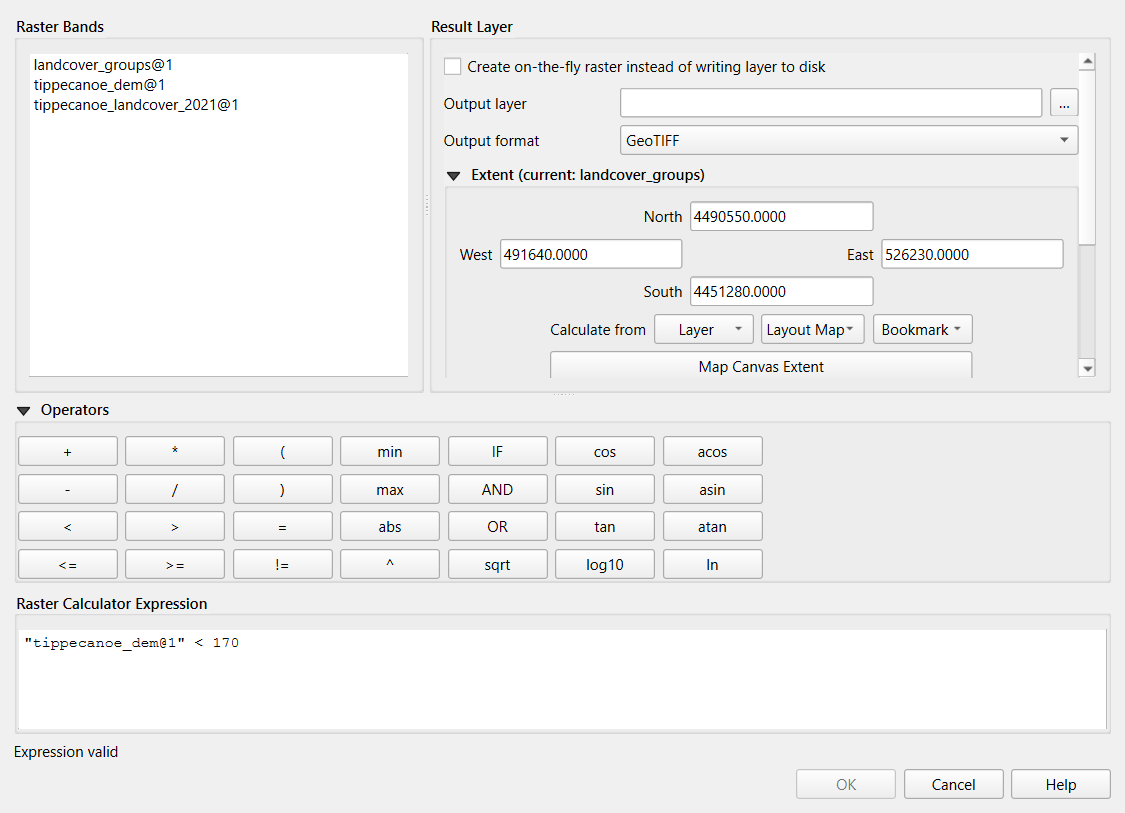
The result has 1 where the comparison is true and 0 where it is false.
Check: in the Processing Toolbox, run Raster
layer unique values report on low. Value 1 covers
96,559 cells, about 86.9 km².
Part 3: Group the land cover (Reclassify by table)
- Processing Toolbox: Reclassify by table.
Raster layer:
tippecanoe_landcover_2021. - Reclassification table: click … and add eight rows (Add Row) with Minimum, Maximum and Value as in the table above: 11, 12, 1 / 21, 24, 2 / 31, 31, 3 / 41, 43, 3 / 52, 52, 3 / 71, 71, 3 / 81, 82, 4 / 90, 95, 5. Click the back arrow to return.
- Open Advanced Parameters. Range
boundaries:
min <= value <= max(the defaultmin < value <= maxwould skip codes 11, 21, 31 and so on). Tick Use NoData when no range matches value. Output data type: Byte. - Save the output as
landcover_groups.tifand click Run.
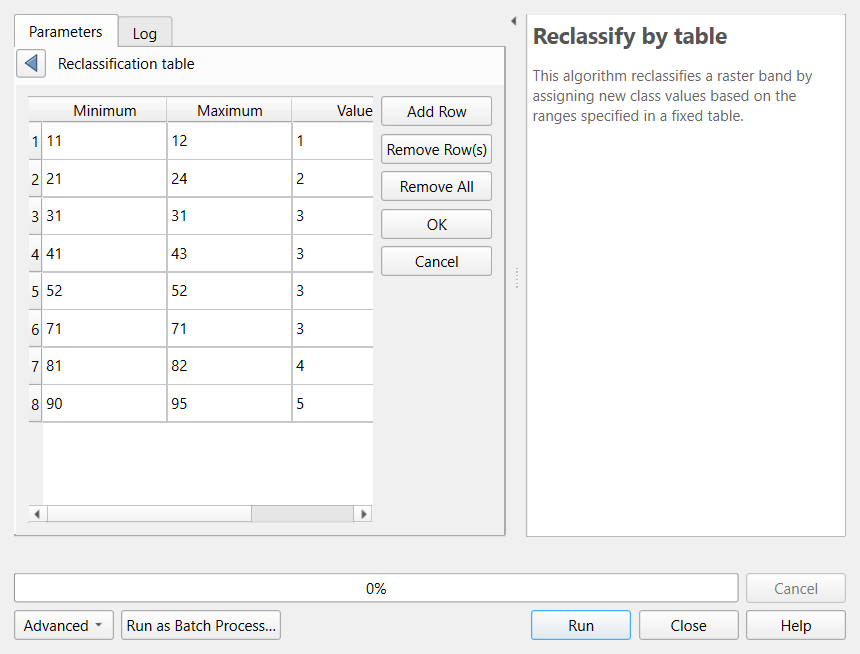
Check: the unique values report on
landcover_groups shows five values: 1 about 10.8 km², 2
about 196.8 km², 3 about 167.1 km², 4 about 904.0 km², 5 about 23.4 km².
If group 1 or 2 is much smaller, check the range boundaries.
Part 4: Developed land below 170 m
-
Raster > Raster Calculator again, with the
expression
("low@1" = 1) AND ("landcover_groups@1" = 2), saved aslow_developed.tif. - Run the unique values report on it.
Check: value 1 covers about 10.7 km², about 5% of the county’s 196.8 km² of developed land.
Part 5: Mean elevation per tract (Zonal statistics)
- Reproject the tracts to the rasters’ CRS: Vector > Data
Management Tools > Reproject Layer, target
EPSG:26916, and rename the result
tracts_utm. - Processing Toolbox: Zonal statistics (in the Raster
analysis group). Input layer:
tracts_utm. Raster layer:tippecanoe_dem. Output column prefix:elev_. Statistics to calculate: tick Mean, Minimum and Maximum. Run.
Check: the new layer has elev_mean,
elev_min and elev_max. Census Tract 1 has a
mean of about 165.6 m, one of the lowest, close to the
river.
Part 6: Percent developed per tract (Zonal histogram)
- Processing Toolbox: Zonal histogram. Raster
layer:
landcover_groups. Vector layer containing zones: the output of Part 5 (ortracts_utm). Leave the prefix asHISTO_. Run.
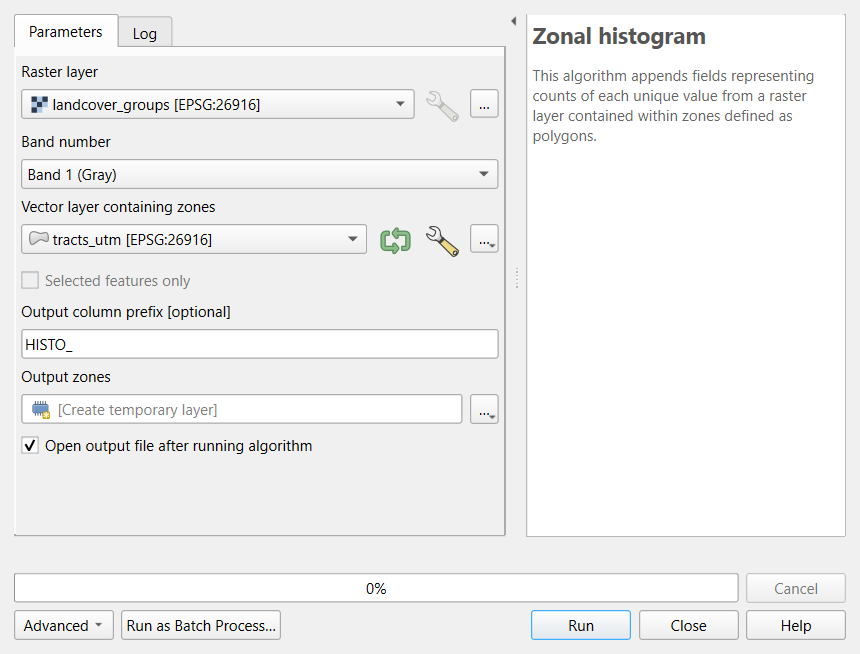
The output has one column per group:
HISTO_1toHISTO_5(cell counts), plusHISTO_NODATA.-
In its attribute table, open the Field Calculator and create
pct_developed, Decimal Number (real):"HISTO_2" / ("HISTO_1" + "HISTO_2" + "HISTO_3" + "HISTO_4" + "HISTO_5") * 100
Check: the lowest value is Census Tract 110 at about 4.8%; the median is about 82%, and several downtown tracts are 100%.
Part 7: Map it
Style the result with Graduated symbology on
pct_developed, Natural Breaks (Jenks), 5
classes, a sequential ramp such as Reds.
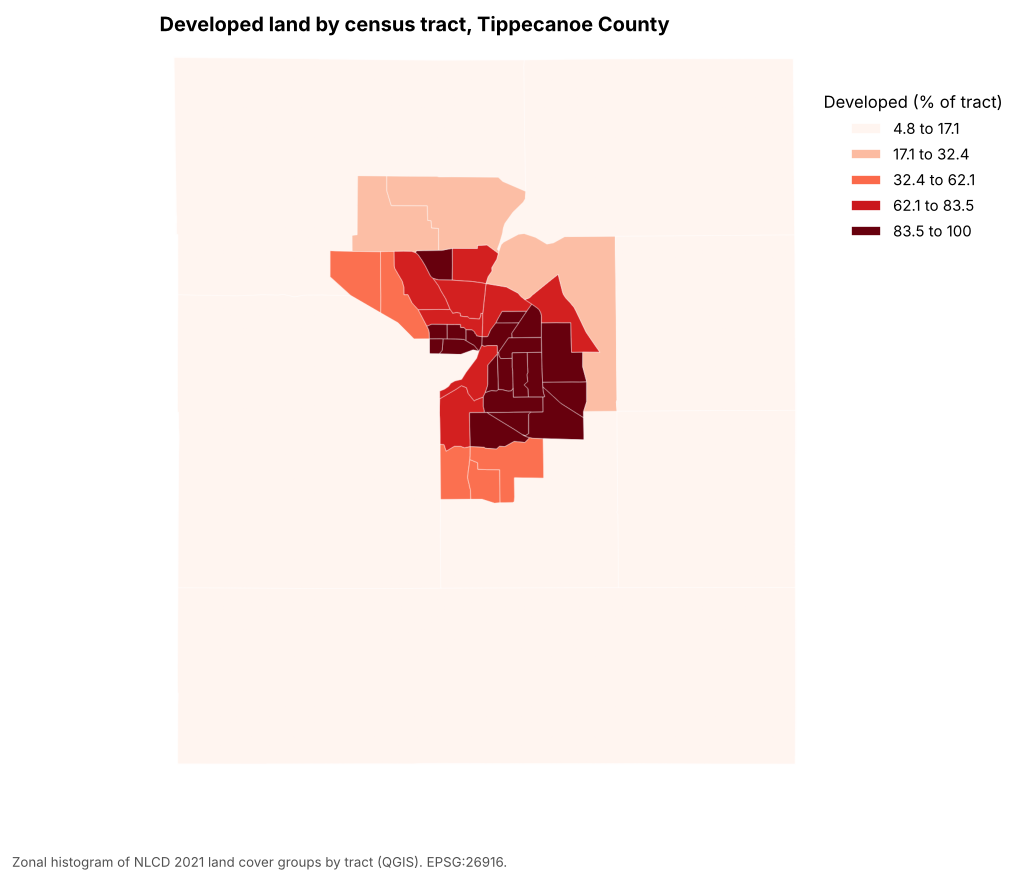
Compare it with a map of population density (total_pop
divided by the tract area): the patterns are very similar. That is why
land cover is useful for placing people within tracts, the idea behind
dasymetric estimation. The Python
version (notebook 2b) carries out the dasymetric estimate.
Challenge 1: Which resampling?
You need to combine a 10 m land cover raster with a 30 m elevation raster. Which raster would you resample, to what cell size, and with which method? (In QGIS: Raster > Projections > Warp (Reproject) has a Resampling method option.)
Resample the land cover to 30 m (the coarser resolution), with nearest neighbor (Nearest Neighbour in the Warp dialog), because it holds categories: bilinear would average codes into classes that do not exist. Resampling the elevation to 10 m would create a finer grid without adding information.
Challenge 2: A different threshold
Repeat Parts 2 and 4 with 175 m. How much developed land lies below it? Is the answer sensitive to the threshold?
"tippecanoe_dem@1" < 175, then the AND step: about
15.3 km² (compared with 10.7 km² below 170 m). Five
meters of threshold add about 40%, so the result is quite sensitive,
which is one more reason to use a real flood map for decisions.
Challenge 3: Mean or count?
For each tract you want (a) its average elevation, (b) its share of forest, and (c) its most common land cover class. Which QGIS tool and statistic gives each?
- Zonal statistics, Mean, on the elevation raster. (b) Zonal histogram on the land cover (or the groups), then forest cells divided by all cells in the Field Calculator. (c) Zonal statistics, Majority, on the land cover raster. Never the Mean of land cover codes.
- Rasters combined cell by cell must share CRS, cell size and extent; resample categories with nearest neighbor
- The Raster Calculator makes comparisons and combines conditions
(
AND,OR); results are 1 and 0 - Reclassify by table groups codes; set the range boundaries to
min <= value <= maxfor whole-number codes - Zonal statistics summarize measurements per polygon; Zonal histogram counts categories per polygon
- Check results with the unique values report: cells times 900 m² gives areas