
Summary and Schedule
This is a new lesson built with The Carpentries Workbench.
| Setup Instructions | Download files required for the lesson | |
| Duration: 00h 00m | 1. Introduction to Data Visualization |
What exactly is data visualization and how does it differ from simple
charts? Why do humans understand visualized data much faster than raw numbers or tables? What are the real advantages and hidden pitfalls of using visuals in data analysis? How does visualization help (or complicate) working with big data? Which tools are most suitable for beginners, intermediate users, and advanced programmers? What makes a visualization “good” versus “misleading”? :::::::::::::::::::::::::::::::::::::::::::::::: |
| Duration: 01h 15m | 2. Cartography Checklists |
Who is the primary audience for your map? What message or story are you trying to communicate? Which data attributes are most important to show? How will your audience interpret or react to your map? What medium will your map be presented in (web, print, presentation)? Will your map be used to inform decisions? What does your audience already know, and what do they need explained? Do you need more data to support your map? Do you fully understand the topic you are mapping? |
| Duration: 02h 30m | 3. Fundamentals of Map Design |
What is a map and what makes it effective? How do visual hierarchy and design influence interpretation? How should colors and symbols be used in maps? What are map scales and projections, and why do they matter? What are common thematic map types and when should you use them? Should your map be static or interactive? How should data be classified for choropleth maps? |
| Duration: 04h 15m | 4. Getting Started with QGIS: Your First Map |
How do I load spatial data into QGIS? How can I style and visualize data on a map? How do I export a finished map? |
| Duration: 06h 00m | 5. Accessibility in Map Design |
Why is accessibility important in cartography? How do different types of color vision deficiency affect map reading? How can we design maps that are readable for colorblind users? What role do hue, saturation, and value play in accessible design? Which color palettes work best in QGIS for accessible maps? |
| Duration: 07h 30m | Finish |
The actual schedule may vary slightly depending on the topics and exercises chosen by the instructor.
Overview
Questions
- What is QGIS and why is it useful?
- How do I install QGIS on my system?
- How do I load spatial data into QGIS?
- How can I style and visualize data on a map?
- How do I export a finished map?
Objectives
- Install QGIS successfully
- Understand the QGIS interface
- Load and explore spatial datasets
- Create and style a simple map
- Export a publication-ready map
What is QGIS?
QGIS is a free, open-source Geographic Information System (GIS) used to: - Visualize spatial data - Analyze geographic patterns - Create professional-quality maps
Why QGIS?
QGIS is widely used in academia, industry, and government — and it’s completely free.
Installing QGIS
Step 1: Download QGIS
Go to the official QGIS website:
👉 https://qgis.orgClick Download Now
-
Choose the appropriate version:
- Windows → Use the Standalone Installer
- Mac → Download the macOS package
- Linux → Install via package manager (apt, yum, etc.)
Understanding the QGIS Interface
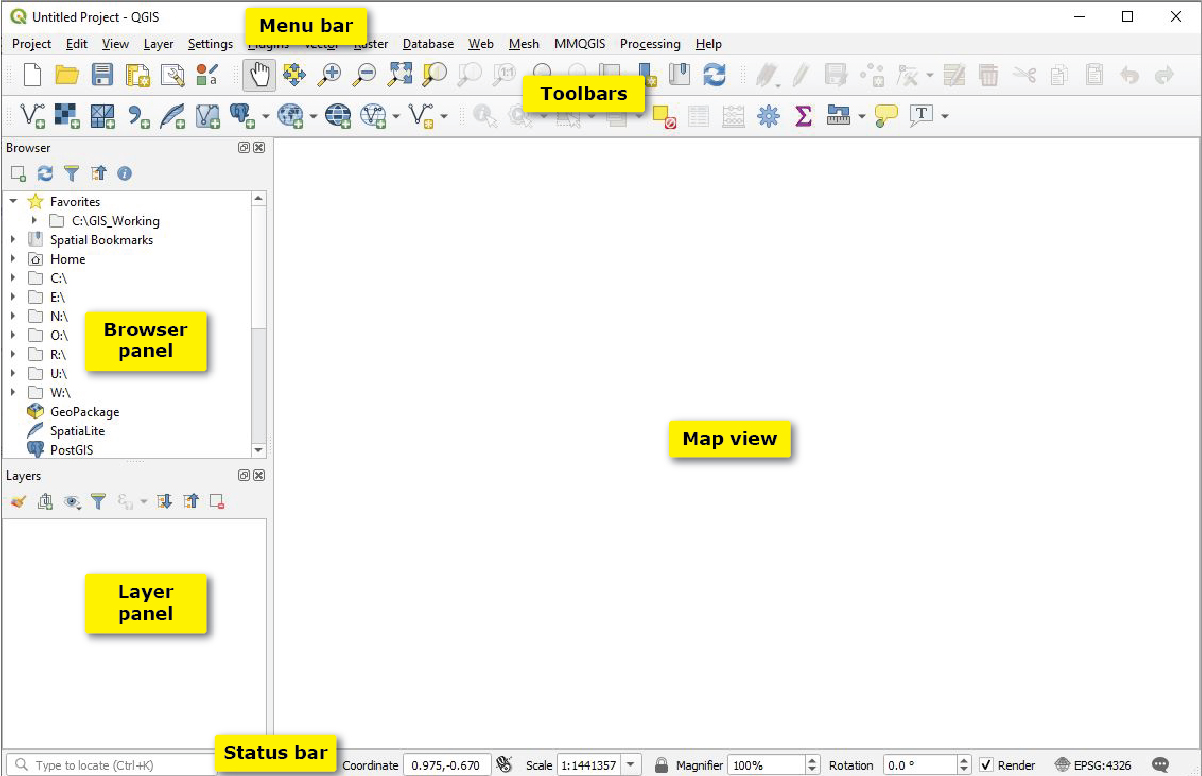
QGIS Interface Features.
Troubleshooting
- Colab: Plots not showing? Add %matplotlib inline at the top (usually automatic).
-
Local: package not found: Open terminal or code
cell in jupyter notebook and
!pipinstall package. - Need help? Raise hand during workshop or check Carpentries Python setup guide.
You’re all set! Proceed to Modules below in Data Visualization and Create your first map!
Happy visualizing!