
All in One View
Content from Introduction to Data Visualization
Last updated on 2026-03-13 | Edit this page
Estimated time: 75 minutes
Overview
Questions
- What exactly is data visualization and how does it differ from simple charts?
- Why do humans understand visualized data much faster than raw numbers or tables?
- What are the real advantages and hidden pitfalls of using visuals in data analysis?
- How does visualization help (or complicate) working with big data?
- Which tools are most suitable for beginners, intermediate users, and advanced programmers?
- What makes a visualization “good” versus “misleading”?
Objectives
- Define data visualization and explain its core purpose
- List at least five advantages and three disadvantages of data visualization
- Describe how visualization addresses challenges posed by big data
- Identify and differentiate between exploratory and explanatory visualizations with real-world examples
- Compare popular open-source and commercial tools for creating visualizations
- Recognize key principles of effective visualization design
- Understand ethical considerations and accessibility best practices
- Data visualization turns numbers into stories that the human brain can understand quickly.
- Good visualizations reveal patterns, trends, and outliers that are invisible in spreadsheets.
- Poor design can mislead audiences more powerfully than raw data ever could.
- Big data demands interactive, scalable, and often multi-dimensional visualizations.
- Choose the right tool for your audience and skill level — start simple and iterate.
- Always prioritize clarity, honesty, and accessibility over visual flair.
What Is Data Visualization?
Data visualization is the graphical representation
of information and data.
Instead of showing rows and columns of numbers, it uses charts, graphs,
maps, diagrams, and interactive dashboards to make patterns, trends,
relationships, and outliers immediately understandable.
Think of it as data storytelling with graphics. A well-designed visualization does in seconds what a 10-page spreadsheet cannot: it lets the human brain — which processes images 60,000 times faster than text — grasp complex information at a glance.
In the Carpentries context, data visualization is not just “making pretty pictures.” It is a core skill that bridges data wrangling (what you learned in previous episodes) and data-driven decision making.
Why Is Data Visualization Important?
Humans are visual creatures
Our brains devote more than 50% of their processing power to vision. A bar chart showing sales growth is far more memorable than a table of 50 monthly figures.-
Reveals what numbers hide
- Trends over time
- Clusters and correlations
- Outliers and anomalies
- Geographic patterns
- Distributions and variability
- Trends over time
Enables faster decision-making
Executives, scientists, journalists, and policymakers routinely use visualizations to justify budgets, publish papers, or influence public opinion.Democratizes data
A clear chart can be understood by domain experts and non-technical stakeholders alike.-
Supports both exploration and explanation
-
Exploratory visualizations help you
discover insights while analyzing data.
- Explanatory visualizations help others understand your discoveries.
-
Exploratory visualizations help you
discover insights while analyzing data.
Advantages of Data Visualization
- Speed: Spot trends in seconds instead of hours.
- Clarity: Reduce cognitive load — one image can replace thousands of numbers.
- Pattern recognition: Humans excel at seeing lines, clusters, and shapes.
- Engagement: Colorful, interactive visuals capture attention and improve retention.
- Storytelling power: Turn dry statistics into compelling narratives.
- Error detection: Visuals often reveal data quality problems (missing values, typos, impossible ranges) that automated checks miss.
- Accessibility for diverse audiences: Good visuals can communicate across language barriers and technical skill levels.
Disadvantages and Risks
- Misleading results: A truncated y-axis, 3D effects, or cherry-picked colors can completely distort the truth (classic example: the “exploding” pie chart).
- Chartjunk (Edward Tufte’s term): Decorative elements that add noise without adding information.
- Time investment: Creating a professional, publication-ready visualization can take longer than the analysis itself.
- Skill gap: Requires both analytical thinking and design sensibility.
- Over-simplification: Complex multi-variable relationships can be flattened into something misleading.
- Accessibility barriers: Poor color contrast or lack of alt text excludes people with color blindness or screen readers.
Callout: The “lying with charts” phenomenon
Always ask: “Does this visual tell the whole story, or just the story I want to tell?”
Big Data and the Need for Visualization
The explosion of big data (volume, velocity, variety, veracity) has made visualization not just helpful — but essential.
- Volume: A 1-million-row dataset is impossible to read. A heatmap or density plot shows the entire distribution instantly.
- Velocity: Real-time dashboards (stock markets, COVID-19 trackers, IoT sensor networks) update every second.
- Variety: Combining structured tables, text, images, and geospatial data requires multi-layered visuals (e.g., a map with overlaid time-series).
- Dimensionality: With 50+ variables, we use techniques like PCA, t-SNE, or parallel coordinates plots to reduce complexity.
Modern big-data visualizations are often: - Interactive (zoom, filter, hover tooltips) - Scalable (handle millions of points without crashing) - Collaborative (shared dashboards in Tableau Server, Power BI, or Plotly Dash)
Real-World Examples
Simple but powerful
- Line chart: Global temperature rise 1880–2025 (clear upward trend)
- Bar chart: Top 10 countries by renewable energy adoption
- Scatter plot: Relationship between study hours and exam scores (with regression line)
More advanced
- Heatmap: Correlation matrix of 20 variables in a genomics dataset
- Treemap: Breakdown of a company’s revenue by department and region
- Network graph: Social media connections or protein interaction maps
- Choropleth map: U.S. election results or COVID case rates by county
- Animated bubble chart (Hans Rosling style): 200 years of health and wealth data showing global progress
Popular Tools — From Beginner to Advanced
| Skill Level | Tool/Library | Best For | Open Source? | Carpentries Recommendation |
|---|---|---|---|---|
| Beginner | Excel / Google Sheets | Quick bar/line/pie charts | No | Great starting point |
| Beginner–Intermediate | Tableau Public / Power BI | Interactive dashboards | Partial | Excellent for non-coders |
| Intermediate | Python + Matplotlib/Seaborn | Publication-quality static plots | Yes | Highly recommended |
| Intermediate–Advanced | Python + Plotly | Interactive web-ready charts | Yes | Perfect for sharing |
| Advanced | R + ggplot2 | Statistical graphics | Yes | Data Carpentry favorite |
| Advanced | JavaScript + D3.js | Fully custom web visualizations | Yes | For web developers |
| All levels | Observable / Vega-Lite | Notebook-style interactive viz | Yes | Modern & flexible |
In this workshop series we will focus primarily on Python (Matplotlib, Seaborn, Plotly) and briefly touch on R’s ggplot2 because they integrate seamlessly with the data-cleaning skills you already learned.
Principles of Effective Visualization (The “Rules”)
Inspired by Edward Tufte, William Cleveland, and Alberto Cairo:
- Maximize data-ink ratio — remove everything that is not data.
- Use small multiples instead of overloading one chart.
- Choose the right chart type for the message (never use pie charts for >5 categories!).
- Label everything clearly — titles, axes, legends, units.
- Be honest — never truncate axes without disclosure.
- Consider color carefully — use colorblind-friendly palettes (ColorBrewer, viridis).
- Make it accessible — alt text, high contrast, patterns in addition to color.
- Tell a story — guide the viewer’s eye with titles, annotations, and sequence.
Ethical Considerations
- Visualizations can influence policy, investment, and public opinion.
- Avoid cherry-picking time windows or subsets.
- Disclose data sources and limitations.
- Respect privacy (especially with geospatial or personal data).
Challenges You Will Face (and How We Solve Them)
- Too many variables → dimensionality reduction + faceting
- Performance with millions of points → sampling, aggregation, or WebGL-based tools
- Reproducibility → always save code alongside the image
- Version control → store plots in Git (we’ll show you how)
Key Takeaways
Data visualization is not decoration — it is analysis made
visible.
Mastering it will transform how you explore data, how you communicate
results, and how much impact your work has.
In the next episodes we will:
- Build your first publication-ready plots in Python.
- Learn how to critique and improve existing visualizations.
- Combine visualization with statistical analysis.
Exercise (30 min)
1. Open the google collab file in Start Here Module here.
Make sure to make your own copy to save progress!
- Alternatively, refer the Bad and Good Plotting techniques in this module. Understand what the basic requirements of producing a good plot looks like.
Module Overview
| Lesson | Overview |
|---|---|
| Beginner | Basics of Good & Bad Plotting |
| Intermediate | Basics of More Complex Visuals |
| Complex | Basics of Some Other Visuals |
Content from Cartography Checklists
Last updated on 2026-03-27 | Edit this page
Estimated time: 75 minutes
Overview
Questions
- Who is the primary audience for your map?
- What message or story are you trying to communicate?
- Which data attributes are most important to show?
- How will your audience interpret or react to your map?
- What medium will your map be presented in (web, print, presentation)?
- Will your map be used to inform decisions?
- What does your audience already know, and what do they need explained?
- Do you need more data to support your map?
- Do you fully understand the topic you are mapping?
Objectives
- Identify the purpose and audience of a map
- Choose appropriate data and variables to visualize
- Design maps that communicate clearly and accurately
- Evaluate whether additional data or research is needed
- Apply a checklist-based approach to cartographic design
Why Thoughtful Map Design Matters
Maps are powerful tools for communication. A well-designed map can reveal patterns, support decisions, and tell compelling stories. A poorly designed map can mislead, confuse, or hide important insights
Before making a map, it’s essential to ask the right questions. Good cartography follows core design principles:
- legibility (easy to read)
- visual contrast (important elements stand out)
- figure-ground (main features pop from the background)
- hierarchy (what’s most important first)
- balance (pleasing layout without clutter)
1. Know Your Audience
Your audience determines everything about your map.
2. Define Your Message
Every map should answer a clear question.
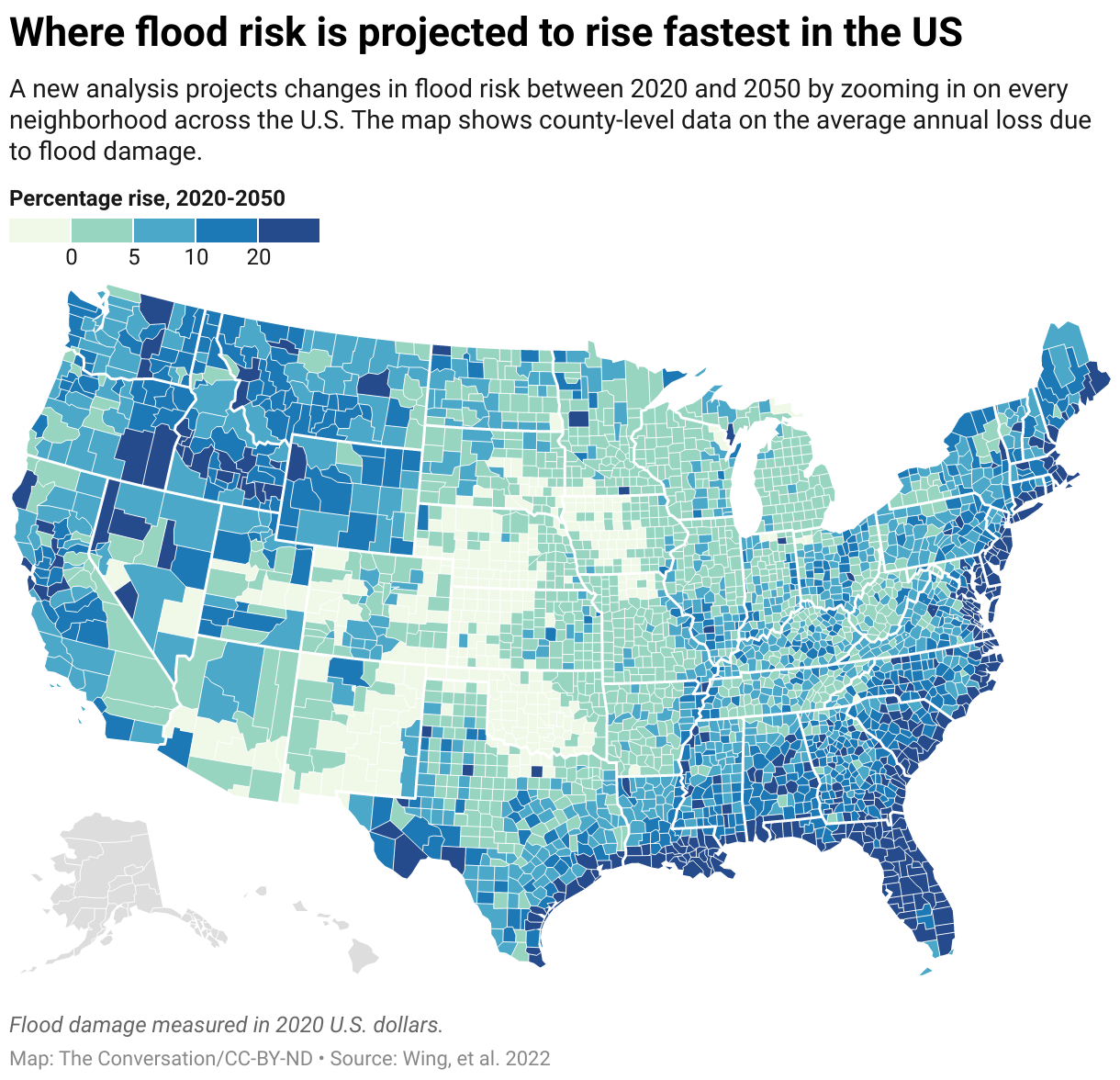
3. Choose the Right Data Attributes
Not all data belongs on your map. Select variables that support your message and are spatially meaningful.
4. Consider Audience Perception
Maps are not neutral — design choices influence interpretation.
Ask yourself:
- Could colors be misleading (e.g., red = danger)?
- Are you introducing bias unintentionally?
- Is the map easy to interpret at a glance?
Example:
- Darker/Very Light colors may imply higher value and importance
- Certain color schemes may exclude colorblind users (see next module)
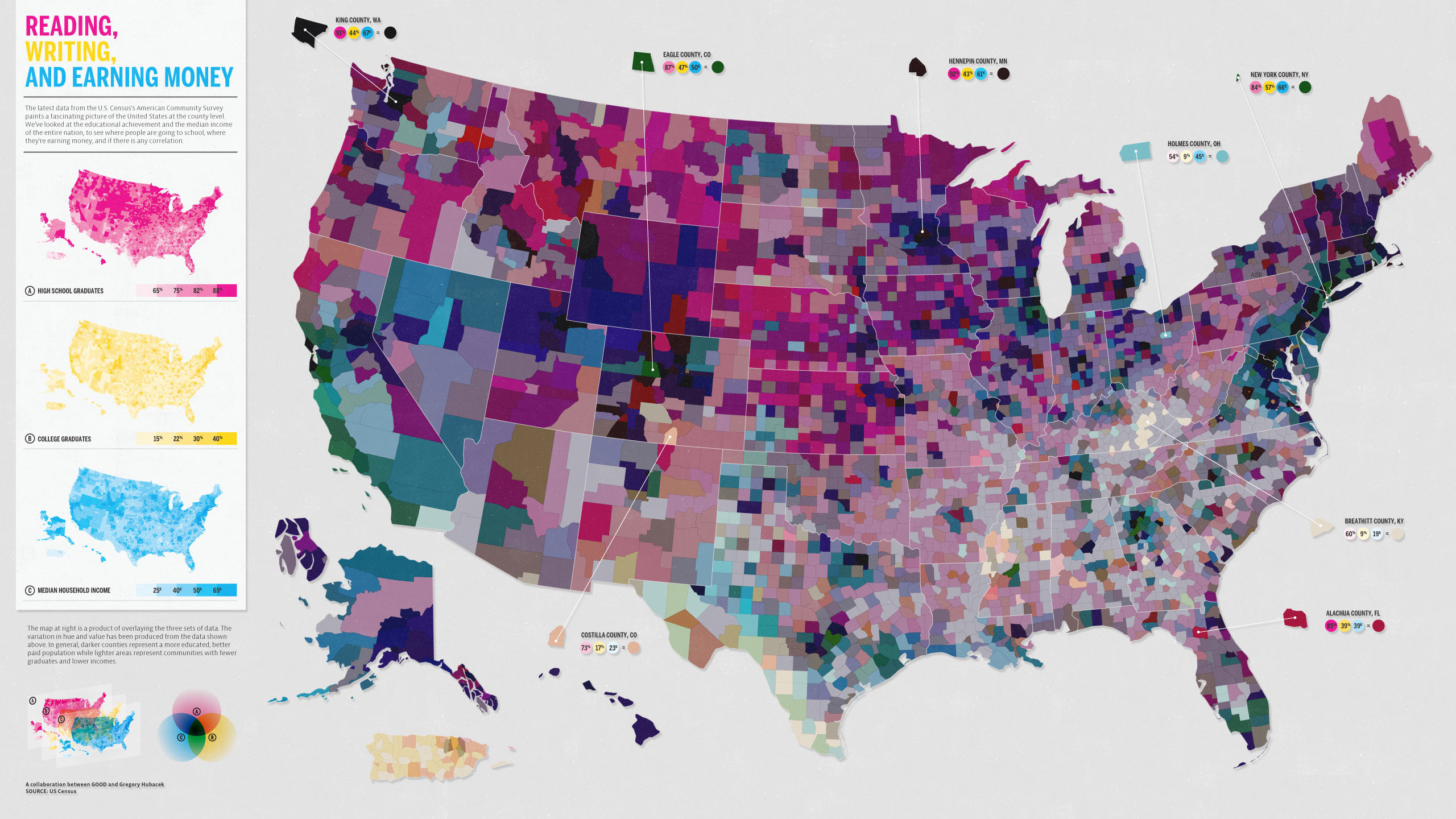
Best Practice: Establish clear contrast between foreground (data) and background (basemap). Use figure-ground techniques, such as subtle vignettes or lighter basemaps, so your data stands out.
5. Choose the Right Medium
Where your map is displayed affects design decisions.
6. Will Your Map Inform Decisions?
Some maps are purely exploratory, while others guide real-world actions.
7. Understand Your Audience’s Knowledge
Ask yourself:
- Do they understand your variables?
- Do you need to explain units or scales?
- Should you include annotations or context?
Tips:
- Add legends and labels
- Use plain language when possible
- Provide context (e.g., time period, data source)
- Include essential map elements:
scale bar(when distance matters),north arrow(if orientation isn’t standard), andsourcecitation
Pro Tip: Aim for “maximum information at minimum effort” — the viewer should grasp the main idea quickly without struggling.
8. Do You Need More Data?
Incomplete data can lead to misleading maps.
Ask yourself:
- Are there missing variables that affect interpretation?
- Is your data up to date?
- Is the spatial resolution sufficient?
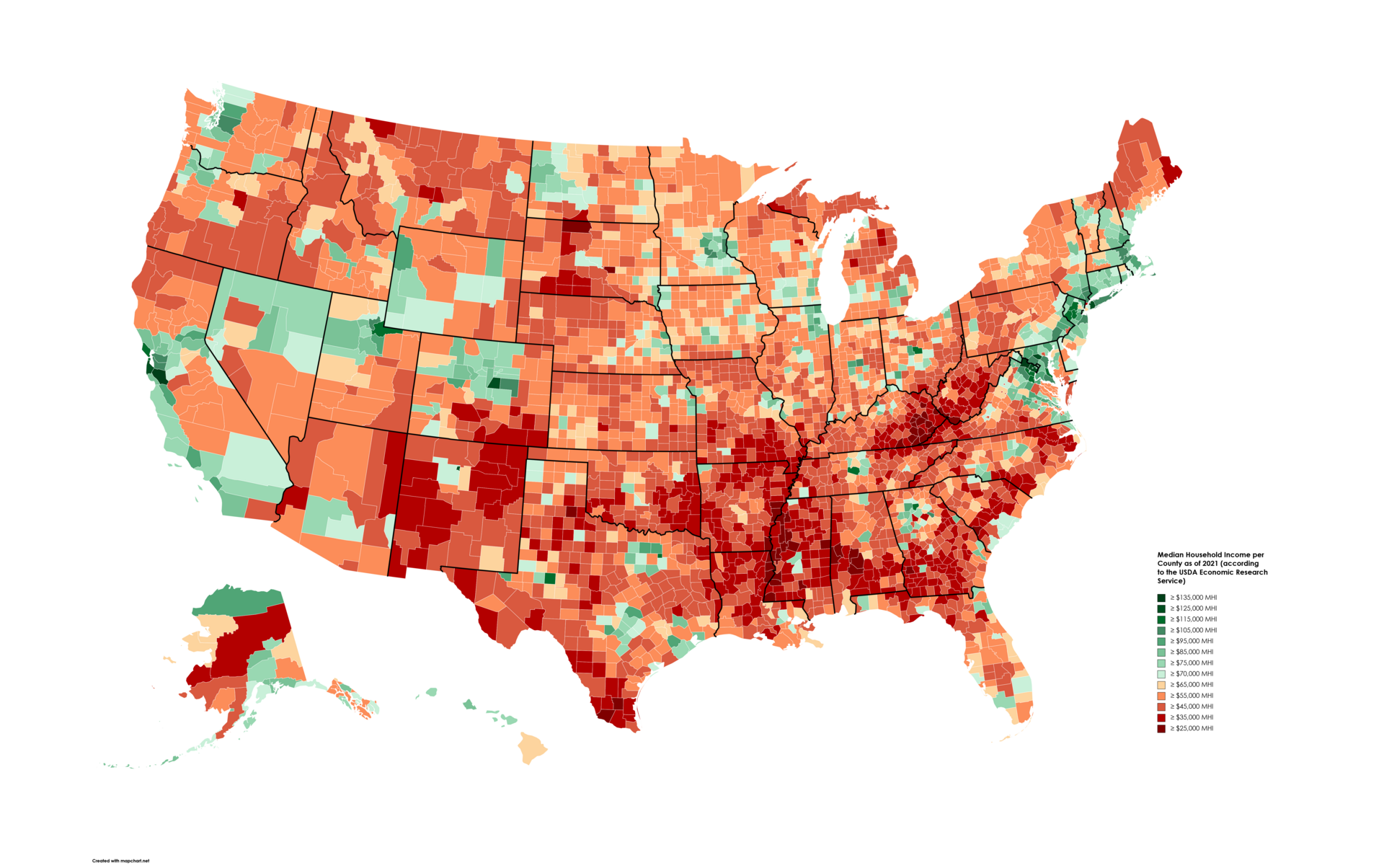
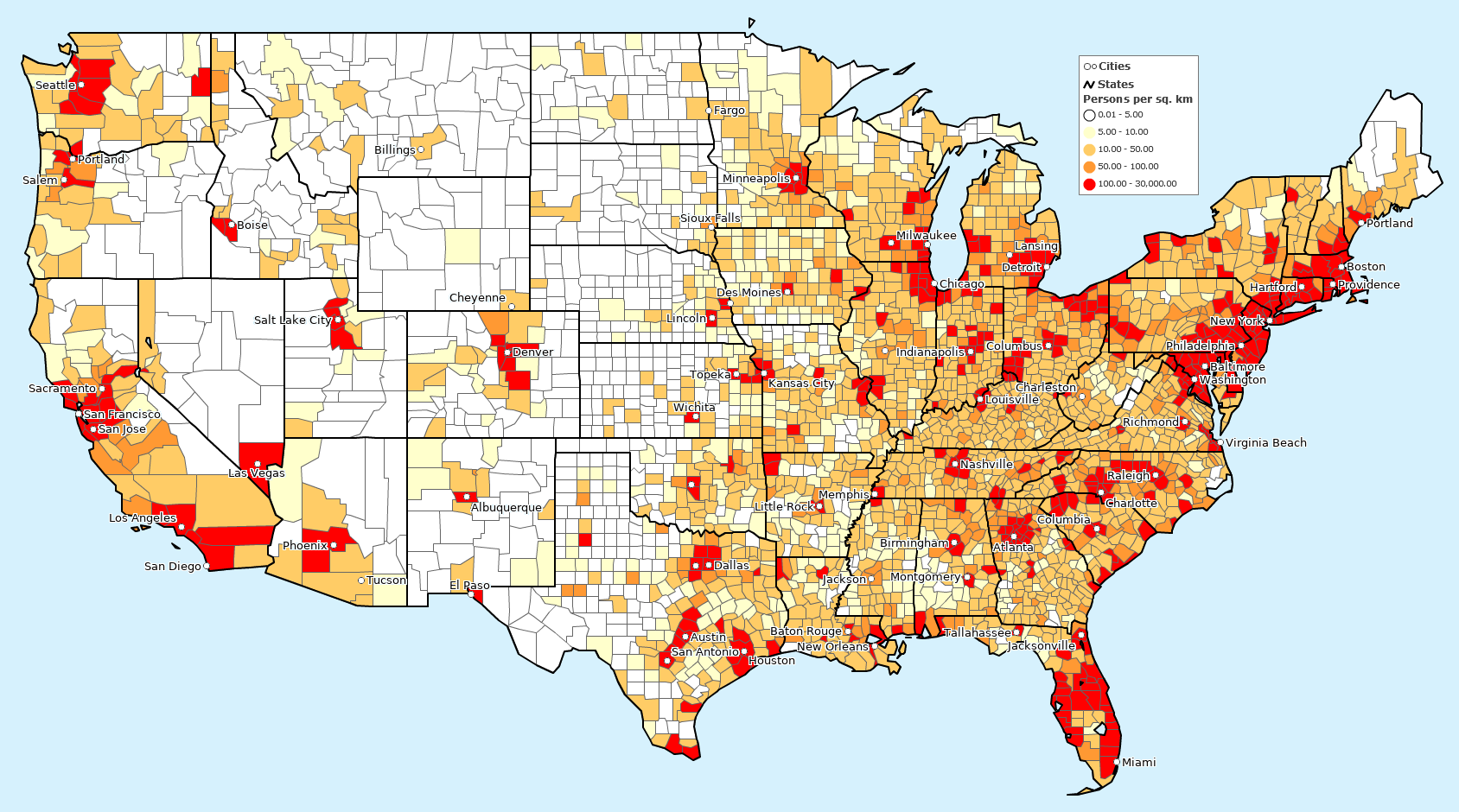
Example:
Mapping income without population density may mislead conclusions.
9. Do You Understand Your Data?
Before mapping, you should fully understand your dataset.
Cartography Checklist (Summary)
Before finalizing your map, review this checklist:
Final Thought
A good map is not just visually appealing — it is honest, clear, and purposeful. It respects the data, serves the audience, and communicates effectively without distortion.
Think of a map you’ve seen recently.
What did it do well? What could be improved?How might the same data be presented differently for another audience?
Share an example of a map that misled you (or succeeded brilliantly) and why.
Content from Fundamentals of Map Design
Last updated on 2026-03-27 | Edit this page
Estimated time: 105 minutes
Overview
Questions
- What is a map and what makes it effective?
- How do visual hierarchy and design influence interpretation?
- How should colors and symbols be used in maps?
- What are map scales and projections, and why do they matter?
- What are common thematic map types and when should you use them?
- Should your map be static or interactive?
- How should data be classified for choropleth maps?
Objectives
- Understand the core components of a map
- Apply visual hierarchy principles to improve clarity
- Choose appropriate colors, scales, and projections
- Identify and use different thematic map types
- Decide between static and interactive maps
- Select appropriate classification methods for data
What is a Map?
A map is a visual representation of spatial data designed to communicate information about locations, patterns, and relationships.
A good map:-
- Has a clear purpose
- Accurately represents data
- Is easy to interpret
- Minimizes misleading elements
- Has all the key map elements
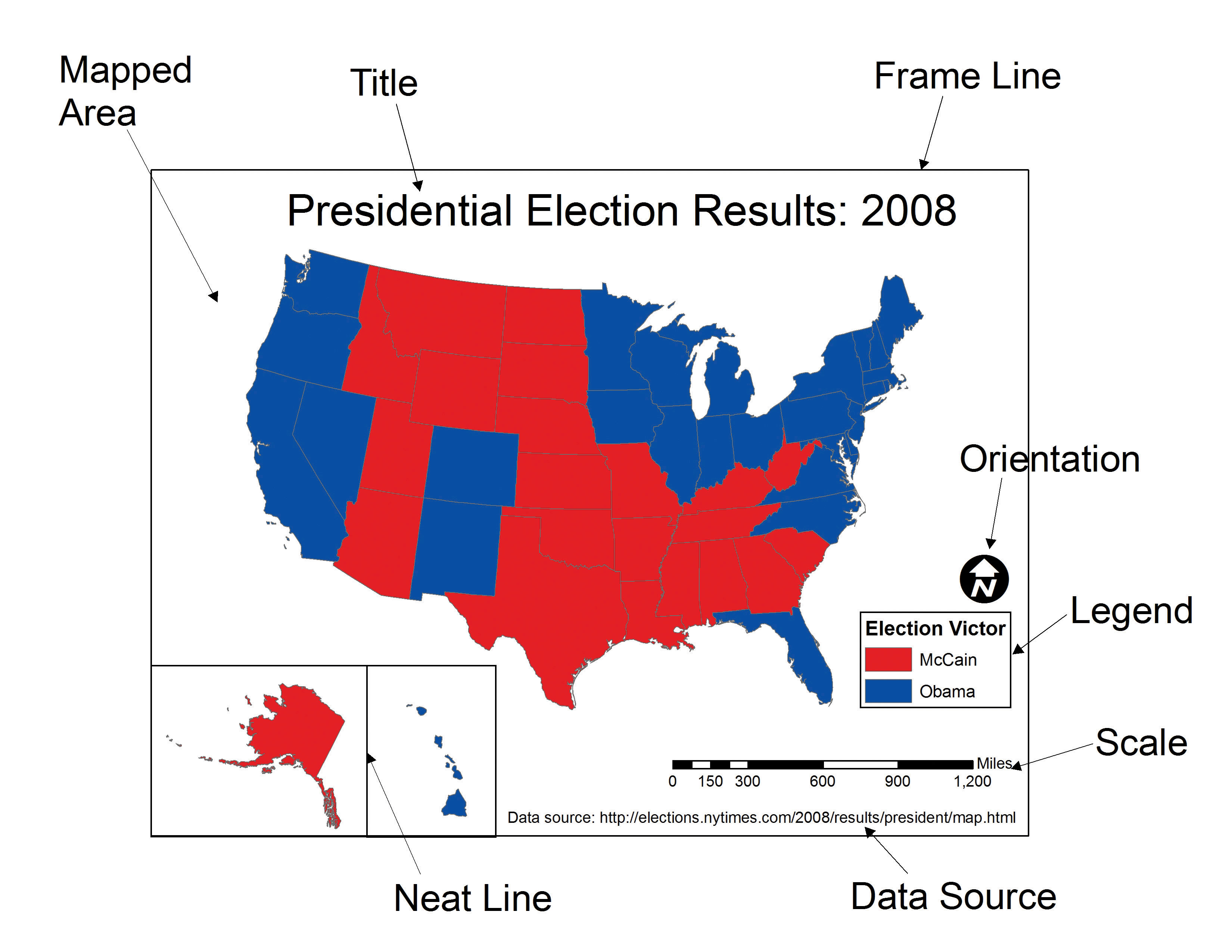
Key Idea
A map is not just a picture — it is a communication tool.
Visual Hierarchy
Visual hierarchy controls what the viewer sees first, second, and last.
Variables in Mapping
Cartographic variables (visual variables) represent data visually.
Colors on Maps
Color choice is critical for readability and accuracy.
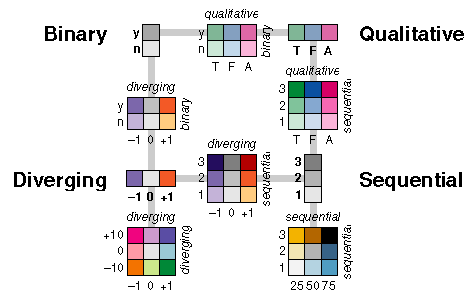
Types of color schemes:
- Sequential → low to high values (e.g., light → dark)
- Diverging → values around a midpoint (e.g., blue–white–red)
- Categorical → distinct groups
Scale
Map scale defines the relationship between distance on the map and distance in reality.
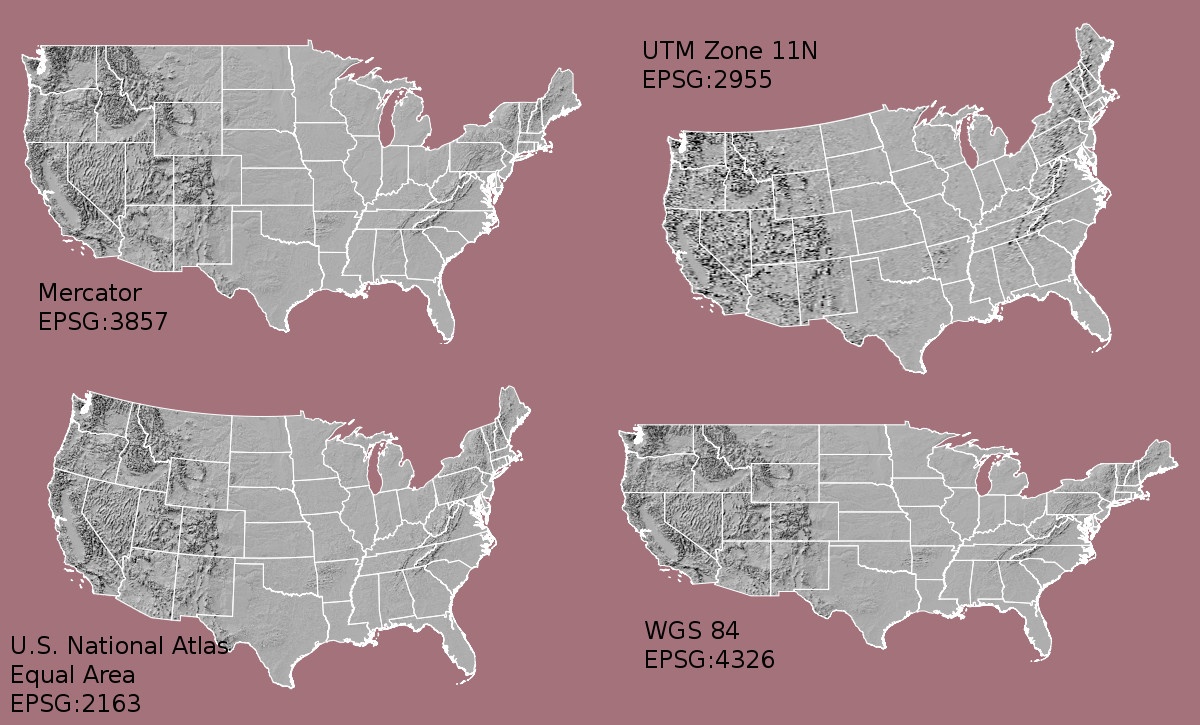
Projections
A projection transforms the Earth (a sphere) onto a flat surface.
Examples:
- Equal-area → preserves area
- Conformal → preserves shape
- Equidistant → preserves distance
Check here
to play around how Mercator Projection effects size of
countries. You can move each countries across latitudes to compare its
true size with another country.
Tip: Try selecting Russia and drag it
all the way down to where Africa is. You will be amazed by
the result!
Important
There is no “perfect” projection — only projections suited for specific purposes.
Labeling and Legends
Labels and legends help users understand your map.
Thematic Map Types
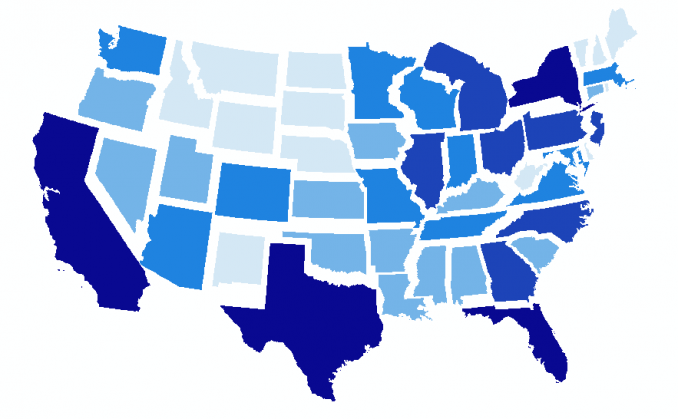
Choropleth Maps
Used to show values aggregated by regions (e.g., counties, states).
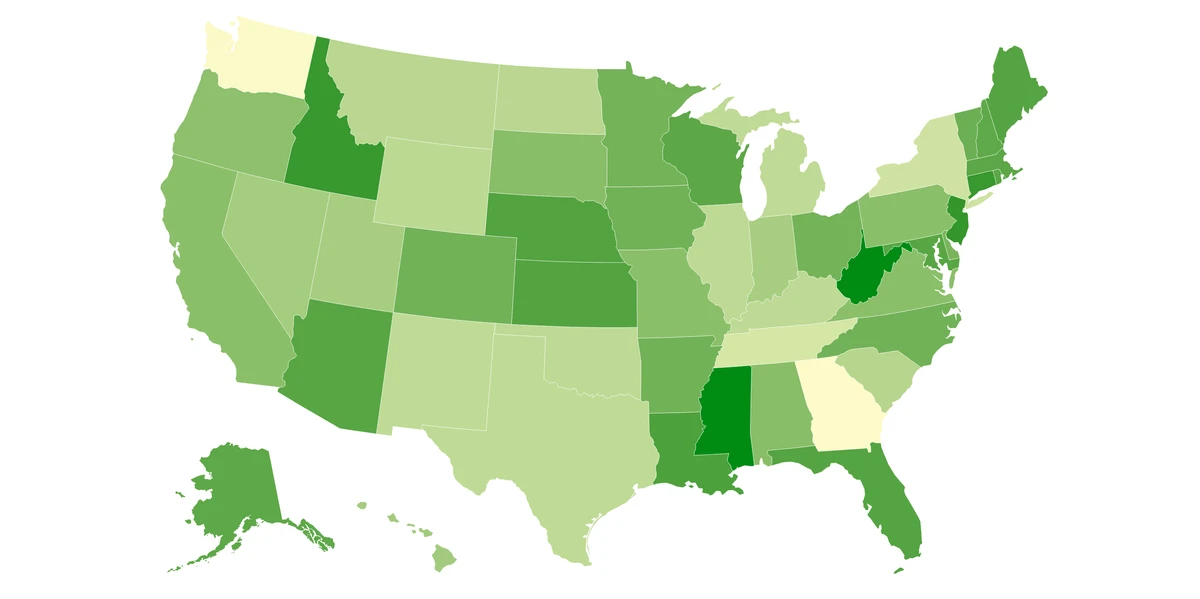
Best for: - Rates, ratios, normalized data (e.g., per capita)
Avoid: - Raw counts (can mislead due to area size)
Proportional Symbol Maps
Symbols sized according to data values.
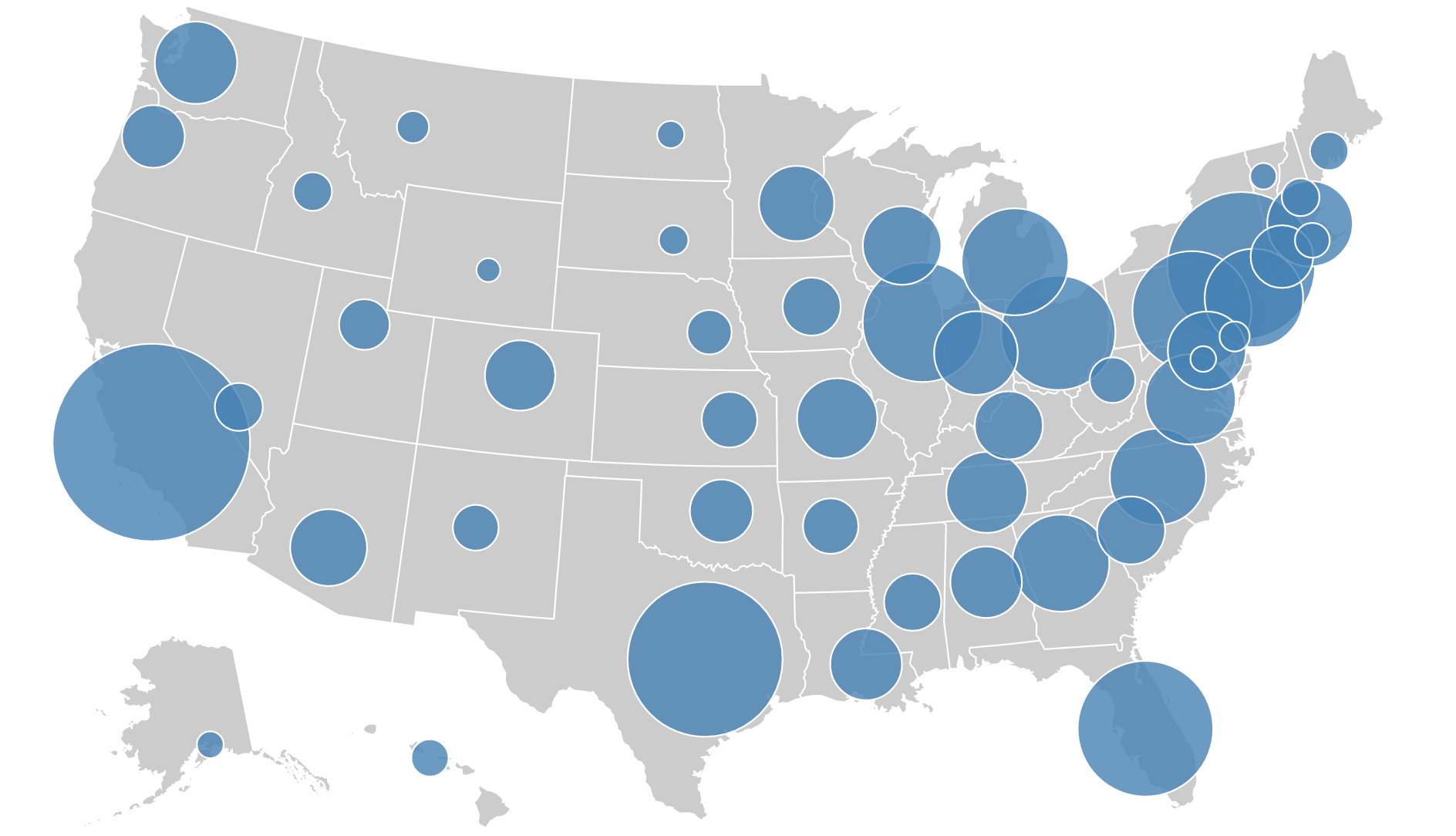
Best for: - Comparing magnitudes across locations
Dot Density Maps
Dots represent occurrences or quantities.
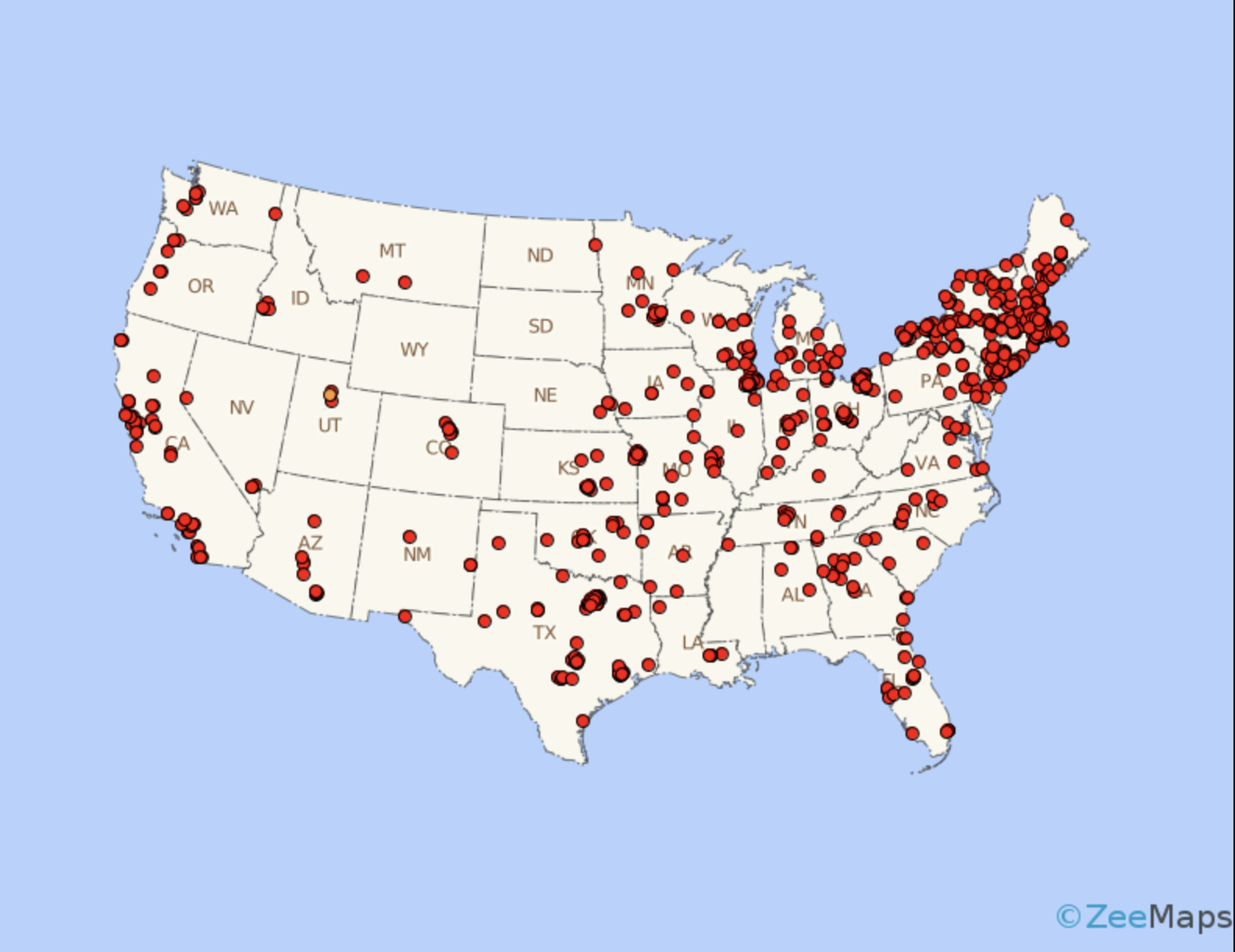
Best for: - Showing distribution patterns
Static vs Interactive Maps
Static Maps:
- Fixed image
- Best for print and reports
- Easier to control design
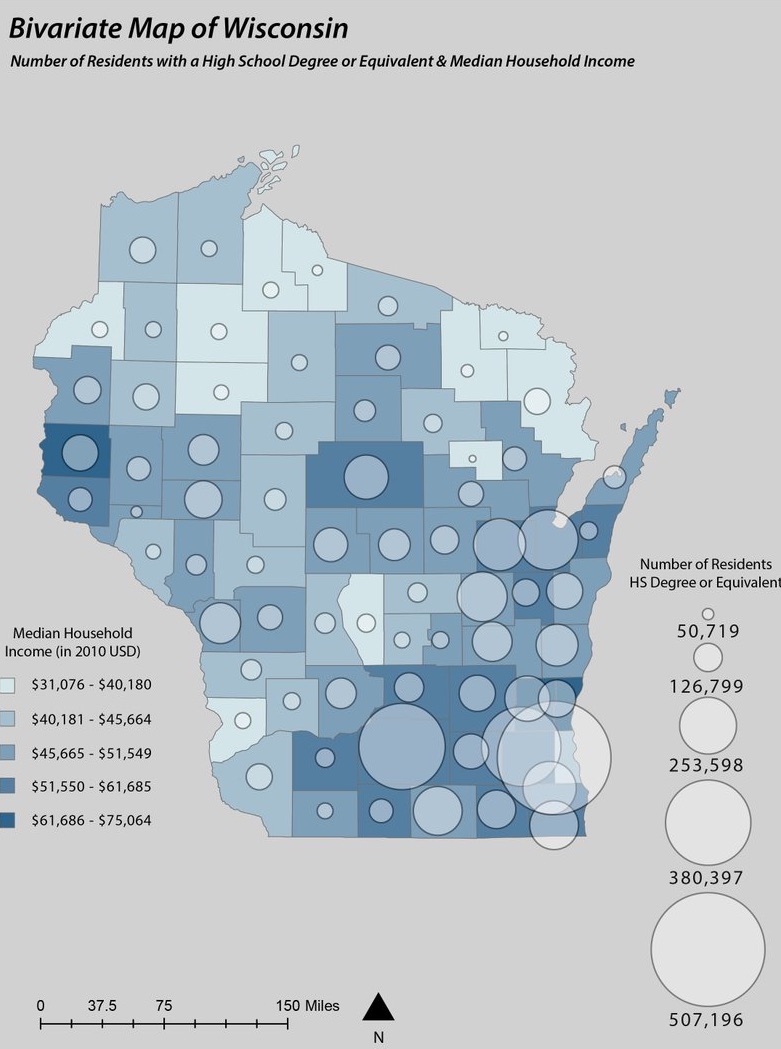
The map images that we have shown above are all examples of static maps.
Interactive (Web) Maps:
- Allow zooming, filtering, tooltips
- Ideal for exploration
- Require more development effort
See here. Scroll down and you should see an interactive map of West Lafayette that we implemented in our website!
Data Classification Methods
Classification determines how numeric data is grouped into categories.
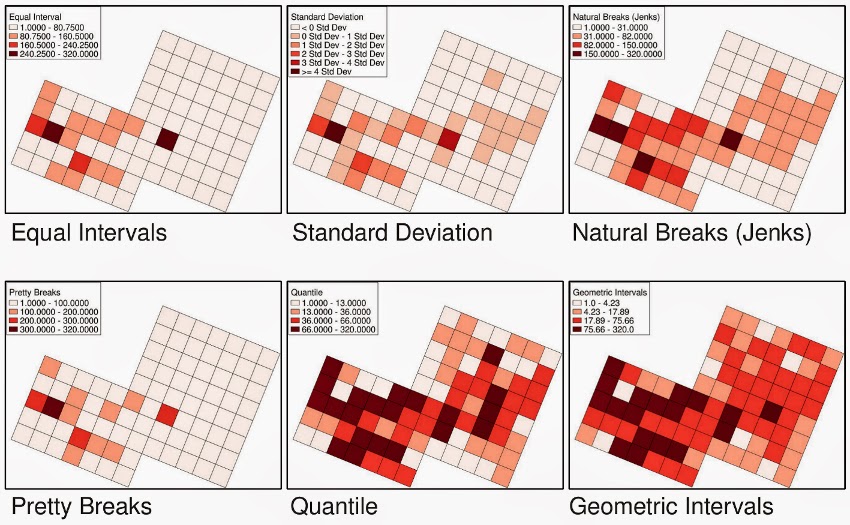
Choosing the Right Classification
| Method | Best Use Case |
|---|---|
| Equal Interval | Uniform distributions |
| Quantile | Ranking/comparison |
| Natural Breaks | Uneven, clustered data |
| Standard Deviation | Highlighting anomalies/outliers |
Beginner Recommendation: Start with Natural Breaks (Jenks) — it usually gives the most honest visual pattern.
Challenge
You are mapping income data with strong clustering.
Which classification method would you choose and why?
Challenge
You have U.S. county median household income data ranging from $25k to $150k with a strong cluster around $55k–$70k.
Which classification method would you choose and
why?
Final Takeaways
- Maps are communication tools — design intentionally
- Choose map types based on your data and message
- Use classification methods carefully to avoid misleading results
- Always consider your audience and purpose
- When might an interactive map be worse than a static map?
- How can classification choices change the story your map tells?
Content from Getting Started with QGIS: Your First Map
Last updated on 2026-04-22 | Edit this page
Estimated time: 105 minutes
Overview
Questions
- How do I load spatial data into QGIS?
- How can I style and visualize data on a map?
- How do I export a finished map?
Objectives
- Load and explore spatial datasets
- Create and style a simple map
- Export a publication-ready map
Loading Your First Dataset
We will start with a simple dataset (e.g., shapefile or GeoJSON). You can find a sample dataset here
For our example, we will use airport.shp in the
shapefiles folder in the link. Along with the .shp file make sure to
download its supporting files to load in the .shp correctly. They
are:
- airports.cpg
- airports.dbf
- airports.prj
- airports.shx
If you lead help with the interface of QGIS refer to the setup guide here.
Step 0: Add Base Map
- In the Browser Panel click on
XYZ Tiles. - You should see 2 options: Global Terrain and Open Street Map.
- Right click on Open Street Map and Add Layer to Project.
- You should now see a world map on you Map Panel.
Step 1: Add a Vector Layer
- Go to: Layer → Add Layer → Add Vector Layer. Since we are working with point data here.
- Browse to your dataset
- Click Add or double click on the file.
- (If Applicable), drag the airports layer above the Open Street Map Layer since you want the points on top of the world map.
Styling Your First Map
Step 2: Choose a Style
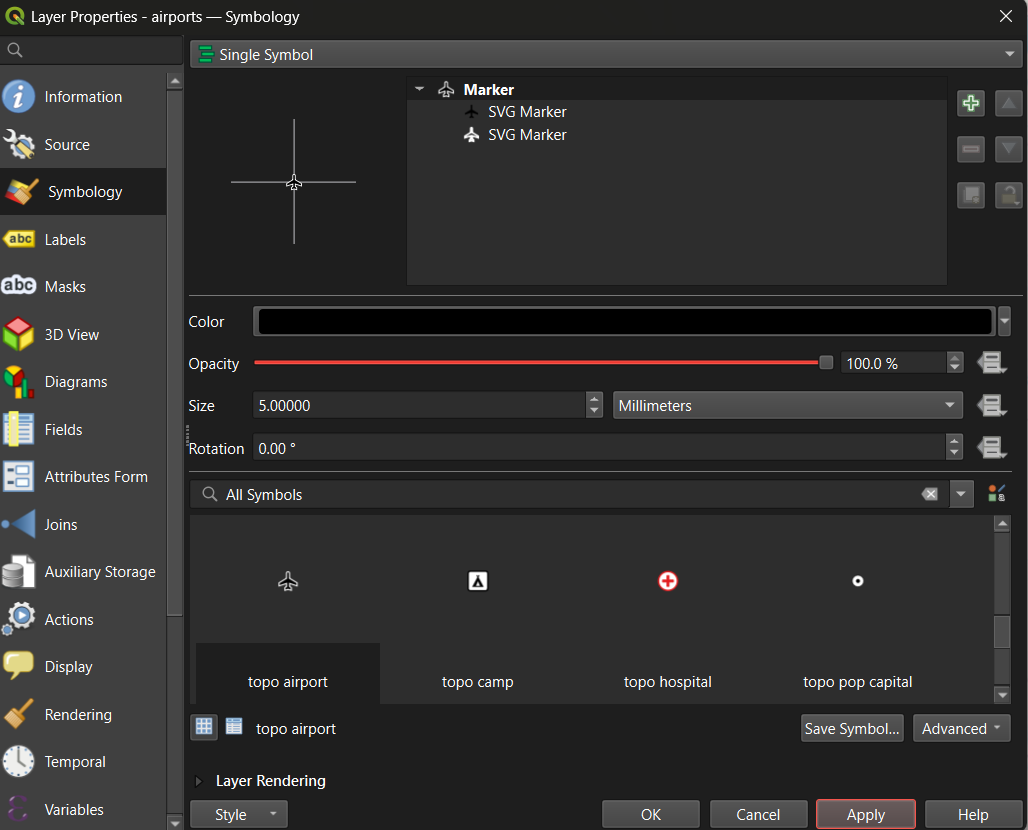
- Set the
Magnifierat the bottom of the Map Panel to 75%. - To change layer name right click on the Layer → Properties → Source → Change Layer Name and apply. This is important as later this reflects the naming of the Legend when exporting the map.
Creating a Map Layout
To export your map, use the Print Layout.
Step 3: Add Map Elements
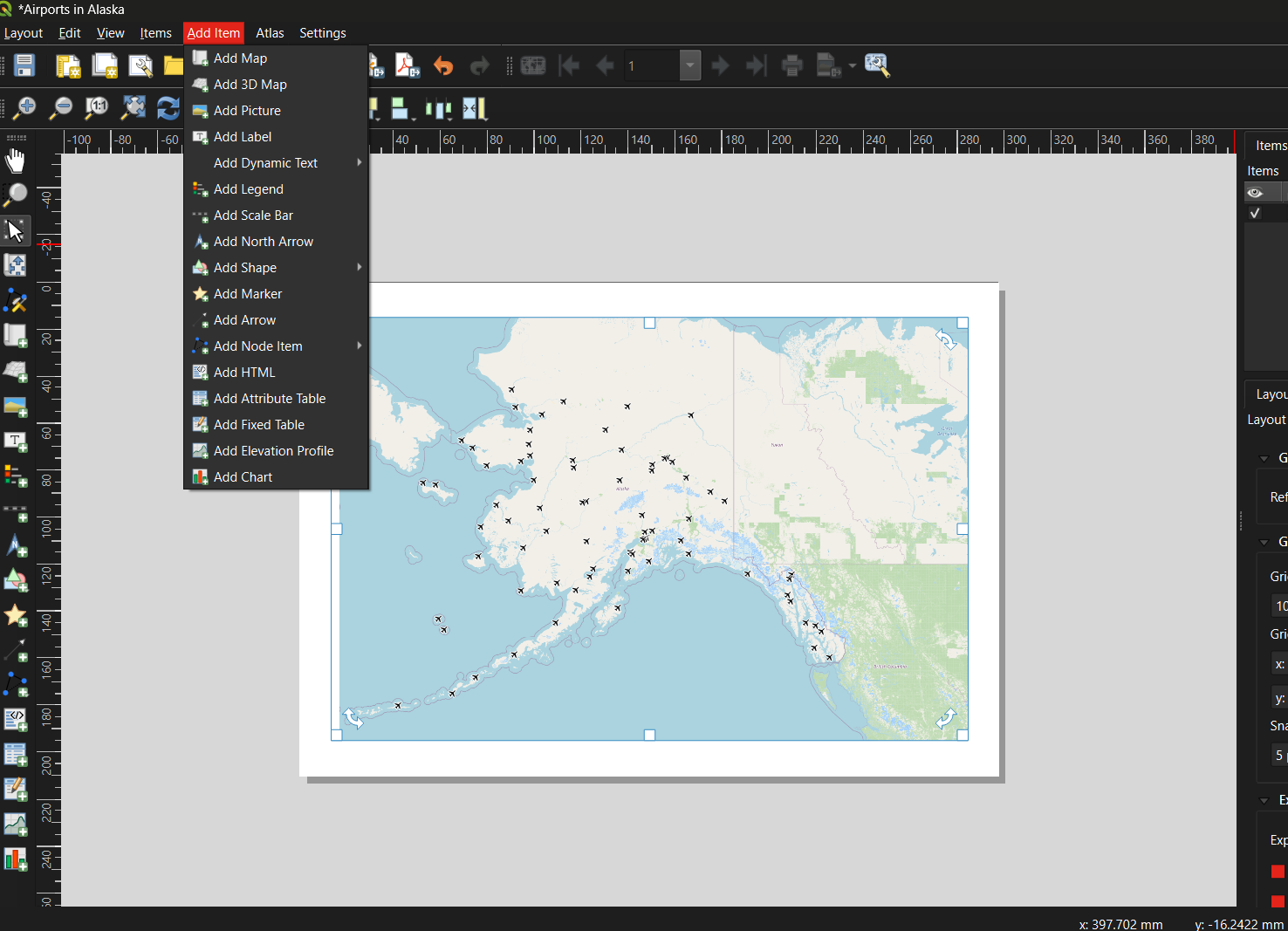
Include: - Title, Add Item → Add Label → Draw Rectangle on top of map - Legend - Scale Bar - North Arrow - Add Metadata (who created the map?). Do this at the bottom of the map
Exporting Your Map
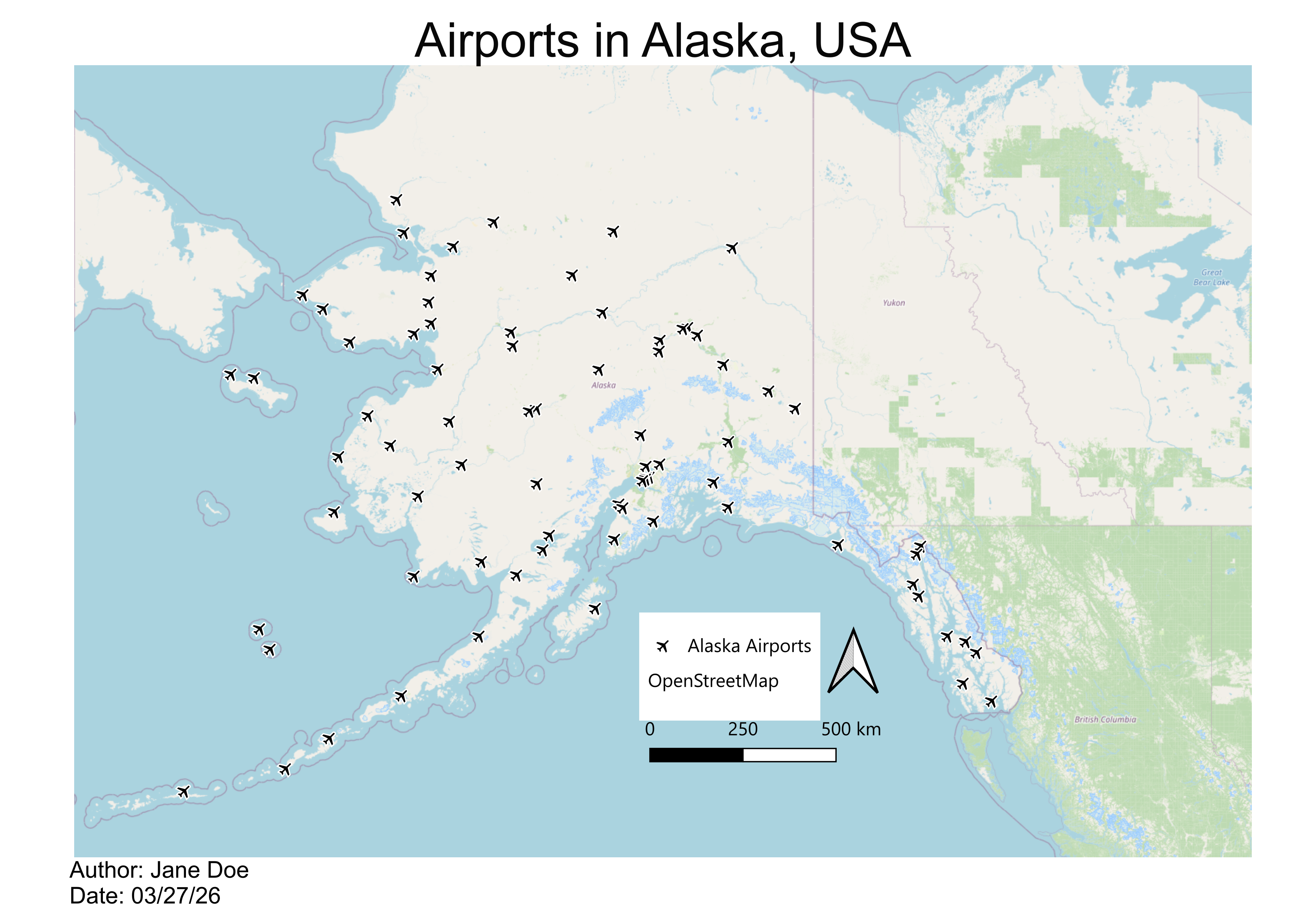
Common Beginner Mistakes
- Forgetting to save the project
- Using raw counts instead of normalized data
- Overcomplicating symbology
- Ignoring legends and labels/naming
Keep It Simple
Start with a clear, simple map before adding complexity.
Hands-On Exercise
Final Takeaways
- QGIS is a powerful, free tool for spatial analysis
- Good maps start with clean data and simple design
- Symbology and layout are key to communication
- What challenges did you face while creating your first map?
- How would you improve your map for a different audience?
Content from Accessibility in Map Design
Last updated on 2026-04-12 | Edit this page
Estimated time: 90 minutes
Overview
Questions
- Why is accessibility important in cartography?
- How do different types of color vision deficiency affect map reading?
- How can we design maps that are readable for colorblind users?
- What role do hue, saturation, and value play in accessible design?
- Which color palettes work best in QGIS for accessible maps?
Objectives
- Understand why accessibility matters in map design
- Recognize major types of color vision deficiency (CVD)
- Apply color-safe cartographic principles
- Select accessible color palettes in QGIS
- Test maps for readability across audiences
Why Accessibility Matters in Maps
Maps are communication tools.
If part of your audience cannot interpret your colors, your map fails to
communicate effectively.
Accessible maps: - Reach wider audiences - Improve readability for everyone - Reduce misunderstanding and bias - Support inclusive science communication
Key Idea
Accessibility is not optional — it is part of good cartographic design.
Understanding Color Vision Deficiency (Colorblindness)
Color vision deficiency affects how some people distinguish colors.
Approximately: - ~8% of men - ~0.5% of women
experience some form of color vision deficiency.
Common Types of Colorblindness
Common Mapping Problems for Colorblind Users
Poor design choices include: - Red vs green comparisons - Similar lightness values - Too many hues with low contrast - Relying only on color to encode meaning
Example bad pairing: ❌ Red and green categories on same map
The Solution: Use Hue, Saturation, and Value Wisely
Hue
The color family (red, blue, green)
Avoid: - Red-green combinations - Blue-purple confusion in tritanopia
Designing Accessible Maps
Recommended Colorblind-Safe Palettes
These palettes work well across most users.
Best QGIS Palettes for Accessibility
In QGIS, use built-in ramps such as:
How to Apply Accessible Palettes in QGIS
Testing Your Map for Accessibility
Always test your design.
Accessibility Beyond Colorblindness
Remember: Accessibility also includes: - Readable font sizes - Clear legends - Sufficient contrast - Screen-reader compatible web maps
Example: Good vs Bad Design
Accessibility Checklist for Maps
Before publishing:
Final Takeaways
Accessible maps are: - Clearer - More inclusive - More professional
Good cartography means designing for all users.
- Have you seen maps that were difficult to read because of color?
- How can accessibility improve scientific communication?