
Getting Started with QGIS: Your First Map
Last updated on 2026-04-22 | Edit this page
Estimated time: 105 minutes
Overview
Questions
- How do I load spatial data into QGIS?
- How can I style and visualize data on a map?
- How do I export a finished map?
Objectives
- Load and explore spatial datasets
- Create and style a simple map
- Export a publication-ready map
Loading Your First Dataset
We will start with a simple dataset (e.g., shapefile or GeoJSON). You can find a sample dataset here
For our example, we will use airport.shp in the
shapefiles folder in the link. Along with the .shp file make sure to
download its supporting files to load in the .shp correctly. They
are:
- airports.cpg
- airports.dbf
- airports.prj
- airports.shx
If you lead help with the interface of QGIS refer to the setup guide here.
Step 0: Add Base Map
- In the Browser Panel click on
XYZ Tiles. - You should see 2 options: Global Terrain and Open Street Map.
- Right click on Open Street Map and Add Layer to Project.
- You should now see a world map on you Map Panel.
Step 1: Add a Vector Layer
- Go to: Layer → Add Layer → Add Vector Layer. Since we are working with point data here.
- Browse to your dataset
- Click Add or double click on the file.
- (If Applicable), drag the airports layer above the Open Street Map Layer since you want the points on top of the world map.
Styling Your First Map
Step 2: Choose a Style
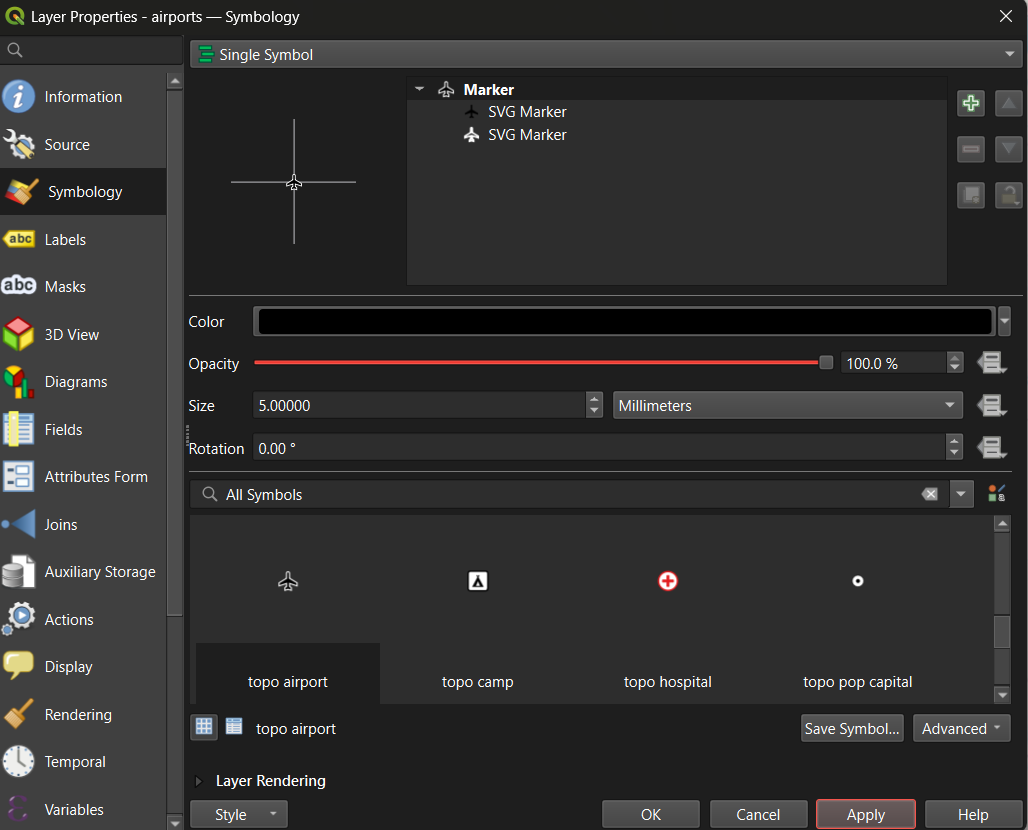
You can change marker size, symbols,
transparency etc. Make your map visually good such that it is clear to
viewer!
- Set the
Magnifierat the bottom of the Map Panel to 75%. - To change layer name right click on the Layer → Properties → Source → Change Layer Name and apply. This is important as later this reflects the naming of the Legend when exporting the map.
Creating a Map Layout
To export your map, use the Print Layout.
Step 3: Add Map Elements
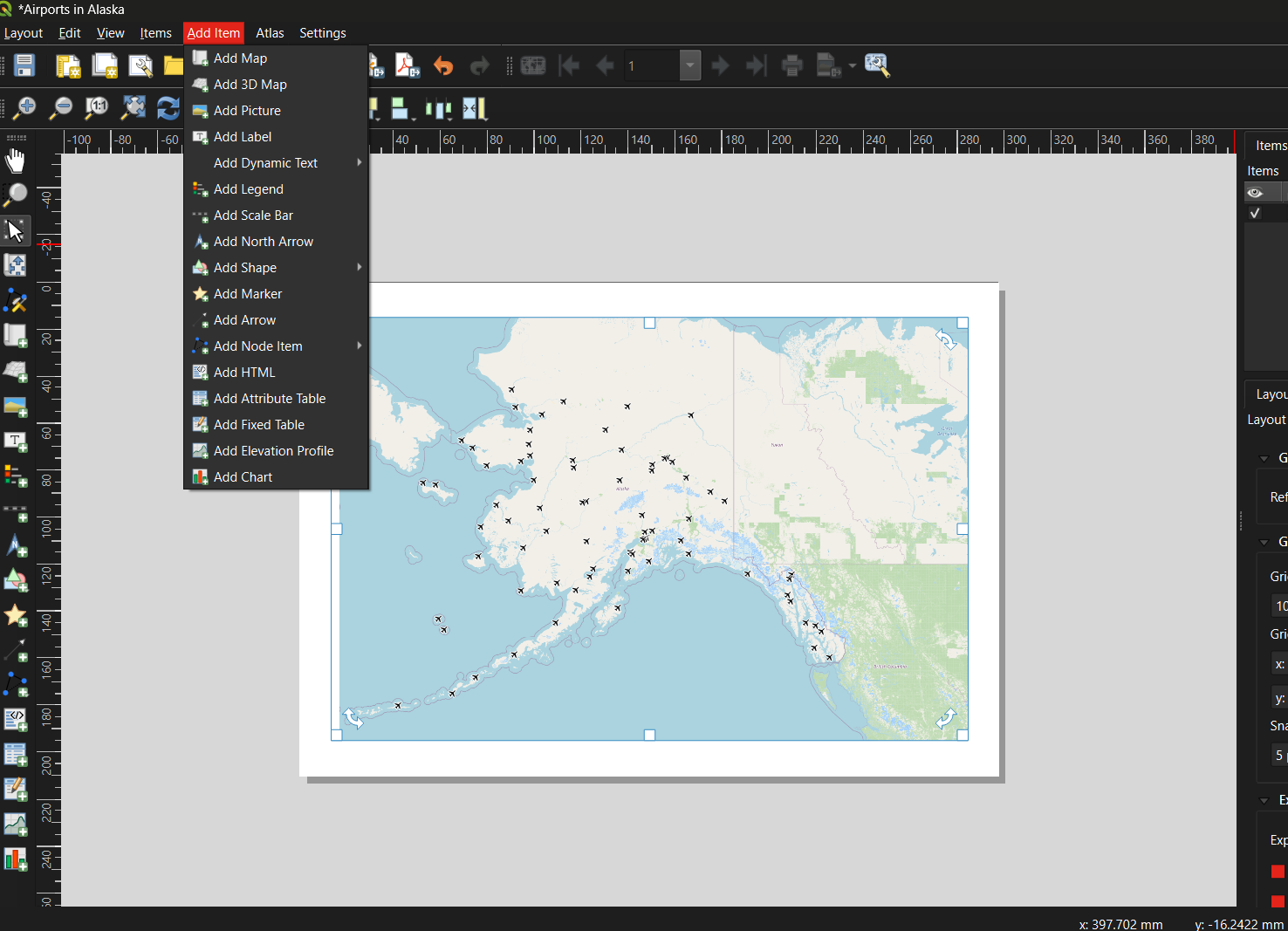
Add all the necessary map items as mentioned in
the previous module. Your map needs to convey information as clearly as
possible.
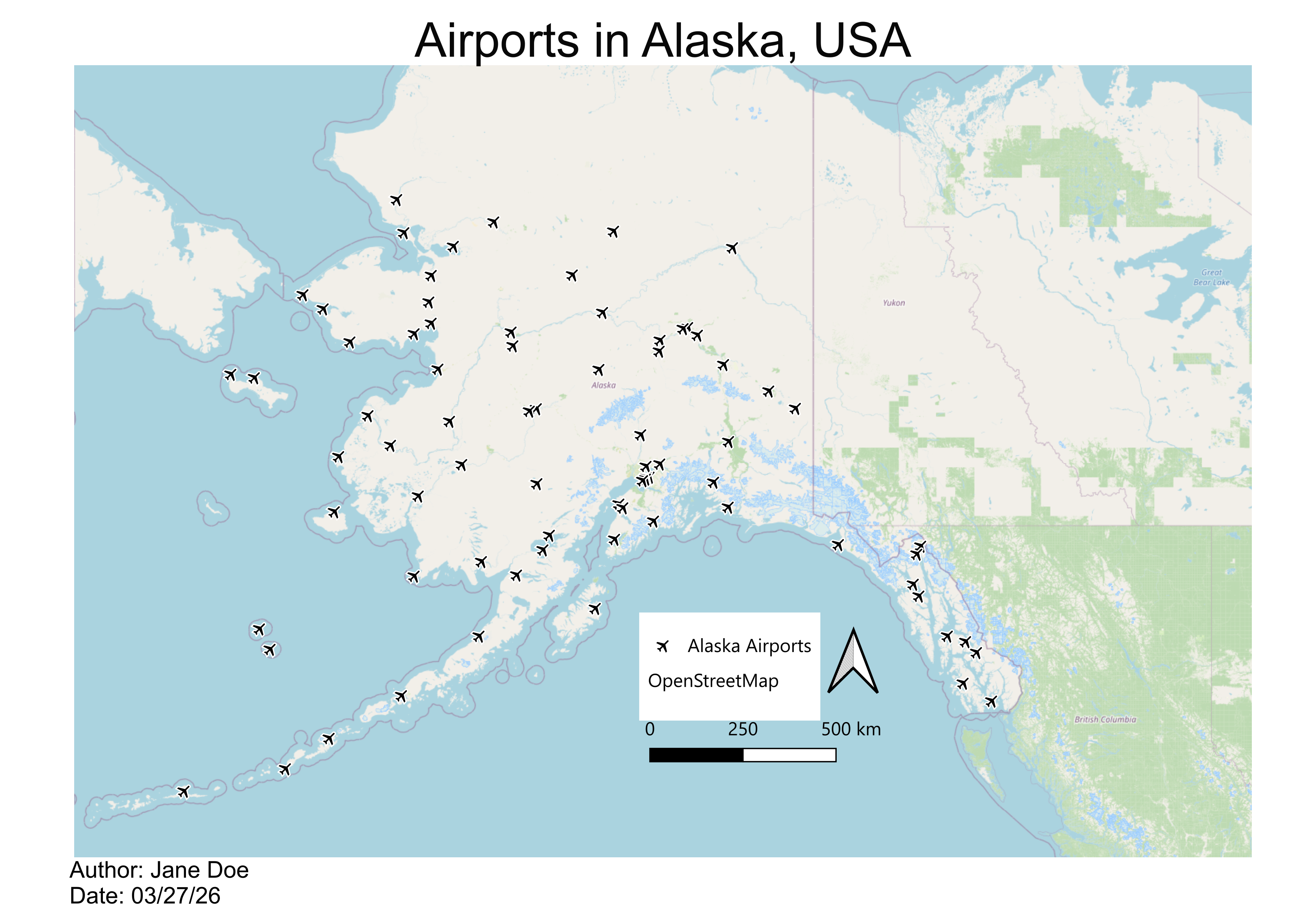
Include: - Title, Add Item → Add Label → Draw Rectangle on top of map - Legend - Scale Bar - North Arrow - Add Metadata (who created the map?). Do this at the bottom of the map
Exporting Your Map
Common Beginner Mistakes
- Forgetting to save the project
- Using raw counts instead of normalized data
- Overcomplicating symbology
- Ignoring legends and labels/naming
Keep It Simple
Start with a clear, simple map before adding complexity.
Hands-On Exercise
Final Takeaways
- QGIS is a powerful, free tool for spatial analysis
- Good maps start with clean data and simple design
- Symbology and layout are key to communication
- What challenges did you face while creating your first map?
- How would you improve your map for a different audience?