All Images
Introduction to Data Visualization
Cartography Checklists
Figure 1

Flood-Risk USA Map
Figure 2

Bad USA Map
Figure 3

A choropleth map of median household income
across U.S. counties in 2021. Green shading indicates higher income. The
map shows a clear pattern but requires additional context for full
interpretation.
Figure 4

A map of U.S. population density by county.
Lighter shading indicates greater population density. This map is
positively correlated with the income map above — higher-density
counties tend to have higher median incomes.
Fundamentals of Map Design
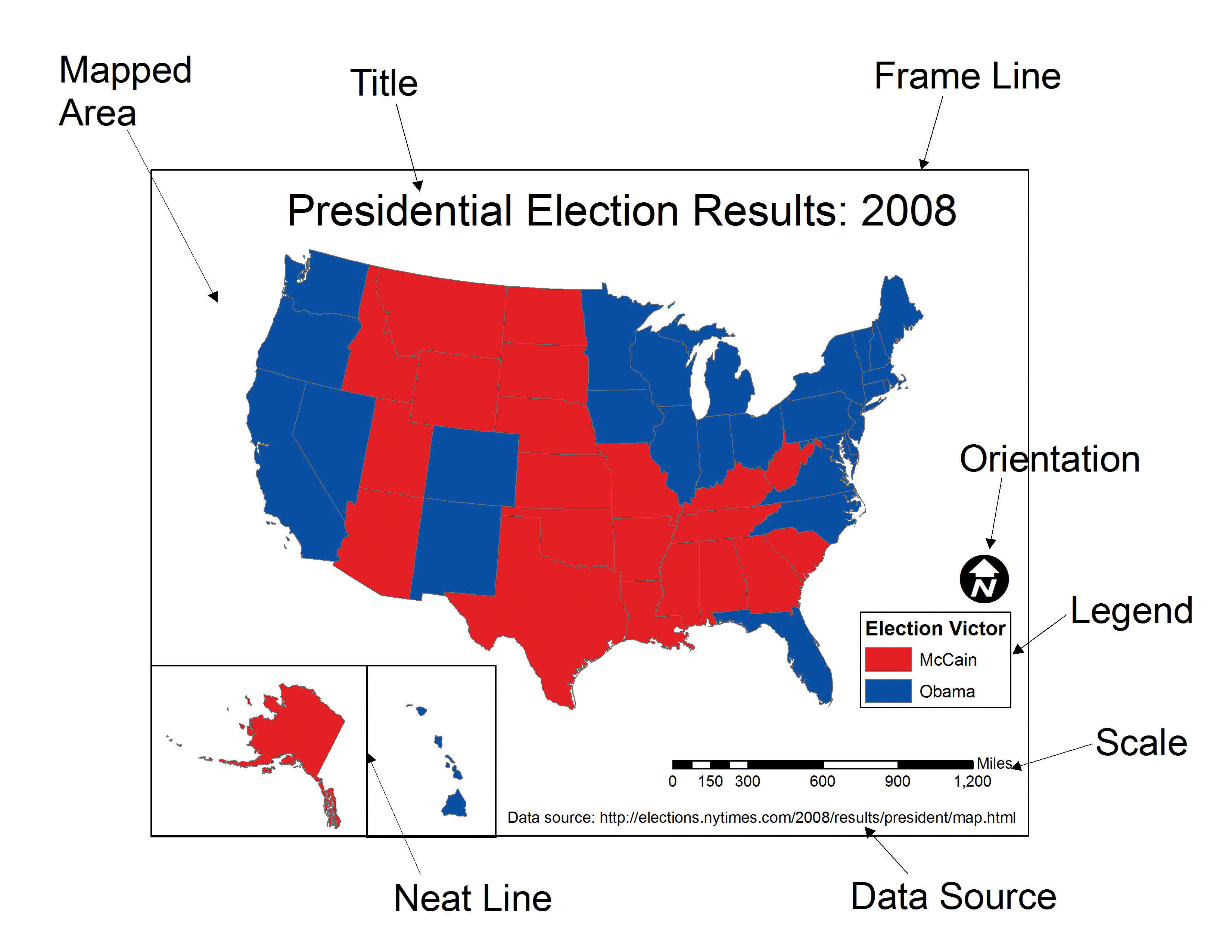
Figure 1

An annotated diagram showing all essential map
elements including title, legend, scale bar, north arrow, and source
citation. Including these elements is necessary to convey accurate
information to the audience.
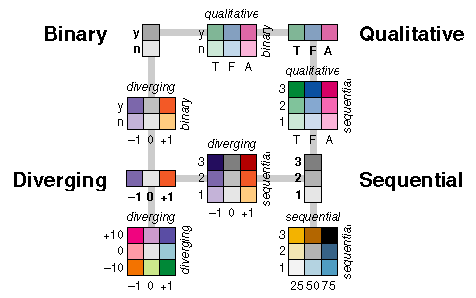
Figure 2

Examples of sequential, diverging, and
categorical color palettes. Using the wrong palette type for your data
can produce an inaccurate or misleading representation.
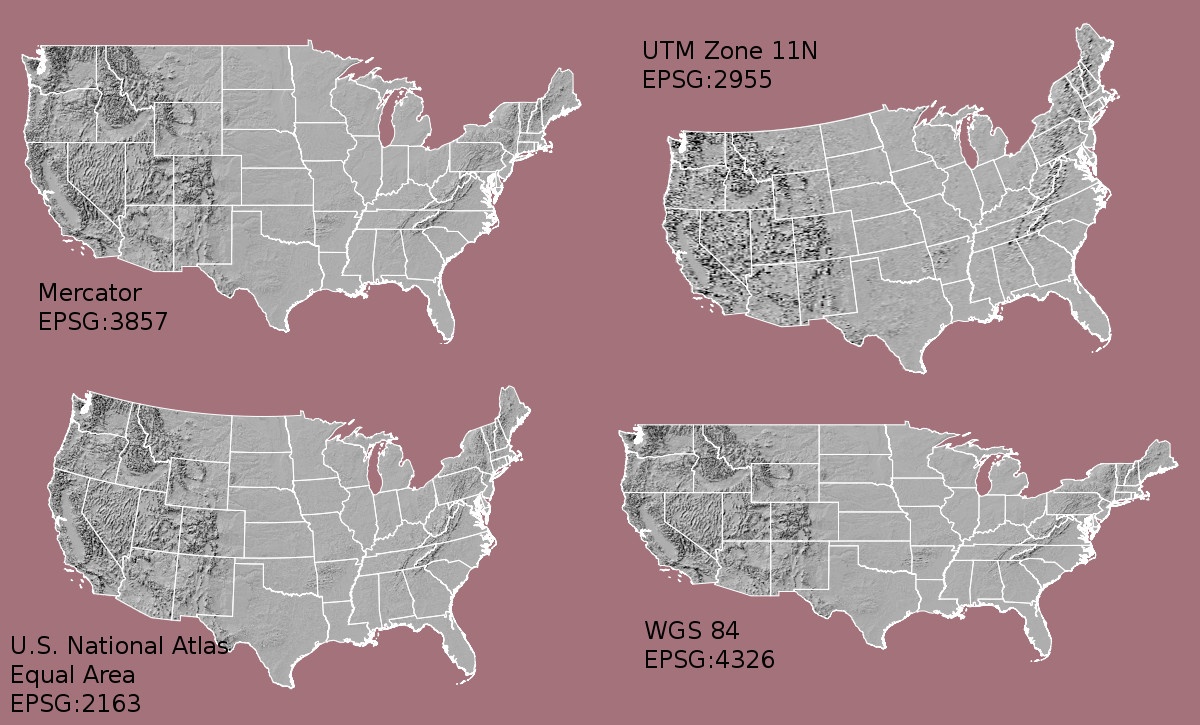
Figure 3

Examples of different map projections showing
how each distorts shape, area, distance, or direction differently. Each
projection has a specific purpose for which it is best suited.
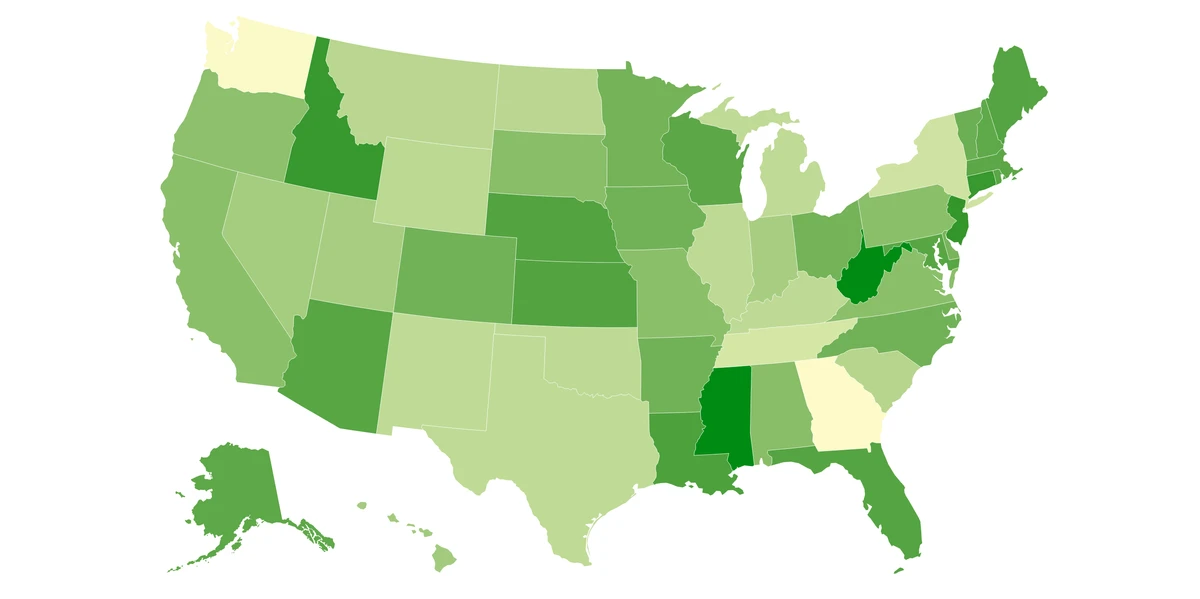
Figure 4

A choropleth map of U.S. states shown in varying
shades of green, where darker green indicates higher values.
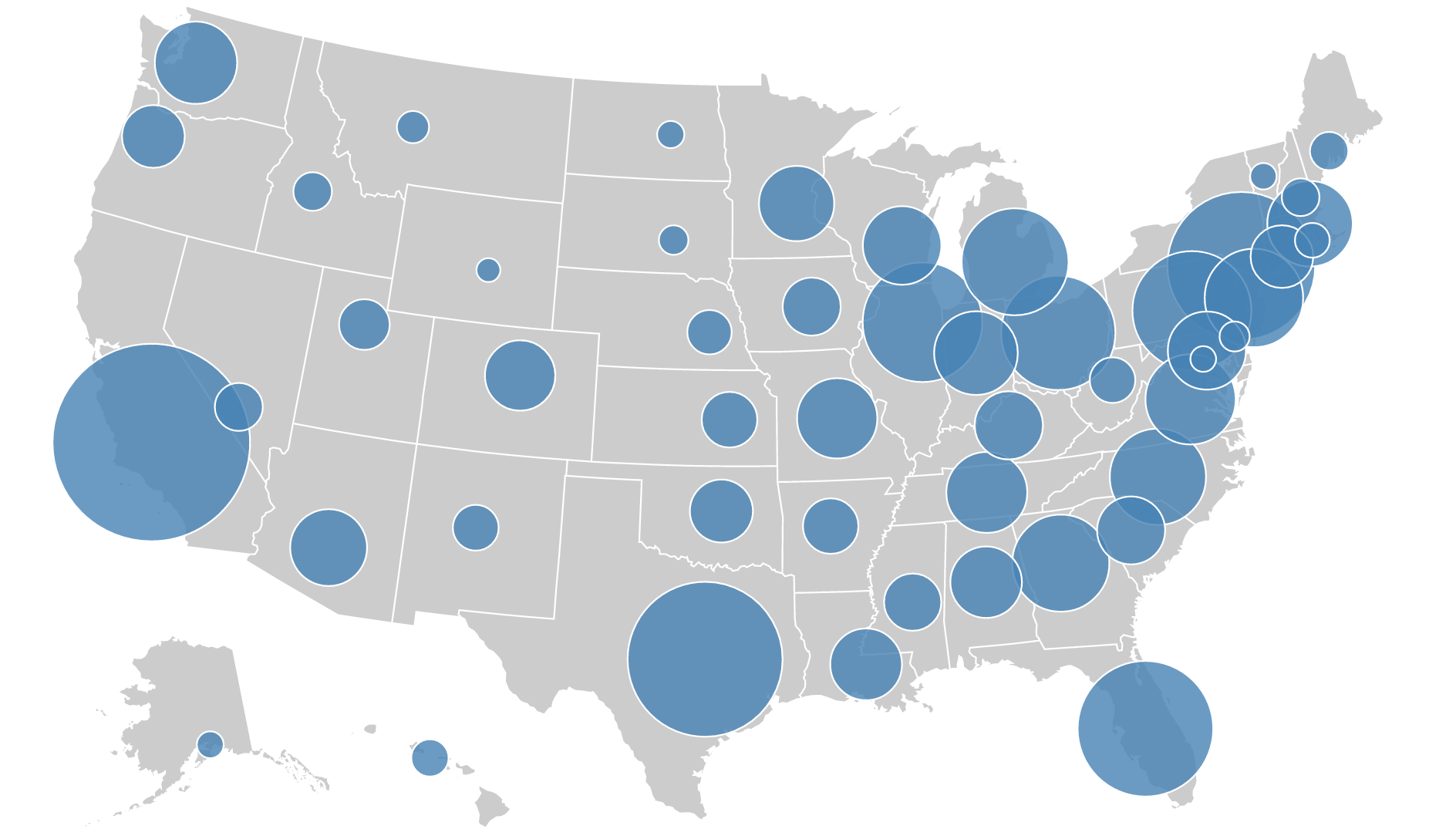
Figure 5

A proportional symbol map of the USA where
circles of varying sizes are centered on cities. Larger circles
represent larger populations.
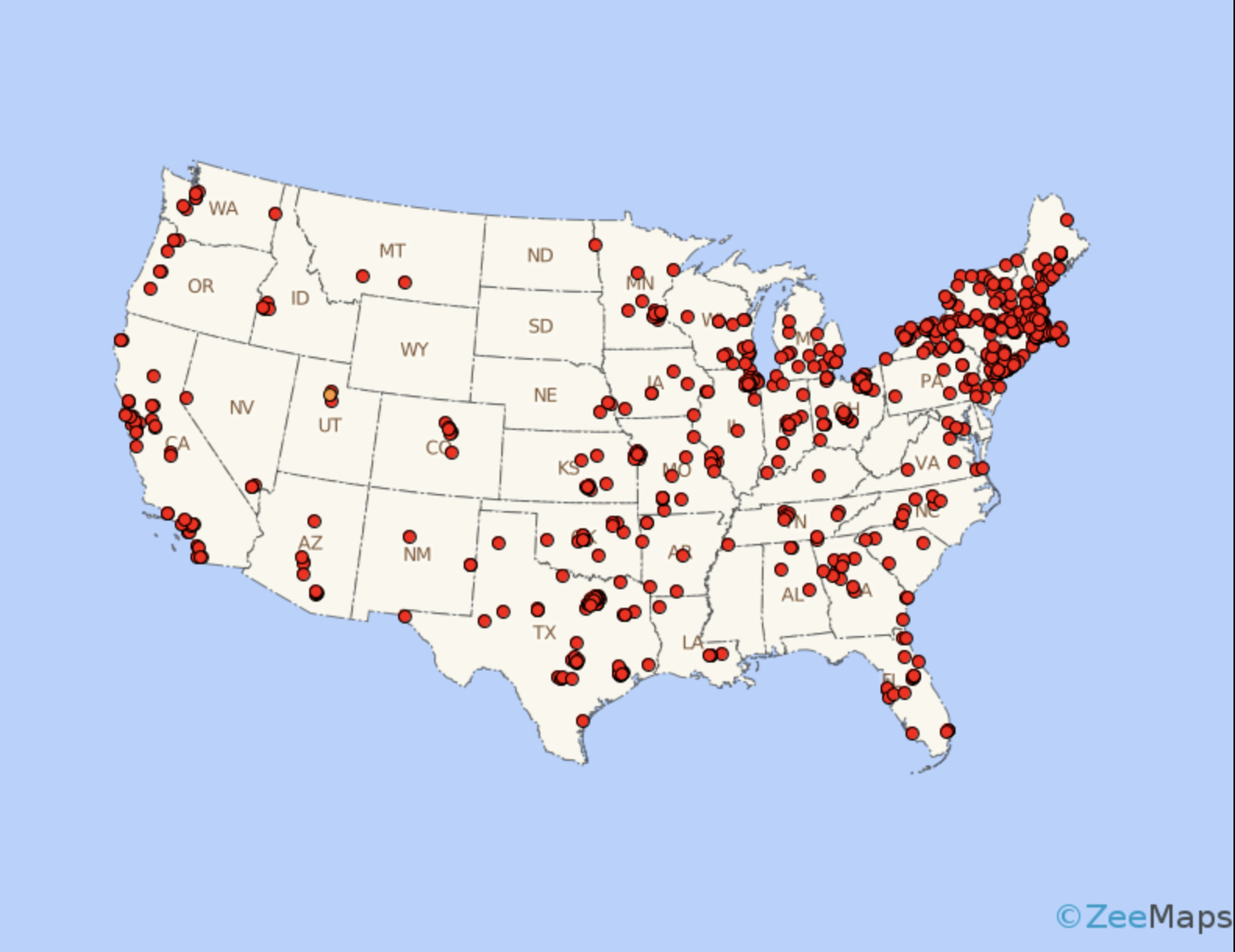
Figure 6

A dot density map of the USA where dots are
distributed within regions. A greater concentration of dots indicates a
higher presence of the mapped variable in that area.
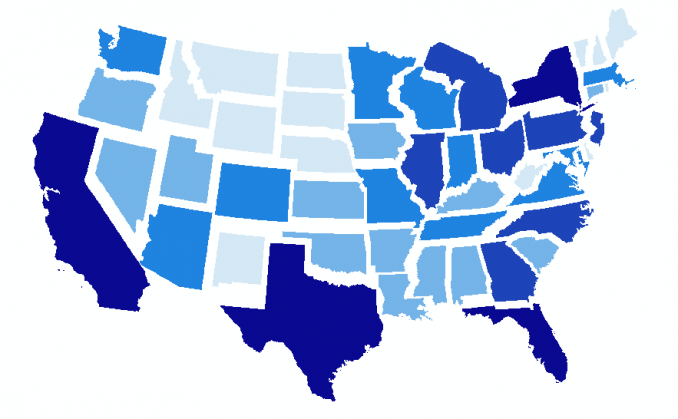
Figure 7

A non-contiguous cartogram of U.S. states where
each state is separated from its neighbors and resized according to a
data value, preserving recognizable state shapes.
Figure 8

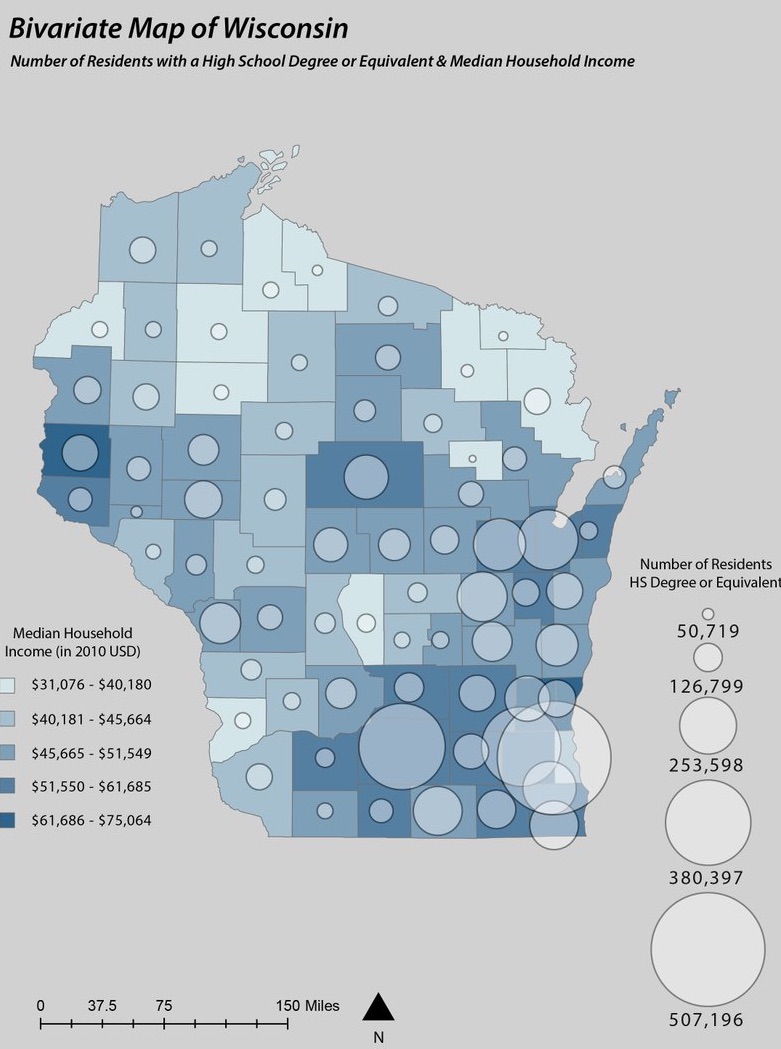
A multivariate map of the USA combining
choropleth shading for one variable and dot density for a second
variable, demonstrating how two datasets can be shown together.
Figure 9

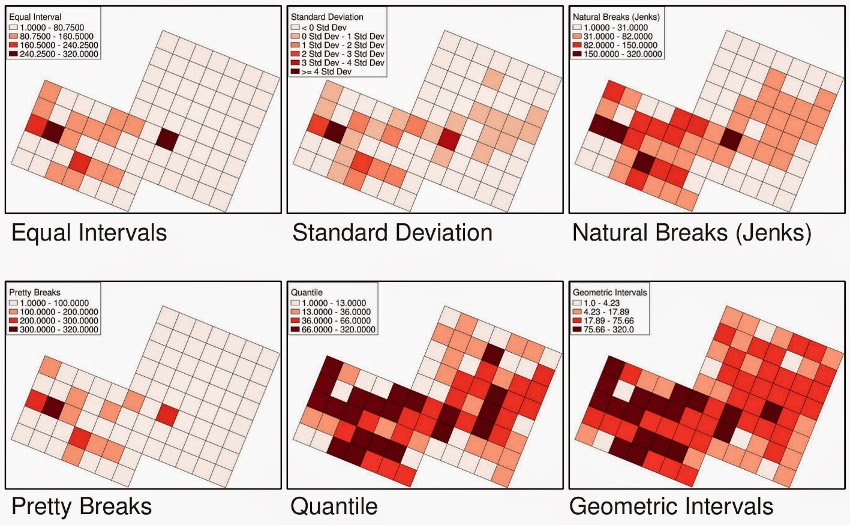
A grid showing the same choropleth dataset
classified using four different methods. Notice how the apparent spatial
pattern changes significantly depending on the classification
chosen.
Acquiring Vector Datasets from Data Repositories
Getting Started with QGIS: Your First Map
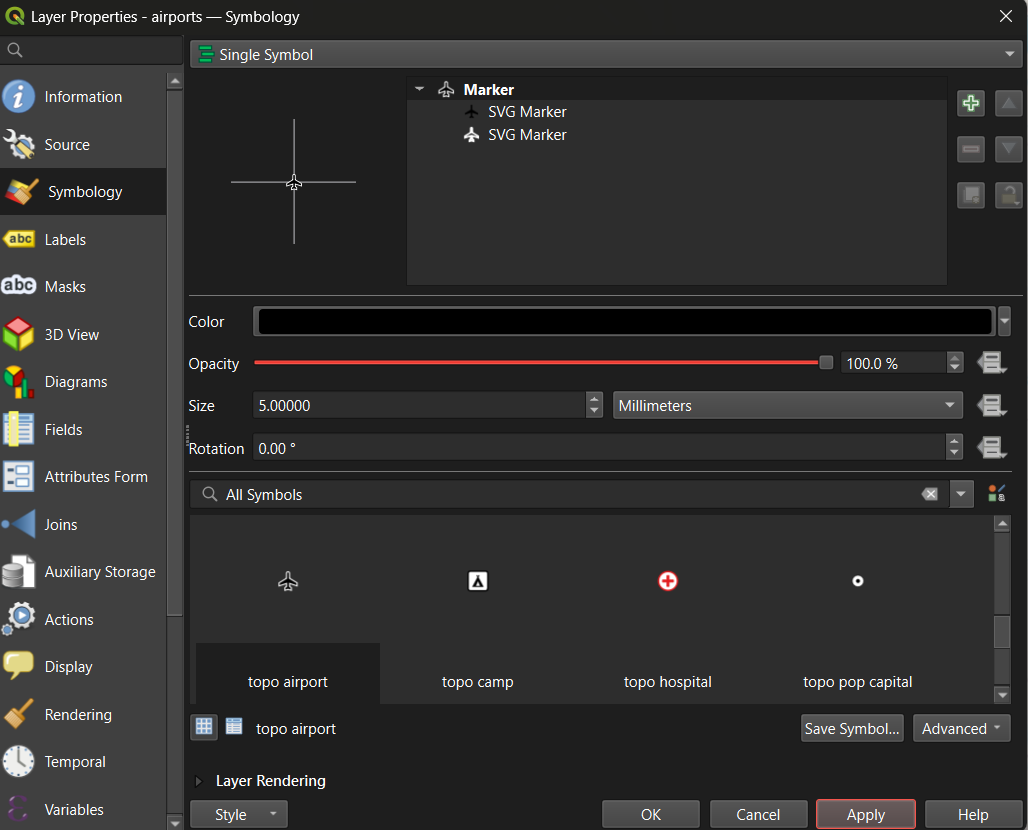
Figure 1

The QGIS Symbology panel showing marker style,
size, and color options for the airports layer.
Figure 2
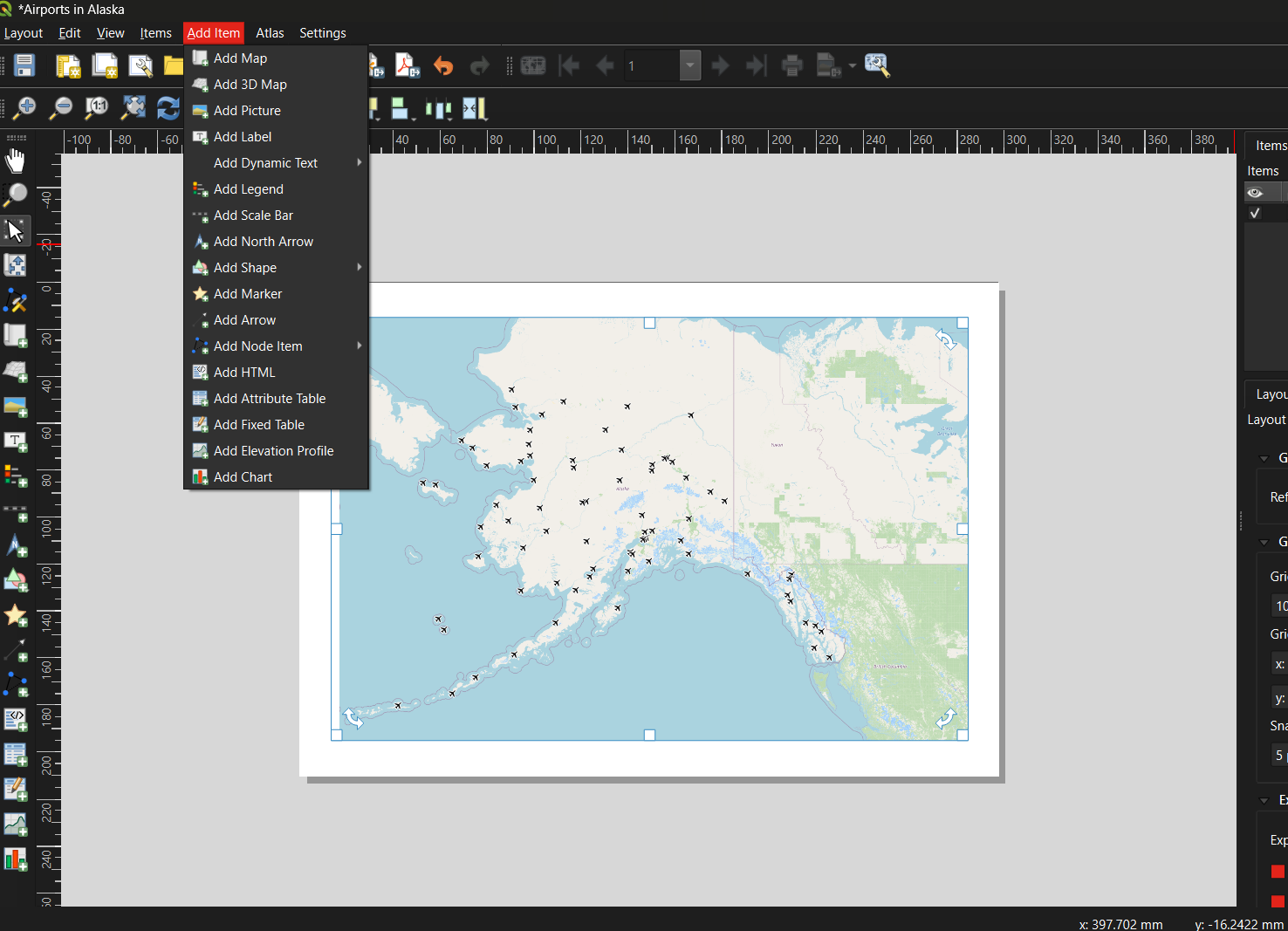
The QGIS Print Layout window showing a map and
option to add title, legend, scale bar, and north arrow.
Figure 3
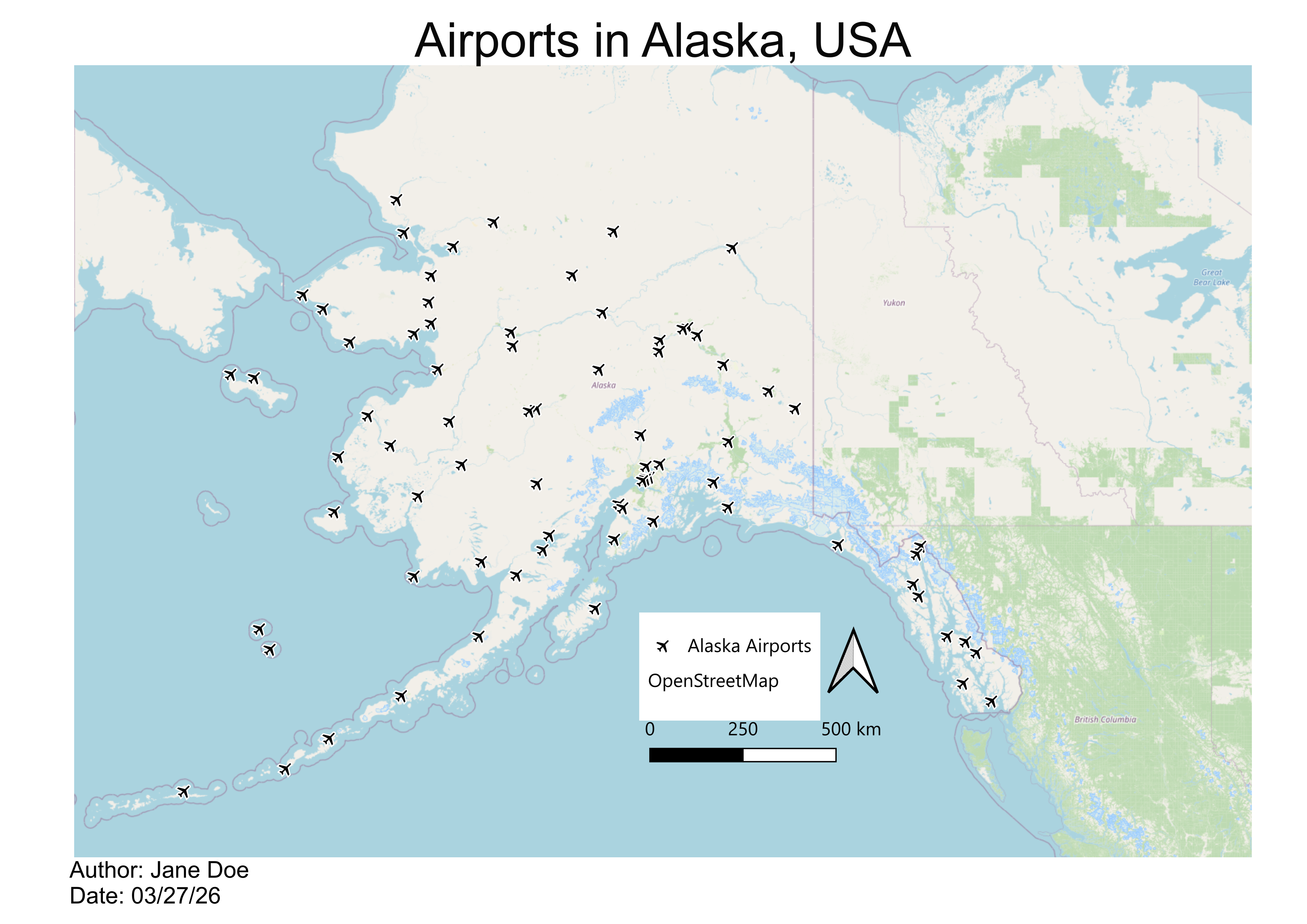
A finished map showing 76 airports in Alaska as
point symbols, with a title, legend, scale bar, north arrow, and data
credit.